> ## Documentation Index
> Fetch the complete documentation index at: https://docs.summation.com/llms.txt
> Use this file to discover all available pages before exploring further.
# Decks
> Generate, verify, edit, present, share, and download AI-powered slide decks.
A **deck** (`.sdeck`) is a presentation Addison builds from your data — board updates, quarterly business reviews, launch plans, metric deep dives. Each slide combines a written takeaway with charts, tables, and data views, and every cited figure is backed by **citations** that trace it to the underlying data. Decks download as real, editable PowerPoint. Decks are an [artifact](/features/artifacts) and live inside a [project](/features/projects).
 **Where each action lives in the UI** (for telling users where to click):
* **Decks home**: the **Decks** entry in the left nav sidebar (`/decks`) — a table of your decks across all projects, with **Search**, a **Create deck** button at the top-right, and a per-row **⋯** menu (Open in new tab, Rename, Duplicate, Download → PowerPoint / PDF, Delete).
* **Deck viewer** (an open deck): a top-right toolbar — the **verification badge** (shield → opens the Verification Hub), **Edit with AI**, **Presentation mode** (play icon), and a **⋯** menu with **Version History**, **Share**, **Rename**, **Duplicate**, **Download** (PowerPoint / PDF / source workbook), and **Delete**. On narrow windows, Edit with AI and Presentation mode fold into the **⋯** menu.
* **Slide rail**: the thumbnail column on the **right** of the canvas. Click a thumbnail to select a slide; the chevron at its top collapses/expands the rail. **Right-click a thumbnail → Delete slide**. Adding and reordering slides is **agent-only** — ask Addison in chat.
* **Speaker notes**: the dock below the slide. Type directly into it (it autosaves); drag its top edge to resize.
* **Ask or edit a spot**: click any region of a slide (a text block, chart, table, or image) to get a floating toolbar with **Ask** and **Edit with AI**.
* **Trace a figure**: the **N Citations** button sits just below the slide. Click it, then click a highlighted region to open the citation dialog with the source data.
* **Keyboard**: in the viewer, arrow keys / **Home** / **End** move between slides (ignored while typing). In presentation mode, arrows / space / **Enter** / **PageUp** / **PageDown** advance, **Home** / **End** jump, **Esc** exits.
* A deck is a `.sdeck` **folder bundle** (the PowerPoint, the rendered PDF, per-slide previews, and trace sidecars). Treat it as one artifact — link the `.sdeck` folder, not the files inside it. Decks also appear in a project's [file browser](/features/projects/files).
* Deck lifecycle statuses: `pending` → `generating` → `ready`, plus `errored` and `cancelled`. Duplicate, Delete slide, and Presentation mode require `ready`.
Deck surfaces are gated by feature flags — `ui_decks` (the Decks nav entry and `/decks` home; with it off, `/decks` redirects to `/home`), `tmp_repl_verification_v2_sdeck` plus the backend `backend_agent_verification_v2_p0` (the verification badge and Hub), `tmp_report_versions_panel_sdeck` (Version History; with it off, the ⋯ menu shows a legacy **Versions** submenu instead), `ui_enable_file_sharing` (**Share**), and `ui_show_public_share` (the open-web `/public/deck/...` link). Decks are still rolling out: if a workspace has one off, that part of the UI won't appear.
## Create a deck
You can start a deck a few ways — each hands Addison a prompt and generates the slides in the background.
**From the Decks page** — click **Create deck** (top-right of `/decks`), then describe the deck. Suggestion chips get you started: **Board update**, **Quarterly review**, **Launch plan**, **Metric deep dive**. You can also **run a [playbook](/features/artifacts/playbooks)** that produces a deck each run.
**Where each action lives in the UI** (for telling users where to click):
* **Decks home**: the **Decks** entry in the left nav sidebar (`/decks`) — a table of your decks across all projects, with **Search**, a **Create deck** button at the top-right, and a per-row **⋯** menu (Open in new tab, Rename, Duplicate, Download → PowerPoint / PDF, Delete).
* **Deck viewer** (an open deck): a top-right toolbar — the **verification badge** (shield → opens the Verification Hub), **Edit with AI**, **Presentation mode** (play icon), and a **⋯** menu with **Version History**, **Share**, **Rename**, **Duplicate**, **Download** (PowerPoint / PDF / source workbook), and **Delete**. On narrow windows, Edit with AI and Presentation mode fold into the **⋯** menu.
* **Slide rail**: the thumbnail column on the **right** of the canvas. Click a thumbnail to select a slide; the chevron at its top collapses/expands the rail. **Right-click a thumbnail → Delete slide**. Adding and reordering slides is **agent-only** — ask Addison in chat.
* **Speaker notes**: the dock below the slide. Type directly into it (it autosaves); drag its top edge to resize.
* **Ask or edit a spot**: click any region of a slide (a text block, chart, table, or image) to get a floating toolbar with **Ask** and **Edit with AI**.
* **Trace a figure**: the **N Citations** button sits just below the slide. Click it, then click a highlighted region to open the citation dialog with the source data.
* **Keyboard**: in the viewer, arrow keys / **Home** / **End** move between slides (ignored while typing). In presentation mode, arrows / space / **Enter** / **PageUp** / **PageDown** advance, **Home** / **End** jump, **Esc** exits.
* A deck is a `.sdeck` **folder bundle** (the PowerPoint, the rendered PDF, per-slide previews, and trace sidecars). Treat it as one artifact — link the `.sdeck` folder, not the files inside it. Decks also appear in a project's [file browser](/features/projects/files).
* Deck lifecycle statuses: `pending` → `generating` → `ready`, plus `errored` and `cancelled`. Duplicate, Delete slide, and Presentation mode require `ready`.
Deck surfaces are gated by feature flags — `ui_decks` (the Decks nav entry and `/decks` home; with it off, `/decks` redirects to `/home`), `tmp_repl_verification_v2_sdeck` plus the backend `backend_agent_verification_v2_p0` (the verification badge and Hub), `tmp_report_versions_panel_sdeck` (Version History; with it off, the ⋯ menu shows a legacy **Versions** submenu instead), `ui_enable_file_sharing` (**Share**), and `ui_show_public_share` (the open-web `/public/deck/...` link). Decks are still rolling out: if a workspace has one off, that part of the UI won't appear.
## Create a deck
You can start a deck a few ways — each hands Addison a prompt and generates the slides in the background.
**From the Decks page** — click **Create deck** (top-right of `/decks`), then describe the deck. Suggestion chips get you started: **Board update**, **Quarterly review**, **Launch plan**, **Metric deep dive**. You can also **run a [playbook](/features/artifacts/playbooks)** that produces a deck each run.

 **Two more ways:** from a project's **Create → Deck** (see [Create artifacts from project](/features/projects#create-artifacts-from-project)), or by **asking Addison in a chat** (see [Creating artifacts](/features/artifacts#creating-artifacts)).
**Branding.** Addison builds against a Summation template by default, or against your own branded template. You can also attach an existing PowerPoint or PDF and ask Addison to match its look — it keeps the source's layouts, colors, and logo while filling in new data.
Generate a deck from a prompt and stream progress.
## Find and open decks
The **Decks** page (`/decks`, shown above) lists your decks across all projects, with columns for Name, Project, Created by, and Last modified, plus search. Click one to open it; ⌘-click (Ctrl-click) opens it in a new tab. Decks also appear as `.sdeck` folders in their project's [file browser](/features/projects/files).
While a deck is still generating, its row shows progress and flips to **Deck ready** (or **Failed** / **Cancelled**) when the run finishes.
List a project's decks and show a single deck.
## Rename, duplicate, and delete
Each deck row on the Decks page (`/decks`) has a trailing **⋯** menu with **Rename**, **Duplicate**, and **Delete**; right-clicking the row does the same. Inside an open deck, the same actions live in the toolbar **⋯** menu — **Rename** edits the title in place, and **Duplicate** opens the copy. Duplicate is available once the deck is **ready**. Deleting can't be undone.
**Two more ways:** from a project's **Create → Deck** (see [Create artifacts from project](/features/projects#create-artifacts-from-project)), or by **asking Addison in a chat** (see [Creating artifacts](/features/artifacts#creating-artifacts)).
**Branding.** Addison builds against a Summation template by default, or against your own branded template. You can also attach an existing PowerPoint or PDF and ask Addison to match its look — it keeps the source's layouts, colors, and logo while filling in new data.
Generate a deck from a prompt and stream progress.
## Find and open decks
The **Decks** page (`/decks`, shown above) lists your decks across all projects, with columns for Name, Project, Created by, and Last modified, plus search. Click one to open it; ⌘-click (Ctrl-click) opens it in a new tab. Decks also appear as `.sdeck` folders in their project's [file browser](/features/projects/files).
While a deck is still generating, its row shows progress and flips to **Deck ready** (or **Failed** / **Cancelled**) when the run finishes.
List a project's decks and show a single deck.
## Rename, duplicate, and delete
Each deck row on the Decks page (`/decks`) has a trailing **⋯** menu with **Rename**, **Duplicate**, and **Delete**; right-clicking the row does the same. Inside an open deck, the same actions live in the toolbar **⋯** menu — **Rename** edits the title in place, and **Duplicate** opens the copy. Duplicate is available once the deck is **ready**. Deleting can't be undone.
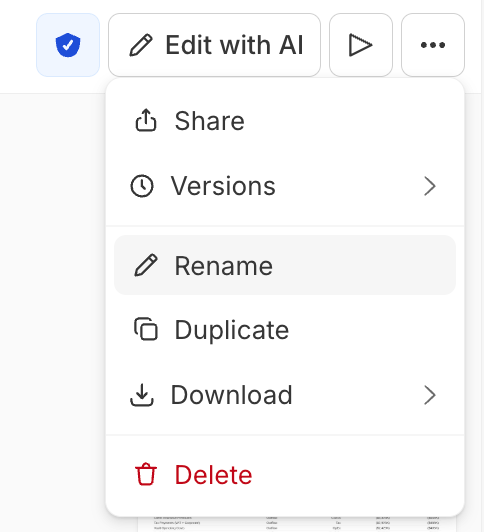 Rename, duplicate, and delete a deck.
## Verify a deck
Verification is an automated audit of the deck's accuracy. Click the **verification badge** (shield) in the toolbar to open the **Verification Hub**, then refresh verification to (re-)run it, streamed with progress. Each dimension reports how many checks passed:
| Dimension | What it checks |
| --------------------- | ---------------------------------------------------------------------------------------------- |
| **Traceability** | Numbers, tables, and charts trace to their sources |
| **Citation Accuracy** | Cited values match the data behind them |
| **Claim Accuracy** | Facts, comparisons, and trends are valid |
| **Query Accuracy** | Queries are consistent and filters are correct |
| **Deliverable Gates** | The deck-specific delivery bar — variances carry their sign, and every slide states a takeaway |
| **Quality Review** | An overall quality pass. Advisory — it never blocks |
Decks also carry visual checks — element containment, overlapping elements, chart and table legibility, font consistency, theme fidelity, slide order, cover and pagination, and empty slides. Those run only when the deck can be rendered for inspection and skip cleanly otherwise, so they won't always appear in the Hub.
The toolbar badge shows the current state; see [Verify a report](/features/artifacts/reports#verify-a-report) for what each state means. Verification is available once a deck is **ready**.
Rename, duplicate, and delete a deck.
## Verify a deck
Verification is an automated audit of the deck's accuracy. Click the **verification badge** (shield) in the toolbar to open the **Verification Hub**, then refresh verification to (re-)run it, streamed with progress. Each dimension reports how many checks passed:
| Dimension | What it checks |
| --------------------- | ---------------------------------------------------------------------------------------------- |
| **Traceability** | Numbers, tables, and charts trace to their sources |
| **Citation Accuracy** | Cited values match the data behind them |
| **Claim Accuracy** | Facts, comparisons, and trends are valid |
| **Query Accuracy** | Queries are consistent and filters are correct |
| **Deliverable Gates** | The deck-specific delivery bar — variances carry their sign, and every slide states a takeaway |
| **Quality Review** | An overall quality pass. Advisory — it never blocks |
Decks also carry visual checks — element containment, overlapping elements, chart and table legibility, font consistency, theme fidelity, slide order, cover and pagination, and empty slides. Those run only when the deck can be rendered for inspection and skip cleanly otherwise, so they won't always appear in the Hub.
The toolbar badge shows the current state; see [Verify a report](/features/artifacts/reports#verify-a-report) for what each state means. Verification is available once a deck is **ready**.
 **Citations in action.** Every figure Addison cites on a slide is recorded against its source. Click the **N Citations** button below the slide — regions that carry citations get a dotted highlight — then click one to open a **Value trace** showing the source data behind it.
 Verify a deck and stream progress.
## Ask and edit with Addison
Slides are **not** typed into directly. Instead, **click any region of a slide** (a text block, chart, table, or image) to get a floating toolbar with two actions:
* **Ask** — ask Addison a question about that region (opens an ask box; the answer streams in the chat pane).
* **Edit with AI** — describe a change to that region.
Toggle **Edit with AI** in the toolbar to edit anywhere in the deck. Every region you describe a change for is **queued** as a pending edit (marked on the slide), and a bar below the deck tracks the count. Review the queue, remove any edit you don't want, then **apply** them — Addison regenerates the affected slides and streams progress in the chat pane. You can stop a run in progress, or discard the whole queue.
Verify a deck and stream progress.
## Ask and edit with Addison
Slides are **not** typed into directly. Instead, **click any region of a slide** (a text block, chart, table, or image) to get a floating toolbar with two actions:
* **Ask** — ask Addison a question about that region (opens an ask box; the answer streams in the chat pane).
* **Edit with AI** — describe a change to that region.
Toggle **Edit with AI** in the toolbar to edit anywhere in the deck. Every region you describe a change for is **queued** as a pending edit (marked on the slide), and a bar below the deck tracks the count. Review the queue, remove any edit you don't want, then **apply** them — Addison regenerates the affected slides and streams progress in the chat pane. You can stop a run in progress, or discard the whole queue.


 Edit deck content and apply queued feedback programmatically.
## Slides and speaker notes
The **slide rail** on the right lists every slide as a thumbnail — click one to open it, or use the arrow keys (**Home** / **End** jump to the first or last slide). Collapse the rail with the chevron at its top to give the slide more room.
**Delete a slide** by right-clicking its thumbnail → **Delete slide**. This can't be undone, and the last remaining slide can't be deleted. **Adding and reordering slides is done by asking Addison** in chat.
**Speaker notes** live in the dock below the slide, one set per slide. Type directly into it (notes autosave), and drag the dock's top edge to make it taller.
Edit deck content and apply queued feedback programmatically.
## Slides and speaker notes
The **slide rail** on the right lists every slide as a thumbnail — click one to open it, or use the arrow keys (**Home** / **End** jump to the first or last slide). Collapse the rail with the chevron at its top to give the slide more room.
**Delete a slide** by right-clicking its thumbnail → **Delete slide**. This can't be undone, and the last remaining slide can't be deleted. **Adding and reordering slides is done by asking Addison** in chat.
**Speaker notes** live in the dock below the slide, one set per slide. Type directly into it (notes autosave), and drag the dock's top edge to make it taller.

 Reorder, edit, and delete slides, and set speaker notes.
## Present
Click **Presentation mode** (the play icon) in the toolbar to present fullscreen — one slide at a time on a black backdrop, with no toolbars or overlays. A **Slide N of M** indicator sits at the bottom.
| Key | Action |
| ---------------------------- | ------------------ |
| **→ ↓ Space Enter PageDown** | Next slide |
| **← ↑ PageUp** | Previous slide |
| **Home** / **End** | First / last slide |
| **Esc** | Exit presentation |
Presentation mode is available once the deck is **ready**.
Reorder, edit, and delete slides, and set speaker notes.
## Present
Click **Presentation mode** (the play icon) in the toolbar to present fullscreen — one slide at a time on a black backdrop, with no toolbars or overlays. A **Slide N of M** indicator sits at the bottom.
| Key | Action |
| ---------------------------- | ------------------ |
| **→ ↓ Space Enter PageDown** | Next slide |
| **← ↑ PageUp** | Previous slide |
| **Home** / **End** | First / last slide |
| **Esc** | Exit presentation |
Presentation mode is available once the deck is **ready**.
 Presentation is an in-app experience — export to PowerPoint or PDF to present elsewhere.
## Version history
Every regeneration is saved as a version. Open **Version History** from the toolbar **⋯** menu to see the timeline and open an earlier version. While you're viewing a pinned earlier version, a banner marks it as history and the actions that would change the live deck (Edit with AI, Rename, Duplicate, Share, Delete) are disabled until you return to the latest.
Some workspaces see a **Versions** submenu in the **⋯** menu instead — the same history as a simple list of versions with their timestamps, without the side panel.
Presentation is an in-app experience — export to PowerPoint or PDF to present elsewhere.
## Version history
Every regeneration is saved as a version. Open **Version History** from the toolbar **⋯** menu to see the timeline and open an earlier version. While you're viewing a pinned earlier version, a banner marks it as history and the actions that would change the live deck (Edit with AI, Rename, Duplicate, Share, Delete) are disabled until you return to the latest.
Some workspaces see a **Versions** submenu in the **⋯** menu instead — the same history as a simple list of versions with their timestamps, without the side panel.
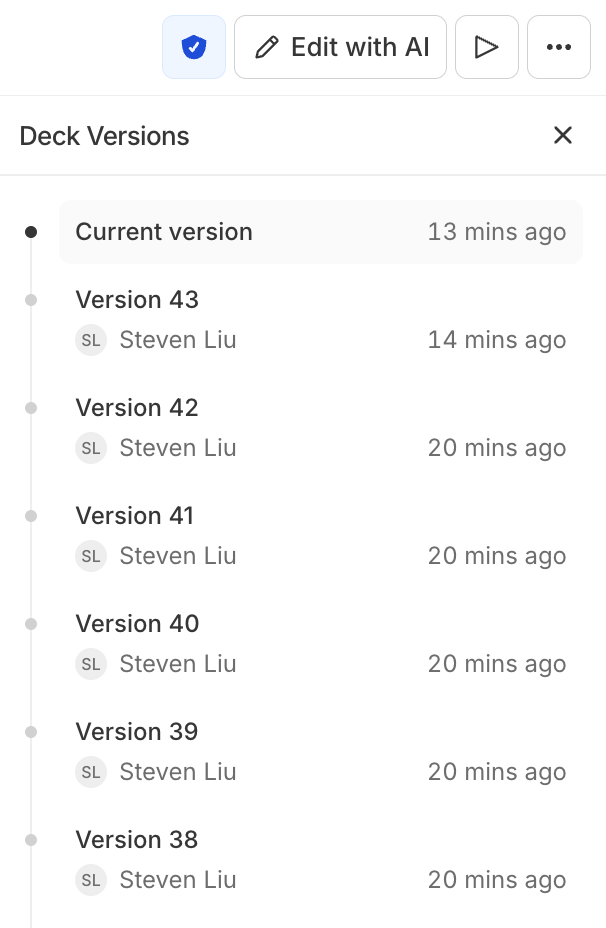 List a deck's versions and pin one.
## Share and publish
Open a deck's **⋯** menu → **Share**, then **Publish** to create a **view-only** link for your organization — viewers can sign in or create an account to open it. The read-only viewer shows the slides, the slide rail, and citations, with editing suppressed. Unpublish at any time.
List a deck's versions and pin one.
## Share and publish
Open a deck's **⋯** menu → **Share**, then **Publish** to create a **view-only** link for your organization — viewers can sign in or create an account to open it. The read-only viewer shows the slides, the slide rail, and citations, with editing suppressed. Unpublish at any time.
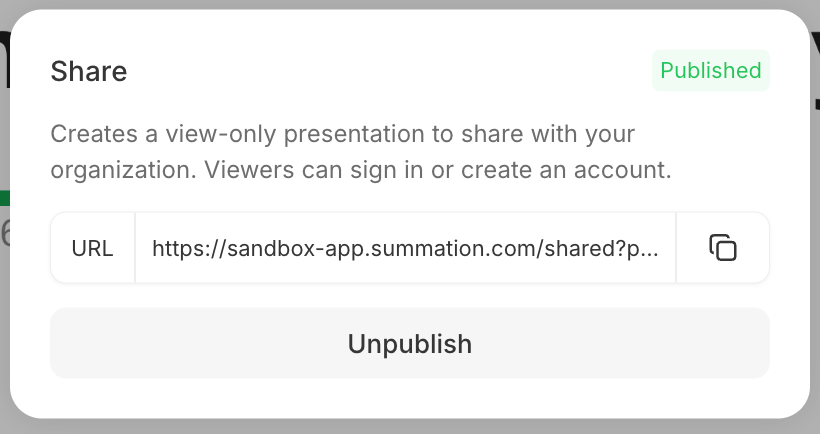 Publish a deck and manage its share link.
## Download
Open a deck's **⋯** menu → **Download** and choose a format. Downloads are also available from each row's **⋯** menu on the Decks page (`/decks`).
| Format | What you get |
| --------------------------- | -------------------------------------------------------------------------------------------------- |
| **PowerPoint (.pptx)** | The editable deck — charts and tables are native PowerPoint objects, so Edit Data and theming work |
| **PDF** | The rendered deck, fixed layout |
| **Source workbook (.xlsx)** | The Excel workbook behind the deck's numbers, when the deck has one |
Publish a deck and manage its share link.
## Download
Open a deck's **⋯** menu → **Download** and choose a format. Downloads are also available from each row's **⋯** menu on the Decks page (`/decks`).
| Format | What you get |
| --------------------------- | -------------------------------------------------------------------------------------------------- |
| **PowerPoint (.pptx)** | The editable deck — charts and tables are native PowerPoint objects, so Edit Data and theming work |
| **PDF** | The rendered deck, fixed layout |
| **Source workbook (.xlsx)** | The Excel workbook behind the deck's numbers, when the deck has one |
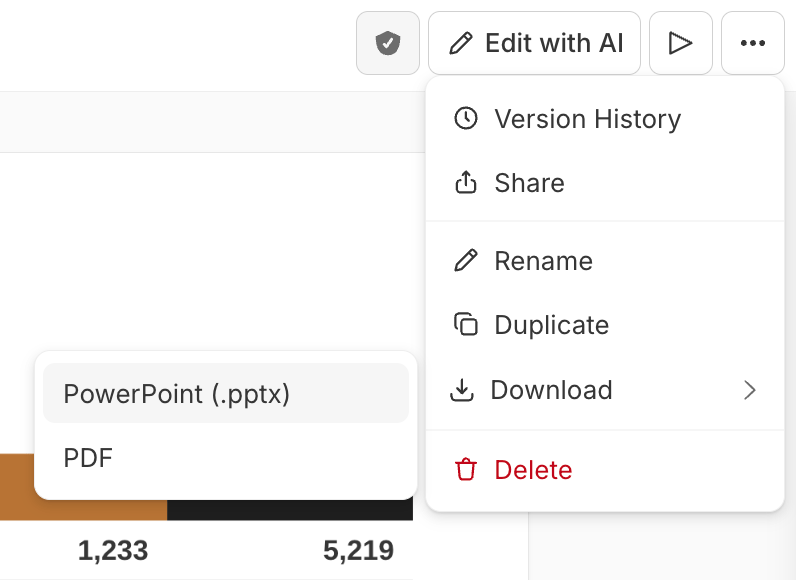 Export a deck as PowerPoint, PDF, or its source workbook.