> ## Documentation Index
> Fetch the complete documentation index at: https://docs.summation.com/llms.txt
> Use this file to discover all available pages before exploring further.
# HTML
> Standalone, styled HTML reports and pages Addison builds from your data, rendered in the app and downloadable as a single .html file.
An **HTML** artifact is a standalone, styled web page (`.html`) that [Addison](/features/addison) builds from your data — a data narrative, a one-page report, or a visual summary with charts and KPI cards. It's a *second-class* artifact: a file in your [project](/features/projects) rather than a native Summation document, but it renders in a full in-app viewer and downloads as a single self-contained `.html` file.
**Where each action lives in the UI** (for telling users where to click):
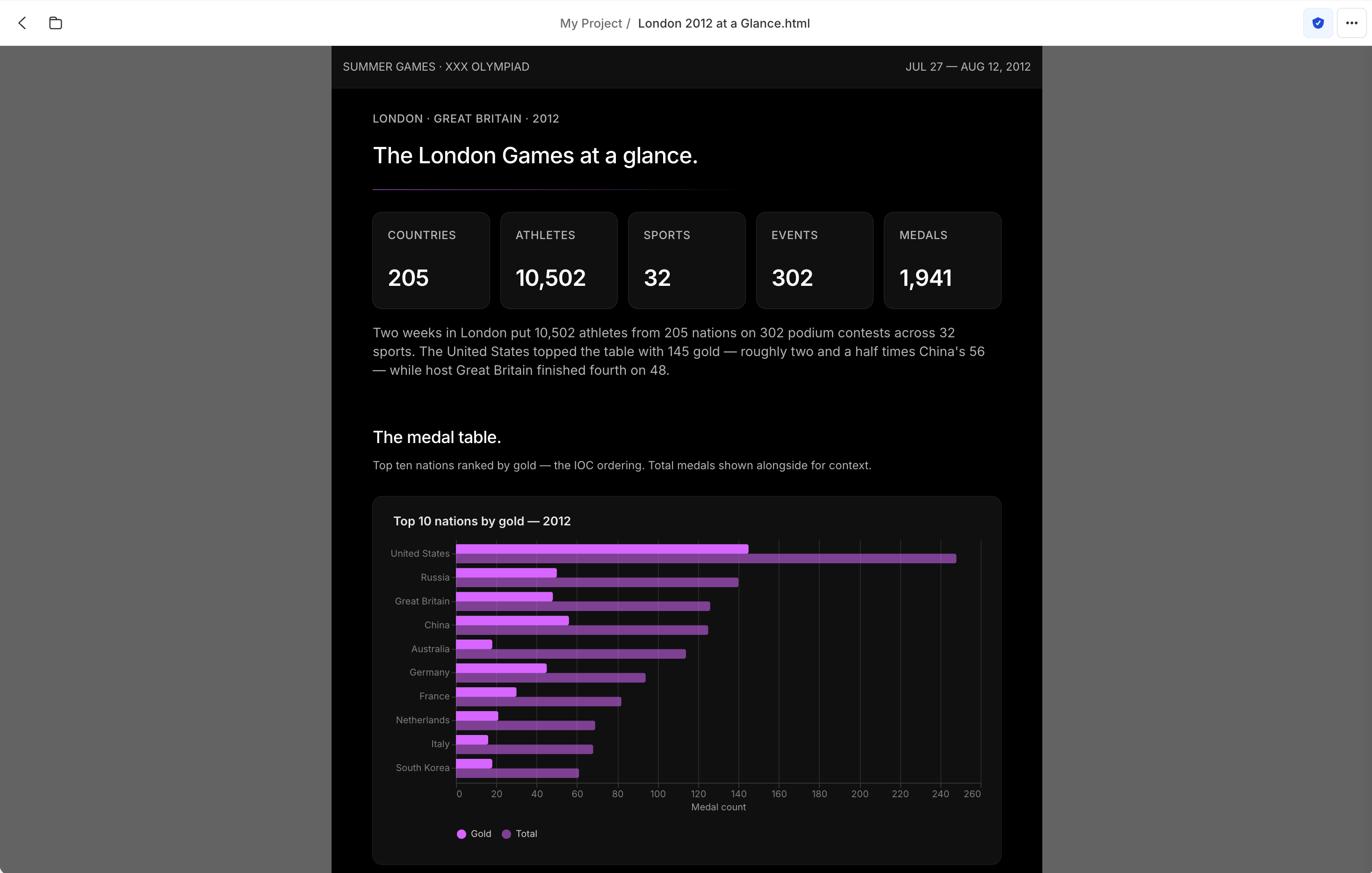
* **Opening an HTML artifact**: HTML files live in a [project](/features/projects). Open one from the project file list to render the page in the in-app **HTML viewer**.
* **Top bar**: a breadcrumb (project name / page title) at the center and a **⋯** menu at the top-right with **Rename**, **Share**, **Styles**, **Verification**, **Download as HTML**, **Versions**, and **Delete**.
* **Body**: the full styled page renders inline (hero, KPI stat cards, charts, and sections), exactly as it exports.
* **Verification and Ask / Edit with AI**: HTML pages are first-class **verification** subjects (`html_file`) — the viewer mounts a **verification badge** (shield) in the top bar that opens the **Verification Hub**, the same as [reports](/features/artifacts/reports#verify-a-report) and [decks](/features/artifacts/decks). In the preview you can also select a region to **Ask** or **Edit with AI** (gated by the `ui_html_ask_edit` feature flag).
* **Creation**: no public endpoint generates an HTML artifact. Addison builds it (an `html-template-*` or `workbook-report` skill), or a [playbook](/features/artifacts/playbooks) produces it. Because the result is a file, it is listed, downloaded, and deleted through the [Files API](/features/projects/files).
 ## What Addison builds
HTML artifacts are finished, presentation-ready pages:
* **Self-contained** — one `.html` file with its styling and charts inline, nothing external to load
* **Template-driven** — editorial, light, and dark themes via Addison's `html-template-*` skills
* **Optionally workbook-traced** — with the `workbook-report` skill, every number traces cell-by-cell to an auditable Excel workbook
## Create
Ask [Addison](/features/addison) in a chat for the page or report you want, or produce one by running a [playbook](/features/artifacts/playbooks). Addison writes the `.html` into your project and opens it in the viewer.
Generate an HTML artifact with Addison.
## Open and view
Open the file to render the full styled page in the in-app viewer. It shows exactly what the downloaded `.html` contains.
Download the page's HTML.
Create or overwrite the page's HTML.
## Versions
Each save adds a version. Open **Versions** in the **⋯** menu to see and switch between earlier versions of the page.
List and restore versions.
## Manage as a file
An HTML artifact is an ordinary file in your project, so every [file operation](/features/projects/files) applies — move it between folders, copy it to another project, duplicate it, or delete it.
From the **⋯** menu in the top bar (or the file's row in the project file list): **Rename**, **Share**, **Styles**, **Verification**, **Download as HTML**, **Versions**, or **Delete**.
Download the page.
Delete the page. Requires `confirm=true`.
Rename, move, copy, and share.
## Promote to a first-class artifact
HTML pages already support verification on their own, but a common flow is still to start with an HTML page and then have Addison rebuild it as a first-class artifact — an interactive [dashboard](/features/artifacts/dashboards), a presentation [deck](/features/artifacts/decks), or a verified [report](/features/artifacts/reports). The native document gains full data citations and a dedicated home in the app.
Turn the page into interactive charts and KPIs.
Turn the content into a presentation.
Turn the narrative into a verified written report.
## What Addison builds
HTML artifacts are finished, presentation-ready pages:
* **Self-contained** — one `.html` file with its styling and charts inline, nothing external to load
* **Template-driven** — editorial, light, and dark themes via Addison's `html-template-*` skills
* **Optionally workbook-traced** — with the `workbook-report` skill, every number traces cell-by-cell to an auditable Excel workbook
## Create
Ask [Addison](/features/addison) in a chat for the page or report you want, or produce one by running a [playbook](/features/artifacts/playbooks). Addison writes the `.html` into your project and opens it in the viewer.
Generate an HTML artifact with Addison.
## Open and view
Open the file to render the full styled page in the in-app viewer. It shows exactly what the downloaded `.html` contains.
Download the page's HTML.
Create or overwrite the page's HTML.
## Versions
Each save adds a version. Open **Versions** in the **⋯** menu to see and switch between earlier versions of the page.
List and restore versions.
## Manage as a file
An HTML artifact is an ordinary file in your project, so every [file operation](/features/projects/files) applies — move it between folders, copy it to another project, duplicate it, or delete it.
From the **⋯** menu in the top bar (or the file's row in the project file list): **Rename**, **Share**, **Styles**, **Verification**, **Download as HTML**, **Versions**, or **Delete**.
Download the page.
Delete the page. Requires `confirm=true`.
Rename, move, copy, and share.
## Promote to a first-class artifact
HTML pages already support verification on their own, but a common flow is still to start with an HTML page and then have Addison rebuild it as a first-class artifact — an interactive [dashboard](/features/artifacts/dashboards), a presentation [deck](/features/artifacts/decks), or a verified [report](/features/artifacts/reports). The native document gains full data citations and a dedicated home in the app.
Turn the page into interactive charts and KPIs.
Turn the content into a presentation.
Turn the narrative into a verified written report.