> ## Documentation Index
> Fetch the complete documentation index at: https://docs.summation.com/llms.txt
> Use this file to discover all available pages before exploring further.
# Playbooks
> Reusable analyses that run on demand or on a schedule, producing reports, decks, HTML pages, Excel workbooks, and PDFs.
A **playbook** (`.spb`) is a reusable blueprint Addison follows to produce one or more [artifacts](/features/artifacts). It bundles the data the analysis uses, the output templates it fills in, and the instructions to follow — so a monthly review or weekly recap comes out in the same shape every time, with fresh data. Run one on demand or put it on a schedule. Playbooks live inside a [project](/features/projects), and so does everything they produce.
 **Where each action lives in the UI** (for telling users where to click):
* **Playbooks home**: the **Playbooks** entry in the left nav sidebar (`/playbooks`) — two tabs, **Playbooks** (a card grid across all projects) and **Runs** (`/playbooks?tab=runs`, a table of past runs), with **Search** and a **Filters** popover that filters by project. There is **no create button** — playbooks are authored by asking Addison inside a project.
* **Playbook page** (`/playbooks/playbook/{projectId}/{playbookId}`, also reachable at `/projects/{projectId}/playbooks/{playbookId}`): the body is the **Execution Plan** — Runtime Parameters, Data Context, Templates, Expected Outputs, Instructions, and Additional Context. The top-right toolbar has **Schedule**, **Run Playbook**, a **History** panel toggle, and a **⋯** menu (Share, Rename, Copy, Download as SPB). Below "full" width, Schedule and Run Playbook fold into the **⋯** menu.
* **Run dialog**: opens from **Run Playbook** (or a card's run action). Shows the playbook's title and description, its most **Recent report**, a typical **Duration**, any **runtime parameters** to fill in, a model/effort selector, and **Run playbook** / **Schedule** buttons.
* **Schedule dialog**: **Schedule Playbook** — pick the playbook, then set **Name**, **Frequency** (with day-of-week or day-of-month pickers), **Email notification** recipients, and optionally **Slack notification** channels or users, plus which produced artifacts to attach. Saved schedules live at `/schedules`.
* **Run history**: the **Runs** tab on `/playbooks`, or the **History** panel inside a playbook (clock icon → "Playbook Runs" timeline).
* Playbooks are `.spb` **folder bundles** (`manifest.yaml`, `instructions.md`, `context.md`, and `templates/`). They appear in a project's [file browser](/features/projects/files) like any other file. Internally — in code, file kinds, and some API shapes — playbooks are still called **runbooks**.
* Playbook run statuses: `pending` → `running` → `succeeded`, plus `failed` and `cancelled`.
Playbook surfaces are gated by feature flags — `ui_project_runbooks` (the Playbooks nav entry, `/playbooks`, and the playbook page; with it off, those routes render nothing), `ui_schedules_home_v1` (the `/schedules` home and the per-playbook schedule indicator), and `ui_enable_file_sharing` (**Share**). If a workspace has one off, that part of the UI won't appear.
## Create a playbook
Playbooks are authored by **asking Addison inside a [project](/features/projects)** — there's no create button on the Playbooks page. Describe the recurring analysis you want and Addison builds the `.spb` bundle. Three common starting points:
* **From an artifact you already like** — point Addison at a [report](/features/artifacts/reports), [deck](/features/artifacts/decks), or HTML page and ask it to turn that into a repeatable playbook. It generalizes the structure and carries over the feedback and domain knowledge from that artifact's chat history.
* **From a workflow** — convert an existing workflow file into a playbook.
* **From scratch** — describe the steps, data, and output you want in conversation.
A playbook can produce any combination of **reports** (`.sdoc`), **decks** (`.sdeck`), **HTML pages** (`.html`), **Excel workbooks** (`.xlsx`), and **PDFs** — declare several outputs and one run produces them all. Dashboards (`.sdash`) are **not** a supported playbook output — a manifest that declares `kind: dashboard` is dropped, and a scheduled run raises an unsupported-output-kind error.
Create and edit a playbook.
## Find and open playbooks
The **Playbooks** page (`/playbooks`, shown above) lists every playbook you can reach as a card grid — title, description, and the project it belongs to — rather than a file table. Use **Search** to match on title, description, or project, and the **Filters** popover to narrow to specific projects. Click a card to open the playbook.
Playbooks are `.spb` folders, so they also appear in their project's [file browser](/features/projects/files).
List a project's playbooks.
Show a single playbook.
## What's in a playbook
Opening a playbook shows its **Execution Plan** — everything a run will use, in one page:
| Section | What it holds |
| ---------------------- | ---------------------------------------------------------------------------------------- |
| **Runtime Parameters** | The values you fill in at run time — date ranges, a market, a team |
| **Data Context** | The datasets and definitions the playbook reads, each linking out to the catalog |
| **Templates** | The output skeletons a run fills in — a `.sdoc` report, a `.sdeck` deck, an `.html` page |
| **Expected Outputs** | The artifacts this playbook produces each run |
| **Instructions** | The steps applied to every agent in the playbook. **Edit** opens them for editing |
| **Additional Context** | Lessons learned, pitfalls, and corrections from past runs |
Because the templates carry the structure, a run fills in fresh data rather than reinventing the layout — that's what makes output consistent across runs.
**Where each action lives in the UI** (for telling users where to click):
* **Playbooks home**: the **Playbooks** entry in the left nav sidebar (`/playbooks`) — two tabs, **Playbooks** (a card grid across all projects) and **Runs** (`/playbooks?tab=runs`, a table of past runs), with **Search** and a **Filters** popover that filters by project. There is **no create button** — playbooks are authored by asking Addison inside a project.
* **Playbook page** (`/playbooks/playbook/{projectId}/{playbookId}`, also reachable at `/projects/{projectId}/playbooks/{playbookId}`): the body is the **Execution Plan** — Runtime Parameters, Data Context, Templates, Expected Outputs, Instructions, and Additional Context. The top-right toolbar has **Schedule**, **Run Playbook**, a **History** panel toggle, and a **⋯** menu (Share, Rename, Copy, Download as SPB). Below "full" width, Schedule and Run Playbook fold into the **⋯** menu.
* **Run dialog**: opens from **Run Playbook** (or a card's run action). Shows the playbook's title and description, its most **Recent report**, a typical **Duration**, any **runtime parameters** to fill in, a model/effort selector, and **Run playbook** / **Schedule** buttons.
* **Schedule dialog**: **Schedule Playbook** — pick the playbook, then set **Name**, **Frequency** (with day-of-week or day-of-month pickers), **Email notification** recipients, and optionally **Slack notification** channels or users, plus which produced artifacts to attach. Saved schedules live at `/schedules`.
* **Run history**: the **Runs** tab on `/playbooks`, or the **History** panel inside a playbook (clock icon → "Playbook Runs" timeline).
* Playbooks are `.spb` **folder bundles** (`manifest.yaml`, `instructions.md`, `context.md`, and `templates/`). They appear in a project's [file browser](/features/projects/files) like any other file. Internally — in code, file kinds, and some API shapes — playbooks are still called **runbooks**.
* Playbook run statuses: `pending` → `running` → `succeeded`, plus `failed` and `cancelled`.
Playbook surfaces are gated by feature flags — `ui_project_runbooks` (the Playbooks nav entry, `/playbooks`, and the playbook page; with it off, those routes render nothing), `ui_schedules_home_v1` (the `/schedules` home and the per-playbook schedule indicator), and `ui_enable_file_sharing` (**Share**). If a workspace has one off, that part of the UI won't appear.
## Create a playbook
Playbooks are authored by **asking Addison inside a [project](/features/projects)** — there's no create button on the Playbooks page. Describe the recurring analysis you want and Addison builds the `.spb` bundle. Three common starting points:
* **From an artifact you already like** — point Addison at a [report](/features/artifacts/reports), [deck](/features/artifacts/decks), or HTML page and ask it to turn that into a repeatable playbook. It generalizes the structure and carries over the feedback and domain knowledge from that artifact's chat history.
* **From a workflow** — convert an existing workflow file into a playbook.
* **From scratch** — describe the steps, data, and output you want in conversation.
A playbook can produce any combination of **reports** (`.sdoc`), **decks** (`.sdeck`), **HTML pages** (`.html`), **Excel workbooks** (`.xlsx`), and **PDFs** — declare several outputs and one run produces them all. Dashboards (`.sdash`) are **not** a supported playbook output — a manifest that declares `kind: dashboard` is dropped, and a scheduled run raises an unsupported-output-kind error.
Create and edit a playbook.
## Find and open playbooks
The **Playbooks** page (`/playbooks`, shown above) lists every playbook you can reach as a card grid — title, description, and the project it belongs to — rather than a file table. Use **Search** to match on title, description, or project, and the **Filters** popover to narrow to specific projects. Click a card to open the playbook.
Playbooks are `.spb` folders, so they also appear in their project's [file browser](/features/projects/files).
List a project's playbooks.
Show a single playbook.
## What's in a playbook
Opening a playbook shows its **Execution Plan** — everything a run will use, in one page:
| Section | What it holds |
| ---------------------- | ---------------------------------------------------------------------------------------- |
| **Runtime Parameters** | The values you fill in at run time — date ranges, a market, a team |
| **Data Context** | The datasets and definitions the playbook reads, each linking out to the catalog |
| **Templates** | The output skeletons a run fills in — a `.sdoc` report, a `.sdeck` deck, an `.html` page |
| **Expected Outputs** | The artifacts this playbook produces each run |
| **Instructions** | The steps applied to every agent in the playbook. **Edit** opens them for editing |
| **Additional Context** | Lessons learned, pitfalls, and corrections from past runs |
Because the templates carry the structure, a run fills in fresh data rather than reinventing the layout — that's what makes output consistent across runs.
 Show a playbook, including its manifest — title, description, parameters, and data context.
## Run a playbook
Click **Run Playbook** in the toolbar (or the run action on a playbook card). The dialog shows what you're about to run — the description, the most **Recent report** it produced, and a typical **Duration** — plus any **runtime parameters** to fill in and a model/effort selector. **Run playbook** starts it and creates the outputs in the project; **Schedule** puts it on a recurring cadence instead.
A run streams in a chat with Addison, so you can watch it work and step in. When it finishes, the outputs are ordinary artifacts in the project — verify, edit, share, and export them like anything else.
Show a playbook, including its manifest — title, description, parameters, and data context.
## Run a playbook
Click **Run Playbook** in the toolbar (or the run action on a playbook card). The dialog shows what you're about to run — the description, the most **Recent report** it produced, and a typical **Duration** — plus any **runtime parameters** to fill in and a model/effort selector. **Run playbook** starts it and creates the outputs in the project; **Schedule** puts it on a recurring cadence instead.
A run streams in a chat with Addison, so you can watch it work and step in. When it finishes, the outputs are ordinary artifacts in the project — verify, edit, share, and export them like anything else.
 Run a schedule's playbook immediately, without waiting for its next occurrence.
Run a playbook ad hoc, without a schedule.
## Schedule a playbook
Click **Schedule** in the toolbar (or **Schedule** in the run dialog) to open **Schedule Playbook**. Give the schedule a **Name**, pick a **Frequency** — with day-of-week or day-of-month pickers for weekly and monthly cadences — and choose how the results get delivered:
* **Email notification** — add recipients, and choose which of the run's artifacts to attach (a report as PDF, for example) or link.
* **Slack notification** — post to channels or people in a connected Slack workspace.
Saved schedules live at `/schedules`, where you can pause, resume, edit, or delete them — see [Schedules](/features/schedules).
Run a schedule's playbook immediately, without waiting for its next occurrence.
Run a playbook ad hoc, without a schedule.
## Schedule a playbook
Click **Schedule** in the toolbar (or **Schedule** in the run dialog) to open **Schedule Playbook**. Give the schedule a **Name**, pick a **Frequency** — with day-of-week or day-of-month pickers for weekly and monthly cadences — and choose how the results get delivered:
* **Email notification** — add recipients, and choose which of the run's artifacts to attach (a report as PDF, for example) or link.
* **Slack notification** — post to channels or people in a connected Slack workspace.
Saved schedules live at `/schedules`, where you can pause, resume, edit, or delete them — see [Schedules](/features/schedules).
 List schedules.
Create a schedule.
Show a schedule.
Update a schedule.
Pause a schedule.
Resume a schedule.
Delete a schedule.
## Run history
The **Runs** tab on `/playbooks` lists past runs across projects — the playbook that ran, its project, who ran it, when, and how long it took — with **View Report** on each row to open what it produced. Search and the project filter apply here too.
Inside a playbook, the **History** panel (clock icon in the toolbar) shows that playbook's own runs as a timeline.
A run is **pending**, then **running**, then **succeeded** — or **failed** or **cancelled**. In-progress runs keep updating in place.
List schedules.
Create a schedule.
Show a schedule.
Update a schedule.
Pause a schedule.
Resume a schedule.
Delete a schedule.
## Run history
The **Runs** tab on `/playbooks` lists past runs across projects — the playbook that ran, its project, who ran it, when, and how long it took — with **View Report** on each row to open what it produced. Search and the project filter apply here too.
Inside a playbook, the **History** panel (clock icon in the toolbar) shows that playbook's own runs as a timeline.
A run is **pending**, then **running**, then **succeeded** — or **failed** or **cancelled**. In-progress runs keep updating in place.

 List a schedule's runs.
List a playbook's runs, including ad-hoc ones.
## Rename, copy, and download
The toolbar **⋯** menu holds the rest of a playbook's actions — **Rename** edits the title in place, **Copy** duplicates the playbook, and **Download as SPB** streams the raw `.spb` source. A playbook is a file in its project, so you can also rename, move, or delete it from the [file browser](/features/projects/files#manage-a-file).
List a schedule's runs.
List a playbook's runs, including ad-hoc ones.
## Rename, copy, and download
The toolbar **⋯** menu holds the rest of a playbook's actions — **Rename** edits the title in place, **Copy** duplicates the playbook, and **Download as SPB** streams the raw `.spb` source. A playbook is a file in its project, so you can also rename, move, or delete it from the [file browser](/features/projects/files#manage-a-file).
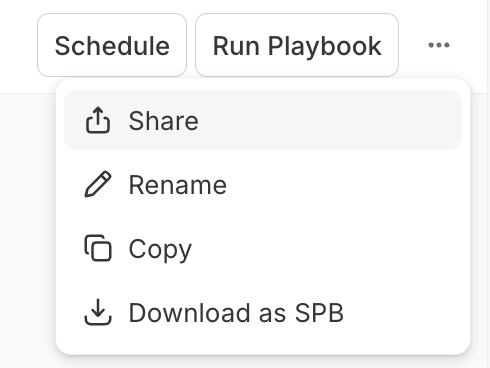 Rename, copy, and delete a playbook.
## Share and publish
Open the **⋯** menu → **Share**, then **Publish** to create a **view-only** link for your organization — viewers can sign in or create an account to open it. Unpublish at any time. Everyone on the [project](/features/projects#collaborators) can already see and run its playbooks.
Rename, copy, and delete a playbook.
## Share and publish
Open the **⋯** menu → **Share**, then **Publish** to create a **view-only** link for your organization — viewers can sign in or create an account to open it. Unpublish at any time. Everyone on the [project](/features/projects#collaborators) can already see and run its playbooks.
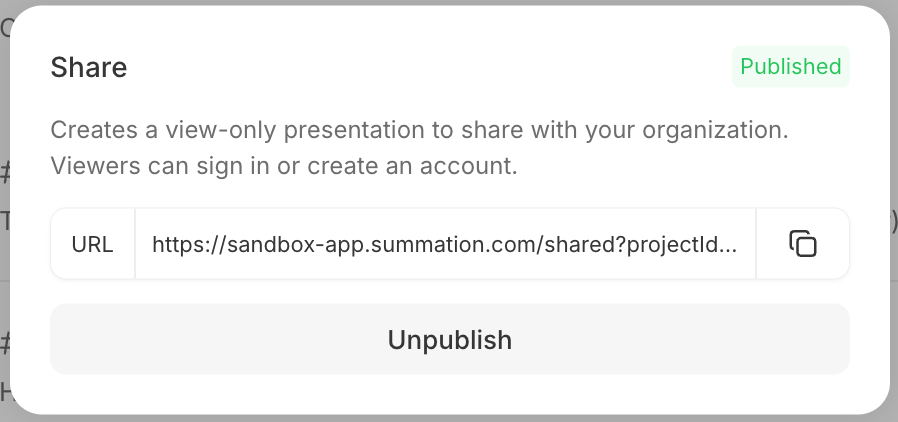 Publish a playbook and manage its share link.