> ## Documentation Index
> Fetch the complete documentation index at: https://docs.summation.com/llms.txt
> Use this file to discover all available pages before exploring further.
# Projects
> Projects are the primary container for your work in Summation — they hold your data, reports, dashboards, decks, knowledge, and chats with Addison.
A project is the primary container for work in Summation. It holds your data connections, files, reports, dashboards, decks, and chat threads with [Addison](/features/addison). Almost everything you do in Summation happens inside a project, so creating (or picking) the right project is usually the first step.
**Where each action lives in the UI** (for telling users where to click):
* **Left nav sidebar** (the persistent vertical bar on the left edge): **Home** (`/home`) is near the top; **Projects** (`/projects`, grid icon) is near the **bottom, just above your profile**; **Connectors** (`/connectors`) is also near the bottom. To reach the projects list, click **Projects** in the left sidebar.
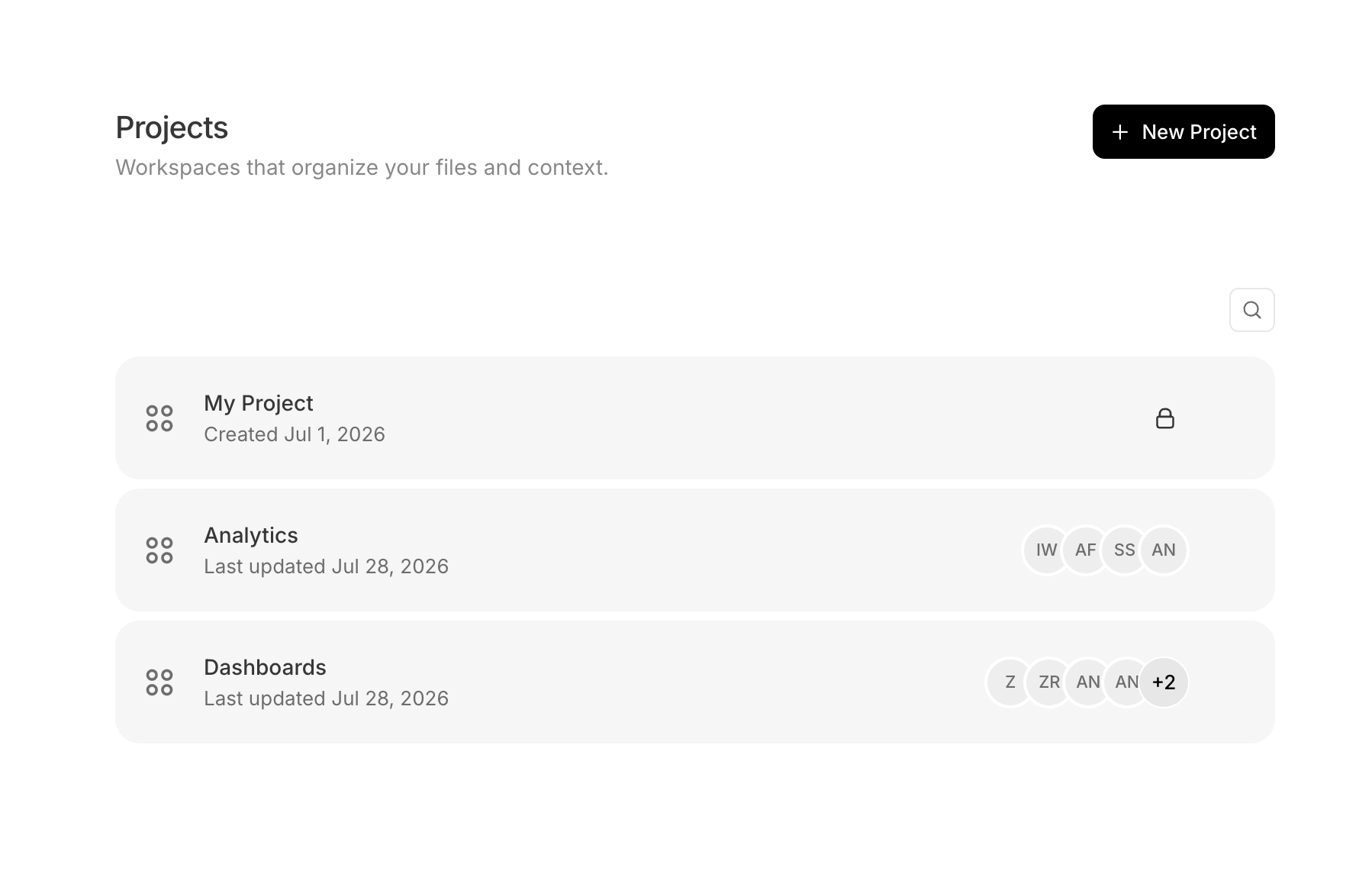
* **Projects list page** (`/projects`): the **New Project** button is at the **top-right** of the header; a **Search projects…** box sits just under it. Per-project actions live on each row — hover to reveal the **⋯** button at the row's right, or **right-click** the row: Open in new tab, Pin/Unpin, Rename (inline), Duplicate, Share, Delete.
* **Project workspace** (`/projects/{projectId}`): a **top toolbar**. On the **left**: a Back chevron and a **Files** toggle (folder icon) that opens the left **Project files** panel. On the **right**: the **Data Connections** dropdown and the **⋯ project-actions menu** (Rename, Share, Delete, Open Context Atlas). The **title** (click to rename) and **description** ("Add description…") are the page heading, with **invite (+) / collaborator avatars** at the heading's top-right.
* **File list** (the main body of the workspace): its **own toolbar** above the list has an **All Files** filter on the left and, on the right, **+ Import** (Data connections / Upload Files) and **Create** (Folder / Report / Deck / Dashboard). Each file row has a **⋯** menu (Open in new tab, Rename, Move, Copy to, Duplicate, Download, Delete); right-click works too.
* **Addison composer** (the prompt box): centered on **`/home`** under the greeting, and also in the Addison **chat pane** (right-side panel). Its bottom toolbar, left to right: **+** (Upload Files / Add files from project / App connectors), the **project picker** (grid icon, "Select project" — a searchable list; becomes a removable project pill once chosen), and the model/effort selector ("Default / High") on the far right. In an existing chat the project is fixed and the picker is hidden.
 ## What's in a project
Reports, dashboards, and decks are stored as Summation document files — the extension in parentheses is what you'll see in the file browser and when working via the API:
| Component | Description |
| ----------------------------------------------------------- | ------------------------------------------------------------------- |
| **Chat threads** | Conversations with Addison, scoped to the project's data |
| **[Reports](/features/artifacts/reports)** (`.sdoc`) | Analytical documents generated by Addison |
| **[Dashboards](/features/artifacts/dashboards)** (`.sdash`) | Collections of charts and KPIs built from the project's data |
| **[Decks](/features/artifacts/decks)** (`.sdeck`) | Slide-style presentations built from the project's content |
| **[Tables and views](/features/tables)** | Tenant-wide data attached to the project so Addison can use it here |
| **[Knowledge](/features/knowledge)** | Organization-wide context Addison reads in every project |
| **Files** | Uploaded files (CSV, Excel, PDF, PowerPoint, and more) |
**What's scoped to what.** Chat threads, reports, dashboards, decks, and uploaded files belong to the project — create one here and it isn't visible from another project. **Tables and views** are tenant-wide: you [attach](#import) existing ones to control what Addison can see here — an empty project catalog means Addison has no data context — but they live outside any single project. **Knowledge** is shared organization-wide, so the same context applies everywhere Addison works.
## Default project
Every user has a **default project** named "My Project". When you chat with Addison, the project picker on the composer sets which project the conversation reads from and writes to; search and pick one. If you don't pick a project, the chat uses your default project, and everything it generates (reports, dashboards, files) is saved there. The default project is exempt from the project-management actions on this page: its row in the list shows no **⋯** menu, its workspace shows a disabled lock in place of the project-actions menu, and the delete API returns 403 ("Only standard projects can be deleted").
## What's in a project
Reports, dashboards, and decks are stored as Summation document files — the extension in parentheses is what you'll see in the file browser and when working via the API:
| Component | Description |
| ----------------------------------------------------------- | ------------------------------------------------------------------- |
| **Chat threads** | Conversations with Addison, scoped to the project's data |
| **[Reports](/features/artifacts/reports)** (`.sdoc`) | Analytical documents generated by Addison |
| **[Dashboards](/features/artifacts/dashboards)** (`.sdash`) | Collections of charts and KPIs built from the project's data |
| **[Decks](/features/artifacts/decks)** (`.sdeck`) | Slide-style presentations built from the project's content |
| **[Tables and views](/features/tables)** | Tenant-wide data attached to the project so Addison can use it here |
| **[Knowledge](/features/knowledge)** | Organization-wide context Addison reads in every project |
| **Files** | Uploaded files (CSV, Excel, PDF, PowerPoint, and more) |
**What's scoped to what.** Chat threads, reports, dashboards, decks, and uploaded files belong to the project — create one here and it isn't visible from another project. **Tables and views** are tenant-wide: you [attach](#import) existing ones to control what Addison can see here — an empty project catalog means Addison has no data context — but they live outside any single project. **Knowledge** is shared organization-wide, so the same context applies everywhere Addison works.
## Default project
Every user has a **default project** named "My Project". When you chat with Addison, the project picker on the composer sets which project the conversation reads from and writes to; search and pick one. If you don't pick a project, the chat uses your default project, and everything it generates (reports, dashboards, files) is saved there. The default project is exempt from the project-management actions on this page: its row in the list shows no **⋯** menu, its workspace shows a disabled lock in place of the project-actions menu, and the delete API returns 403 ("Only standard projects can be deleted").
 Get your default project.
## Find and open a project
Your projects are listed at `/projects`; recent ones also appear on `/home`. Click a project to open its workspace at `/projects/{projectId}`. Right-click any project in the list to **Open in new tab**, **Pin** it to the top, **Rename**, **Duplicate** (copy), **Share**, or **Delete** it.
Get your default project.
## Find and open a project
Your projects are listed at `/projects`; recent ones also appear on `/home`. Click a project to open its workspace at `/projects/{projectId}`. Right-click any project in the list to **Open in new tab**, **Pin** it to the top, **Rename**, **Duplicate** (copy), **Share**, or **Delete** it.
 List projects.
Fetch a single project.
## Create a project
Go to `/projects` and click **New Project** (top-right). This immediately creates a project named **Untitled Project** — there's no dialog — and drops you into its workspace with the title in inline-rename mode, ready for you to type a name.
List projects.
Fetch a single project.
## Create a project
Go to `/projects` and click **New Project** (top-right). This immediately creates a project named **Untitled Project** — there's no dialog — and drops you into its workspace with the title in inline-rename mode, ready for you to type a name.
 Create a project.
## Rename or edit a project
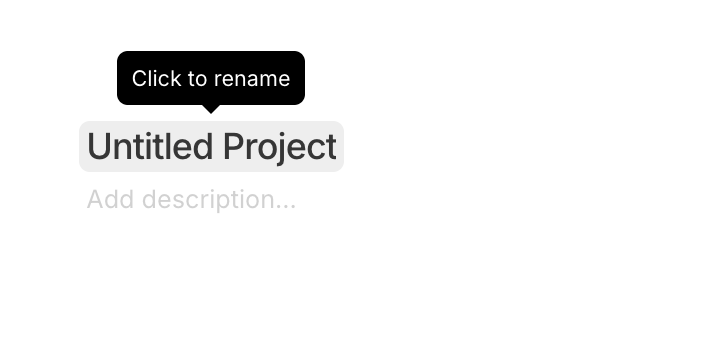
Click the project title at the top of the workspace — a **Click to rename** tooltip appears; type the new name, and edit the "Add description…" field below it. Changes apply immediately across the product.
Create a project.
## Rename or edit a project
Click the project title at the top of the workspace — a **Click to rename** tooltip appears; type the new name, and edit the "Add description…" field below it. Changes apply immediately across the product.
 Update a project's name, description, or visibility. Changing **visibility** requires that you be an Owner or Manager. `visibility` accepts only `private` or `public`; setting it `public` shares the project org-wide with **Editor** access — there's no view-only option on this endpoint, so use the Share dialog if you need org-wide read-only.
## Delete a project
Open the **⋯** menu in the top-right toolbar and choose **Delete**. This is a soft delete: the project is removed from your workspace (the confirm dialog notes it clears the project's chats, files, and workflows), but the underlying files and data are retained on the backend rather than erased. Tables and views (tenant-wide) and Knowledge (organization-wide) aren't scoped to the project, so neither is affected.
Update a project's name, description, or visibility. Changing **visibility** requires that you be an Owner or Manager. `visibility` accepts only `private` or `public`; setting it `public` shares the project org-wide with **Editor** access — there's no view-only option on this endpoint, so use the Share dialog if you need org-wide read-only.
## Delete a project
Open the **⋯** menu in the top-right toolbar and choose **Delete**. This is a soft delete: the project is removed from your workspace (the confirm dialog notes it clears the project's chats, files, and workflows), but the underlying files and data are retained on the backend rather than erased. Tables and views (tenant-wide) and Knowledge (organization-wide) aren't scoped to the project, so neither is affected.
 Delete a project. Requires `confirm=true`.
## Collaborators
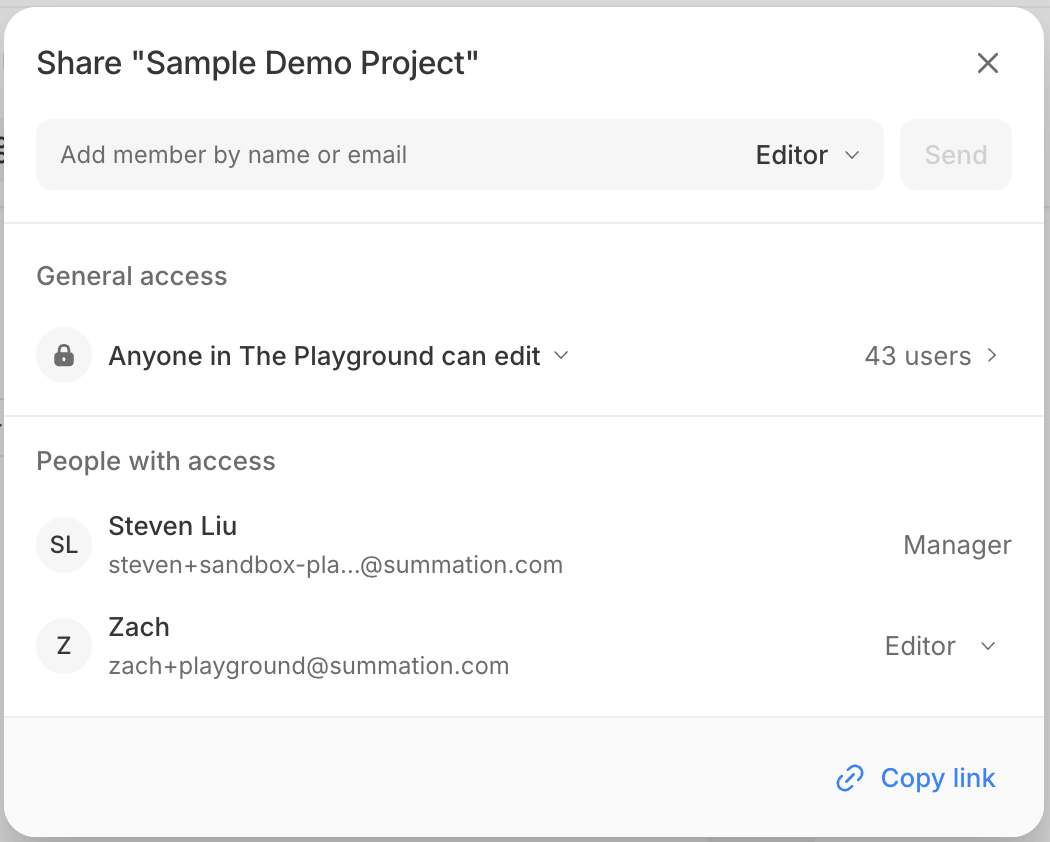
Open the **Share** dialog from the **⋯** menu in the workspace's top-right → **Share** (or by right-clicking a project in the list → **Share**). The dialog controls who can open the project and what they can do.
Delete a project. Requires `confirm=true`.
## Collaborators
Open the **Share** dialog from the **⋯** menu in the workspace's top-right → **Share** (or by right-clicking a project in the list → **Share**). The dialog controls who can open the project and what they can do.
 **Roles.** Each person you add gets one role:
| Role | Can do |
| ----------- | -------------------------------------------------------------------------------------------------------------------------------------------- |
| **Viewer** | Open the project and see its contents — read-only. |
| **Editor** | Everything a Viewer can, plus create and edit the project's data, reports, dashboards, and decks, and delete the project. |
| **Manager** | Everything an Editor can, plus manage sharing (add/remove members, change roles, change general access) and change the project's visibility. |
**General access.** Beyond the people you invite individually, you can open a project to everyone in your organization:
| General access | Who can open it |
| ------------------------------- | -------------------------------------------------- |
| **Only those invited** | Only the people added above. |
| **Anyone in your org can view** | Everyone in your organization, with Viewer access. |
| **Anyone in your org can edit** | Everyone in your organization, with Editor access. |
The Share dialog described here (the role selector, **Send**, **Copy link**, and the three general-access options) is the v2 modal gated by the `tmp_project_share_modal_v2` feature flag; if a workspace has it off, the legacy dialog appears instead (only two general-access choices, with **Done** / **Add people** actions).
Add and remove collaborators and set their roles.
## Import
Bring data into a project with **+ Import** in the workspace's top-right — either **Upload Files** or **Data connections**.
**Upload files.** Add local files — CSV, Excel, PDF, PowerPoint, and more. Uploaded files are scoped to this project.
**Roles.** Each person you add gets one role:
| Role | Can do |
| ----------- | -------------------------------------------------------------------------------------------------------------------------------------------- |
| **Viewer** | Open the project and see its contents — read-only. |
| **Editor** | Everything a Viewer can, plus create and edit the project's data, reports, dashboards, and decks, and delete the project. |
| **Manager** | Everything an Editor can, plus manage sharing (add/remove members, change roles, change general access) and change the project's visibility. |
**General access.** Beyond the people you invite individually, you can open a project to everyone in your organization:
| General access | Who can open it |
| ------------------------------- | -------------------------------------------------- |
| **Only those invited** | Only the people added above. |
| **Anyone in your org can view** | Everyone in your organization, with Viewer access. |
| **Anyone in your org can edit** | Everyone in your organization, with Editor access. |
The Share dialog described here (the role selector, **Send**, **Copy link**, and the three general-access options) is the v2 modal gated by the `tmp_project_share_modal_v2` feature flag; if a workspace has it off, the legacy dialog appears instead (only two general-access choices, with **Done** / **Add people** actions).
Add and remove collaborators and set their roles.
## Import
Bring data into a project with **+ Import** in the workspace's top-right — either **Upload Files** or **Data connections**.
**Upload files.** Add local files — CSV, Excel, PDF, PowerPoint, and more. Uploaded files are scoped to this project.
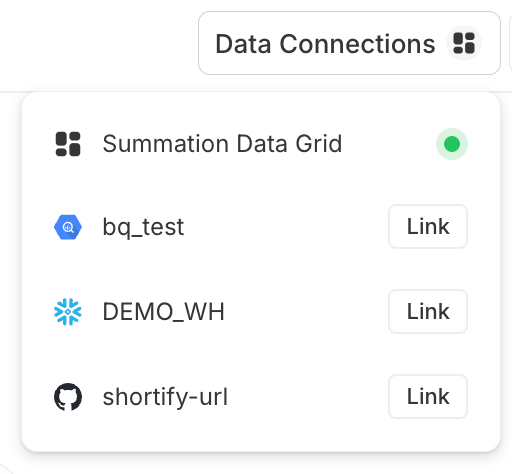
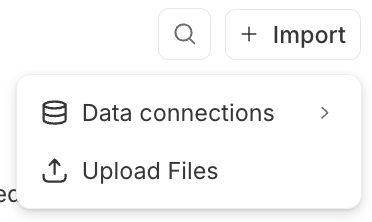 **Attach a data connection.** Link an existing **tenant-wide** Summation table or view, or a [connector's](/features/connectors) data, into this project — you're referencing existing data, not creating a new connection. The data attached to a project is exactly **what Addison can see** there — attaching controls its data context, and an empty project catalog means Addison has no data to work with. Choose **Data connections** in the Import menu, then **Link** a source.
 Create a presigned upload.
Finalize the upload.
Import the finalized file into an analyzable table — required before a CSV can be queried. The curated MCP tool is `import_file_to_table`.
Attaching a data connection links an existing **tenant-wide** table or view into the project's catalog (the curated MCP tool is `attach_catalog_entry`):
Attach a table or view to the project's catalog.
List the tables and views attached to the project.
Refresh a catalog entry's schema from its source table or view.
Detach a table or view from the project.
## Create artifacts from project
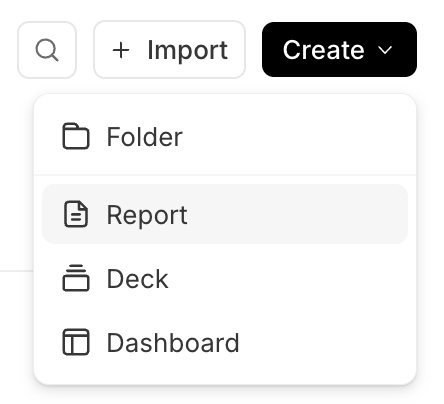
From inside a project, click **Create** (top-right of the file list) to make a new **Report**, **Deck**, **Dashboard**, or **Folder**. Whatever you create belongs to that project — it's scoped to the project and listed in its file browser alongside your data and files.
Create a presigned upload.
Finalize the upload.
Import the finalized file into an analyzable table — required before a CSV can be queried. The curated MCP tool is `import_file_to_table`.
Attaching a data connection links an existing **tenant-wide** table or view into the project's catalog (the curated MCP tool is `attach_catalog_entry`):
Attach a table or view to the project's catalog.
List the tables and views attached to the project.
Refresh a catalog entry's schema from its source table or view.
Detach a table or view from the project.
## Create artifacts from project
From inside a project, click **Create** (top-right of the file list) to make a new **Report**, **Deck**, **Dashboard**, or **Folder**. Whatever you create belongs to that project — it's scoped to the project and listed in its file browser alongside your data and files.
 Reports, dashboards, and decks are artifacts — see the Artifacts section for how to generate, verify, share, and export each type.