> ## Documentation Index
> Fetch the complete documentation index at: https://docs.summation.com/llms.txt
> Use this file to discover all available pages before exploring further.
# Skills
> Teach Addison how your team does a particular job, so every run follows the same steps.
A **skill** is a bundle of instructions that teaches Addison how to do something: how your team writes a variance analysis, which checks a close review runs. Write it once and Addison follows the same steps every time instead of improvising a new approach per chat.
You're not starting from scratch. Summation ships purpose-built skills for the work most teams need, so the first thing to do is run one, not write one.
[Knowledge](/features/knowledge) settles what your words mean. Skills settle how the work gets done. Most teams need both.
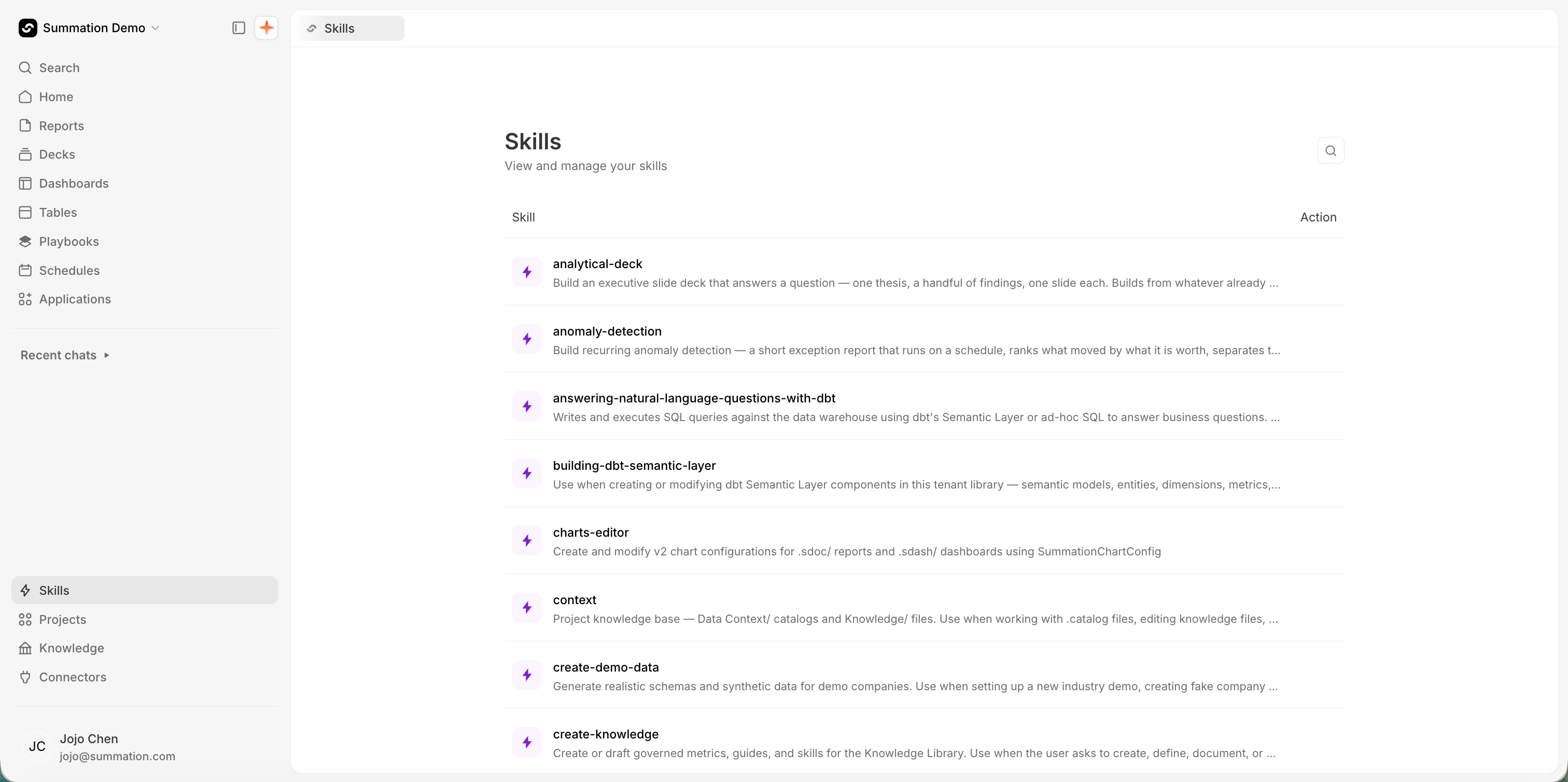
**Skills** in the left nav lists the skills shared across your organization, including the ones Summation ships. A project's own skills stay in that project, under its **Skills** page.
 ## What's in a skill
A skill is a folder of files Addison loads when it needs them. Only `SKILL.md` is required.
| File or folder | What goes in it |
| ----------------------------------- | ----------------------------------------------------------------------------- |
| `SKILL.md` | The entrypoint: a **name**, a **description**, and the instructions |
| `references/` | Markdown detail too long to inline: format specs, worked examples, edge cases |
| `scripts/` | Executable helpers the skill runs, usually Python |
| `assets/`, `templates/`, `schemas/` | Fixed files, such as a deck template, a font, or a validation schema |
Addison reads every skill's name and description but opens the instructions only for the one it picks, so the description is what decides whether a skill fires. Write it as what this does and when to use it.
## Use a skill
Three routes get you there:
* **Type `/` in Addison's composer** and pick the skill by name.
* **Just ask.** Addison matches your request against the available skills on its own, so plain English usually lands on the same one.
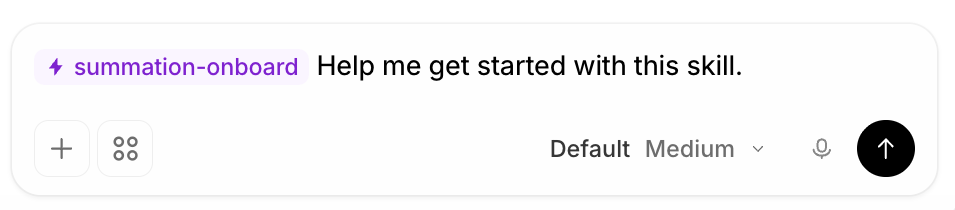
* **Try now**, from a skill's row menu or its detail dialog, drafts the skill into a chat so you can run it immediately.
## What's in a skill
A skill is a folder of files Addison loads when it needs them. Only `SKILL.md` is required.
| File or folder | What goes in it |
| ----------------------------------- | ----------------------------------------------------------------------------- |
| `SKILL.md` | The entrypoint: a **name**, a **description**, and the instructions |
| `references/` | Markdown detail too long to inline: format specs, worked examples, edge cases |
| `scripts/` | Executable helpers the skill runs, usually Python |
| `assets/`, `templates/`, `schemas/` | Fixed files, such as a deck template, a font, or a validation schema |
Addison reads every skill's name and description but opens the instructions only for the one it picks, so the description is what decides whether a skill fires. Write it as what this does and when to use it.
## Use a skill
Three routes get you there:
* **Type `/` in Addison's composer** and pick the skill by name.
* **Just ask.** Addison matches your request against the available skills on its own, so plain English usually lands on the same one.
* **Try now**, from a skill's row menu or its detail dialog, drafts the skill into a chat so you can run it immediately.
 ## Start with Summation's built-in skills
You don't need to write a skill to get value from one. Summation ships a library of them, available in every project with no setup, each built to land on an exec-ready artifact rather than a rough draft.
A few that teams reach for first, to show the range:
| Skill | What it produces |
| -------------------------------------------------------------------------- | -------------------------------------------------------------------------------------------------------------------------------------------- |
| [`/weekly-business-review`](/use-cases/templates/weekly-business-review) | A two-page read on one team's week against plan and the prior week |
| [`/monthly-business-review`](/use-cases/templates/monthly-business-review) | A five-page review of a closed month, from the P\&L, operating drivers, and customer data |
| [`/analytical-deck`](/use-cases/templates/business-review-deck) | An exec-ready deck from a review you've already published, with a finding in every title |
| [`/forecast-model`](/use-cases/templates/forecast-model) | A live-formula Excel workbook that forecasts from your drivers and checks itself against closed months |
| [`/operational-dashboard`](/use-cases/templates/operational-kpi-dashboard) | A live dashboard of headline metrics against plan and target, with the bridge behind each gap |
| [`/anomaly-detection`](/use-cases/templates/anomaly-detection) | A weekly report flagging the biggest changes, including what it could not check |
| [`/verify-and-correct`](/features/artifacts/verification) | Runs [verification](/features/artifacts/verification) on a report, deck, workbook, or page, fixes what it can, and flags the rest for review |
That's a sample, not the catalog. The **Skills** page lists everything shared with your organization, and it's worth a scan before you write anything of your own. Alongside these builders sit skills for editing tables and charts, drafting knowledge, working with dbt, and building templates, plus whatever your organization has published.
Run one against your own data and see what it produces before deciding anything. `/verify-and-correct` is the one worth knowing early: it checks numbers, sources, and claims against the underlying data, which is what makes the output safe to send to an executive.
These are also the best starting point for your own work. Adapting one with **Edit in project** is usually faster and better than writing a skill from a blank file, because you inherit a structure that already works.
Many built-in skills never need invoking at all. Addison reaches for them itself when a request calls for one, which is why the list is longer than the set you'd ever type.
## Global and project skills
Every skill sits at one of two levels:
* **Global**, in your organization's skills registry. Addison can use these from every project, and admins manage them centrally.
* **Project**, created inside one project. Available only there.
**Skills**, from the buttons at a project's top-right, shows what that project reaches for first, each tagged with where it came from:
| Tag | Meaning |
| ------------ | ------------------------------------------------------ |
| **Global** | Managed centrally and available in this project |
| **Modified** | Based on a global skill, changed for this project only |
| **Project** | Created in this project, available only here |
Adding a global skill to a project doesn't grant access Addison lacked, since it already sees the whole registry from anywhere. It raises priority, telling Addison to reach for that one here.
## Build in a project, test, then publish
Always create and change skills inside a project first. A project is where you can run a skill against real questions before anyone else depends on it, and nothing you do there affects other teams.
Open **Skills** from the project's top-right, then **Add** offers three routes: **Create with Addison** drafts a skill from a plain-English description, **Write skill manually** takes a name and description and opens the instructions file, and **Browse skills** copies one of your organization's skills into the project.
To adapt a global skill, use **Edit in project**. It copies the skill into the project you pick and opens the copy. The project's version is tagged **Modified**, and the global version is untouched.
Run the skill with **Try now** and a few questions it should handle. Watch for the two failures that matter: Addison not picking the skill (fix the description) and Addison following it to the wrong answer (fix the steps). Edit and rerun until both hold.
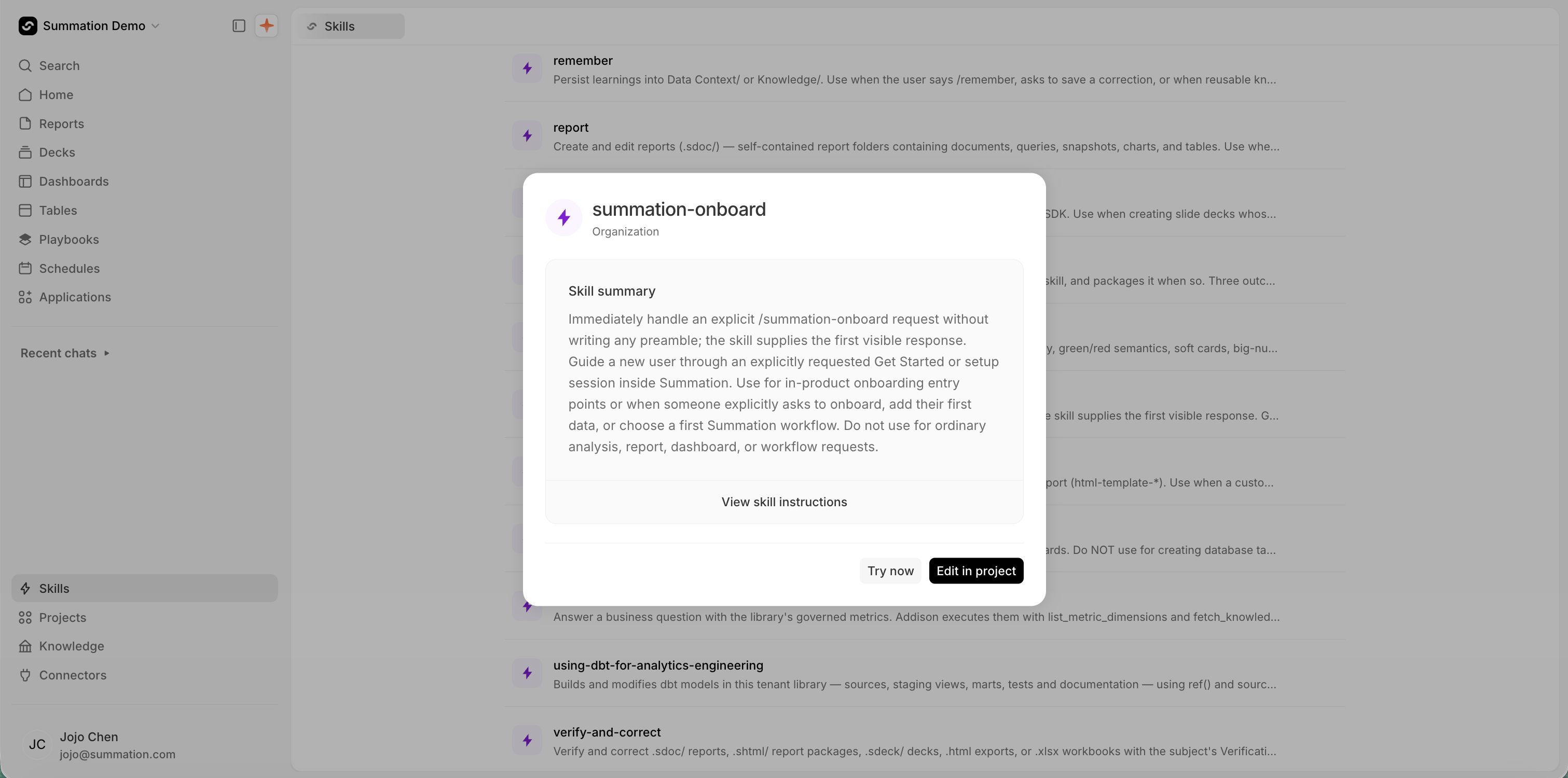
Open the skill's detail dialog and click **Publish**. An admin reviews it, and until they approve, your version stays scoped to its project.
## Start with Summation's built-in skills
You don't need to write a skill to get value from one. Summation ships a library of them, available in every project with no setup, each built to land on an exec-ready artifact rather than a rough draft.
A few that teams reach for first, to show the range:
| Skill | What it produces |
| -------------------------------------------------------------------------- | -------------------------------------------------------------------------------------------------------------------------------------------- |
| [`/weekly-business-review`](/use-cases/templates/weekly-business-review) | A two-page read on one team's week against plan and the prior week |
| [`/monthly-business-review`](/use-cases/templates/monthly-business-review) | A five-page review of a closed month, from the P\&L, operating drivers, and customer data |
| [`/analytical-deck`](/use-cases/templates/business-review-deck) | An exec-ready deck from a review you've already published, with a finding in every title |
| [`/forecast-model`](/use-cases/templates/forecast-model) | A live-formula Excel workbook that forecasts from your drivers and checks itself against closed months |
| [`/operational-dashboard`](/use-cases/templates/operational-kpi-dashboard) | A live dashboard of headline metrics against plan and target, with the bridge behind each gap |
| [`/anomaly-detection`](/use-cases/templates/anomaly-detection) | A weekly report flagging the biggest changes, including what it could not check |
| [`/verify-and-correct`](/features/artifacts/verification) | Runs [verification](/features/artifacts/verification) on a report, deck, workbook, or page, fixes what it can, and flags the rest for review |
That's a sample, not the catalog. The **Skills** page lists everything shared with your organization, and it's worth a scan before you write anything of your own. Alongside these builders sit skills for editing tables and charts, drafting knowledge, working with dbt, and building templates, plus whatever your organization has published.
Run one against your own data and see what it produces before deciding anything. `/verify-and-correct` is the one worth knowing early: it checks numbers, sources, and claims against the underlying data, which is what makes the output safe to send to an executive.
These are also the best starting point for your own work. Adapting one with **Edit in project** is usually faster and better than writing a skill from a blank file, because you inherit a structure that already works.
Many built-in skills never need invoking at all. Addison reaches for them itself when a request calls for one, which is why the list is longer than the set you'd ever type.
## Global and project skills
Every skill sits at one of two levels:
* **Global**, in your organization's skills registry. Addison can use these from every project, and admins manage them centrally.
* **Project**, created inside one project. Available only there.
**Skills**, from the buttons at a project's top-right, shows what that project reaches for first, each tagged with where it came from:
| Tag | Meaning |
| ------------ | ------------------------------------------------------ |
| **Global** | Managed centrally and available in this project |
| **Modified** | Based on a global skill, changed for this project only |
| **Project** | Created in this project, available only here |
Adding a global skill to a project doesn't grant access Addison lacked, since it already sees the whole registry from anywhere. It raises priority, telling Addison to reach for that one here.
## Build in a project, test, then publish
Always create and change skills inside a project first. A project is where you can run a skill against real questions before anyone else depends on it, and nothing you do there affects other teams.
Open **Skills** from the project's top-right, then **Add** offers three routes: **Create with Addison** drafts a skill from a plain-English description, **Write skill manually** takes a name and description and opens the instructions file, and **Browse skills** copies one of your organization's skills into the project.
To adapt a global skill, use **Edit in project**. It copies the skill into the project you pick and opens the copy. The project's version is tagged **Modified**, and the global version is untouched.
Run the skill with **Try now** and a few questions it should handle. Watch for the two failures that matter: Addison not picking the skill (fix the description) and Addison following it to the wrong answer (fix the steps). Edit and rerun until both hold.
Open the skill's detail dialog and click **Publish**. An admin reviews it, and until they approve, your version stays scoped to its project.
 Publishing replaces your organization's version of the skill, for every project. If you started from a global skill and modified it, approval promotes your changes over the original. Read what the global version currently does before you publish over it.
Not every skill needs publishing. A procedure only one team runs is fine left in its project.
## Bring skills you've already written
If your team already has skills written for another agent, you don't have to retype them. Open **Add → Create with Addison**, attach the files, and ask Addison to add them as a skill. Addison reads them, drafts the skill in the project, and saves it there so you can test and publish it like any other.
Bring the whole package, not just the entrypoint. Attach the references and scripts along with `SKILL.md` and say how they fit together, since a `SKILL.md` that cites `references/format.md` is incomplete without it.
This works for anything that describes a procedure, not just a `SKILL.md`: a runbook, a close checklist, an SOP, an analyst onboarding doc. Attach several at once and ask for one skill per document.
Uploading a `SKILL.md` into a project's **Files** does not create a skill. Files in the file browser are context Addison can read, not registered skills, and a skill file placed there by hand stays invisible to the skills list and blocks a real skill of the same name. Always ask Addison to add it, or write it through **Add**.
## Delete
**Delete** appears only on a project's own skills, in the row **⋯** menu on the project's **Skills** page. Summation's built-in skills and your organization's global skills can't be deleted from a project. Deleting a **Modified** copy drops the project back to the global version.
## Writing a skill that works
* **Spend your effort on the description.** It's the only part Addison reads before deciding. "Monthly close" is a title. "Reconcile subledger to GL for a closed month, flag entries over \$10k without support" is a description.
* **Write steps, not prose.** A numbered procedure is followed more reliably than a paragraph describing one.
* **Move detail into `references/`.** When a step needs a page of explanation, put it in a reference file and cite it in one line. Addison loads it only when it reaches that step, and `SKILL.md` stays scannable.
* **Put anything deterministic in `scripts/`.** A calculation or a validation that must come out the same every time is more reliable as a script the skill runs than as prose it re-derives.
* **Name the tables and metrics.** A skill that says "pull revenue" leaves Addison guessing. One that names `finance_actuals` and the `net_revenue` metric doesn't.
* **Put definitions in Knowledge instead.** If a skill starts explaining what a term means, that belongs in a [guide or metric](/features/knowledge), where everything else can use it too.
* **Check for a near-match first.** Two skills with overlapping descriptions make Addison's pick unpredictable.
**Where each action lives in the UI** (for telling users where to click):
* **Left nav sidebar**: **Skills**, in the lower cluster near **Projects** and **Knowledge**. Opens `/skills`, titled "Skills" with the subtitle *view and manage your skills*. Search, a paged list (12 at a time, **Load more**), and per-row **⋯** actions: **Try now**, **View skill instructions**, **Edit in project**. **This page lists the tenant library only.** Every row comes back labelled *Organization*, so a project's own skills are not here; send users to the project's **Skills** page for those.
* **Skill detail dialog** (click any row): title, owner (**Summation** for built-ins, **Organization** for global, otherwise the project name), **Skill summary**, a **View skill instructions** button, last-updated date, and whichever of **Try now** / **Edit in project** / **Publish** apply.
* **Project skills**: the **Skills** button at a project workspace's top-right, alongside **Tables** and **Knowledge** (it navigates to `/projects/{projectId}/settings/skills`; there is no **Project Settings** button any more). Titled "Project Skills", subtitle *add skills and modify any of them just for this project, Addison already uses global Skills*. Adds the scope column (**Global** / **Modified** / **Project**) and the **+ Add** menu.
* **Instructions editor**: `/skills/file/{projectId}/{source}/{skillName}`. Opens the whole skill package, with a **Skill files** sidebar rendering it as a folder tree (`SKILL.md`, `references/`, `scripts/`, and any assets) and a dot marking files with unsaved changes. Read-only for Summation and global skills, editable for a project's own. Saves are concurrency-checked, so an edit made against a stale copy is rejected rather than merged. Reload and reapply.
* **Try now** drafts `/ Help me get started with this skill.` into a chat in the project and focuses the composer. It does not send.
* **Slash menu availability**: a project's own skills always appear under `/`. A Summation-managed skill appears only when its `SKILL.md` sets `metadata.user_invocable: true`, and a few are additionally gated on workspace feature flags. A skill missing from `/` is still usable by asking in plain English.
* **Importing an authored skill**: **Create with Addison** accepts file attachments (and drag-and-drop). Addison's `create-knowledge` skill handles the conversion and saves through `write_knowledge_skill`, which writes to the *project*, never straight to the organization. Where that tool is unavailable it returns the drafted `SKILL.md` in chat instead; do not point the user at the Knowledge Library UI for it, since that UI manages guides and metrics only.
* **Never author a skill by writing a file under `.claude/skills/` in a project.** A workspace-written skill is invisible to the skills index, is never governed, and permanently blocks a governed skill of the same name from syncing into that project.
* **Read-only projects**: the **Add** menu renders disabled with its reason rather than disappearing, and edit and delete are withheld. If the server can't confirm which skills a project owns, a warning banner appears and ownership-derived actions stay hidden until a reload proves it.
Global skills may be served from the Global Skills Registry, pinned per tenant to a revision. A scope pill's tooltip names that revision and how many newer releases exist. Registry-served skills don't appear in **Browse skills**, because the pin already serves them to every project.
There is no public API for skills yet; every action above is UI-only.
Skills are gated on the `ui_global_skills` flag. Without it, the sidebar **Skills** entry and the project's **Skills** button are both absent and `/skills` redirects. Confirm the entry point exists before walking a user through it.
Publishing replaces your organization's version of the skill, for every project. If you started from a global skill and modified it, approval promotes your changes over the original. Read what the global version currently does before you publish over it.
Not every skill needs publishing. A procedure only one team runs is fine left in its project.
## Bring skills you've already written
If your team already has skills written for another agent, you don't have to retype them. Open **Add → Create with Addison**, attach the files, and ask Addison to add them as a skill. Addison reads them, drafts the skill in the project, and saves it there so you can test and publish it like any other.
Bring the whole package, not just the entrypoint. Attach the references and scripts along with `SKILL.md` and say how they fit together, since a `SKILL.md` that cites `references/format.md` is incomplete without it.
This works for anything that describes a procedure, not just a `SKILL.md`: a runbook, a close checklist, an SOP, an analyst onboarding doc. Attach several at once and ask for one skill per document.
Uploading a `SKILL.md` into a project's **Files** does not create a skill. Files in the file browser are context Addison can read, not registered skills, and a skill file placed there by hand stays invisible to the skills list and blocks a real skill of the same name. Always ask Addison to add it, or write it through **Add**.
## Delete
**Delete** appears only on a project's own skills, in the row **⋯** menu on the project's **Skills** page. Summation's built-in skills and your organization's global skills can't be deleted from a project. Deleting a **Modified** copy drops the project back to the global version.
## Writing a skill that works
* **Spend your effort on the description.** It's the only part Addison reads before deciding. "Monthly close" is a title. "Reconcile subledger to GL for a closed month, flag entries over \$10k without support" is a description.
* **Write steps, not prose.** A numbered procedure is followed more reliably than a paragraph describing one.
* **Move detail into `references/`.** When a step needs a page of explanation, put it in a reference file and cite it in one line. Addison loads it only when it reaches that step, and `SKILL.md` stays scannable.
* **Put anything deterministic in `scripts/`.** A calculation or a validation that must come out the same every time is more reliable as a script the skill runs than as prose it re-derives.
* **Name the tables and metrics.** A skill that says "pull revenue" leaves Addison guessing. One that names `finance_actuals` and the `net_revenue` metric doesn't.
* **Put definitions in Knowledge instead.** If a skill starts explaining what a term means, that belongs in a [guide or metric](/features/knowledge), where everything else can use it too.
* **Check for a near-match first.** Two skills with overlapping descriptions make Addison's pick unpredictable.
**Where each action lives in the UI** (for telling users where to click):
* **Left nav sidebar**: **Skills**, in the lower cluster near **Projects** and **Knowledge**. Opens `/skills`, titled "Skills" with the subtitle *view and manage your skills*. Search, a paged list (12 at a time, **Load more**), and per-row **⋯** actions: **Try now**, **View skill instructions**, **Edit in project**. **This page lists the tenant library only.** Every row comes back labelled *Organization*, so a project's own skills are not here; send users to the project's **Skills** page for those.
* **Skill detail dialog** (click any row): title, owner (**Summation** for built-ins, **Organization** for global, otherwise the project name), **Skill summary**, a **View skill instructions** button, last-updated date, and whichever of **Try now** / **Edit in project** / **Publish** apply.
* **Project skills**: the **Skills** button at a project workspace's top-right, alongside **Tables** and **Knowledge** (it navigates to `/projects/{projectId}/settings/skills`; there is no **Project Settings** button any more). Titled "Project Skills", subtitle *add skills and modify any of them just for this project, Addison already uses global Skills*. Adds the scope column (**Global** / **Modified** / **Project**) and the **+ Add** menu.
* **Instructions editor**: `/skills/file/{projectId}/{source}/{skillName}`. Opens the whole skill package, with a **Skill files** sidebar rendering it as a folder tree (`SKILL.md`, `references/`, `scripts/`, and any assets) and a dot marking files with unsaved changes. Read-only for Summation and global skills, editable for a project's own. Saves are concurrency-checked, so an edit made against a stale copy is rejected rather than merged. Reload and reapply.
* **Try now** drafts `/ Help me get started with this skill.` into a chat in the project and focuses the composer. It does not send.
* **Slash menu availability**: a project's own skills always appear under `/`. A Summation-managed skill appears only when its `SKILL.md` sets `metadata.user_invocable: true`, and a few are additionally gated on workspace feature flags. A skill missing from `/` is still usable by asking in plain English.
* **Importing an authored skill**: **Create with Addison** accepts file attachments (and drag-and-drop). Addison's `create-knowledge` skill handles the conversion and saves through `write_knowledge_skill`, which writes to the *project*, never straight to the organization. Where that tool is unavailable it returns the drafted `SKILL.md` in chat instead; do not point the user at the Knowledge Library UI for it, since that UI manages guides and metrics only.
* **Never author a skill by writing a file under `.claude/skills/` in a project.** A workspace-written skill is invisible to the skills index, is never governed, and permanently blocks a governed skill of the same name from syncing into that project.
* **Read-only projects**: the **Add** menu renders disabled with its reason rather than disappearing, and edit and delete are withheld. If the server can't confirm which skills a project owns, a warning banner appears and ownership-derived actions stay hidden until a reload proves it.
Global skills may be served from the Global Skills Registry, pinned per tenant to a revision. A scope pill's tooltip names that revision and how many newer releases exist. Registry-served skills don't appear in **Browse skills**, because the pin already serves them to every project.
There is no public API for skills yet; every action above is UI-only.
Skills are gated on the `ui_global_skills` flag. Without it, the sidebar **Skills** entry and the project's **Skills** button are both absent and `/skills` redirects. Confirm the entry point exists before walking a user through it.