> ## Documentation Index
> Fetch the complete documentation index at: https://docs.summation.com/llms.txt
> Use this file to discover all available pages before exploring further.
# Automate your first workflow
> Schedule automatic delivery of what you just built, so your team receives it without manual rework.
Step 4 of 4. Turn a reviewed analysis into a reusable process, then configure its schedule and delivery.
Start with a result you've reviewed. You don't need to complete the context step first. If you only need a one-time analysis, your report is already a useful outcome. Continue here when you want the work to run again on a cadence.
## What a workflow is
A workflow has two halves:
* A **[playbook](/features/artifacts/playbooks)** defines *the work*: the queries, the layout, the instructions, and the artifacts it produces.
* A **workflow** defines *when and where it goes*: the trigger, the steps, and the delivery.
You rarely have to build both by hand. If you're automating an artifact that isn't already backed by a playbook, Addison writes the playbook first and the workflow picks it up.
## Start it from what you already made
The shortest path is from the artifact itself. Open the report, deck, or playbook you reviewed and choose **Create workflow**, on the artifact's own toolbar or on the right-click menu in a project's file list.
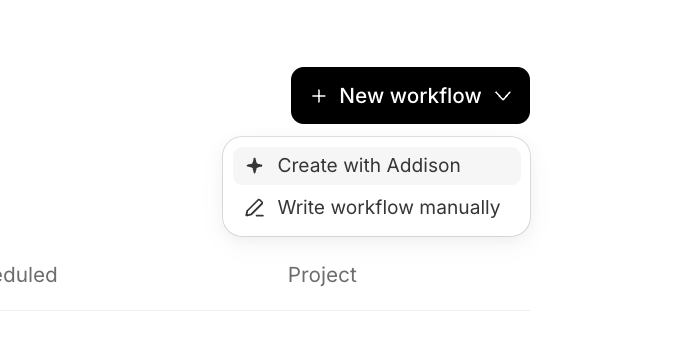
The alternative, for anything not yet built: **Workflows** in the left sidebar, then **New workflow → Create with Addison**.
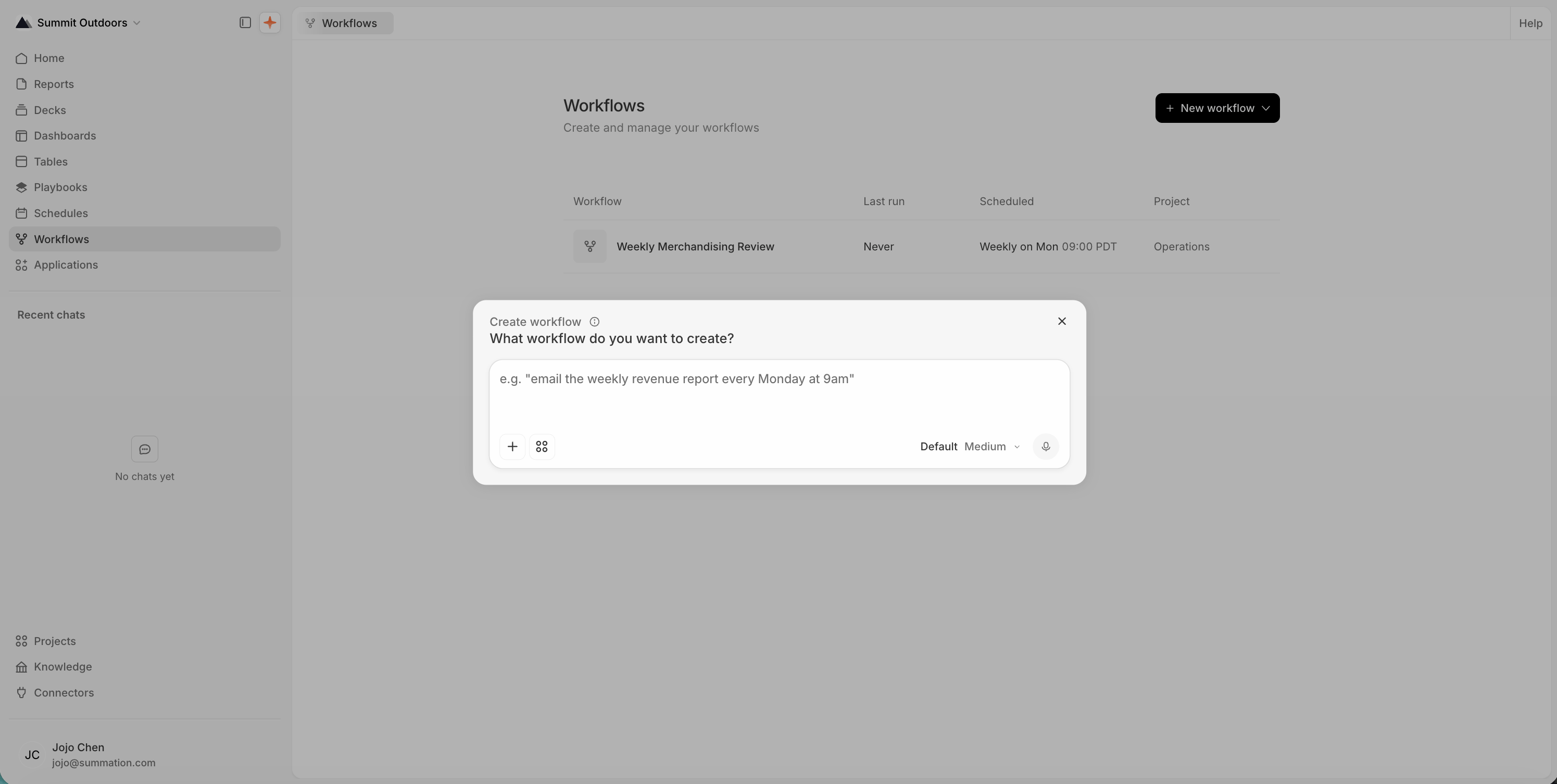
 You get one box:
> What workflow do you want to create?
Describe the outcome, not the mechanism: *"email the weekly revenue report every Monday at 9am."* Addison builds the workflow and its playbook, then confirms the parts it won't assume on your behalf.
You get one box:
> What workflow do you want to create?
Describe the outcome, not the mechanism: *"email the weekly revenue report every Monday at 9am."* Addison builds the workflow and its playbook, then confirms the parts it won't assume on your behalf.
 **Write workflow manually** is the other item in that menu. It opens the same canvas, empty. Useful once you know the node types, but not the place to start.
## Answer the questions Addison asks
Addison fills in the reversible details, like a title and an output folder, and asks about everything with consequences:
* **Cadence and timezone.** A bare "9am" is ambiguous across a team, so Addison won't guess the zone.
* **Delivery.** Email recipients, a Slack channel, or neither, in which case results land in the project.
* **Activation.** Whether to enable the workflow's schedule.
Answer in the chat. If the card in your thread says **Addison needs a detail**, that is a question waiting, not a failure.
Open the resulting workflow and check its schedule and recipients before saving or running it.
## Review and save
Open the workflow. The canvas shows the steps in order, and the panel beside it carries **Status**, **Project**, **Next run**, and the **Runs** list.
A first workflow is three nodes in a line:
| Node | What it does |
| ----------------------------------------------- | ------------------------------------------------- |
| **Schedule** (the trigger card) | Starts the run on your cadence |
| **Run playbook** | Does the work, producing the playbook's artifacts |
| **Send an email** / **Send Slack notification** | Hands the output to people |
**Write workflow manually** is the other item in that menu. It opens the same canvas, empty. Useful once you know the node types, but not the place to start.
## Answer the questions Addison asks
Addison fills in the reversible details, like a title and an output folder, and asks about everything with consequences:
* **Cadence and timezone.** A bare "9am" is ambiguous across a team, so Addison won't guess the zone.
* **Delivery.** Email recipients, a Slack channel, or neither, in which case results land in the project.
* **Activation.** Whether to enable the workflow's schedule.
Answer in the chat. If the card in your thread says **Addison needs a detail**, that is a question waiting, not a failure.
Open the resulting workflow and check its schedule and recipients before saving or running it.
## Review and save
Open the workflow. The canvas shows the steps in order, and the panel beside it carries **Status**, **Project**, **Next run**, and the **Runs** list.
A first workflow is three nodes in a line:
| Node | What it does |
| ----------------------------------------------- | ------------------------------------------------- |
| **Schedule** (the trigger card) | Starts the run on your cadence |
| **Run playbook** | Does the work, producing the playbook's artifacts |
| **Send an email** / **Send Slack notification** | Hands the output to people |
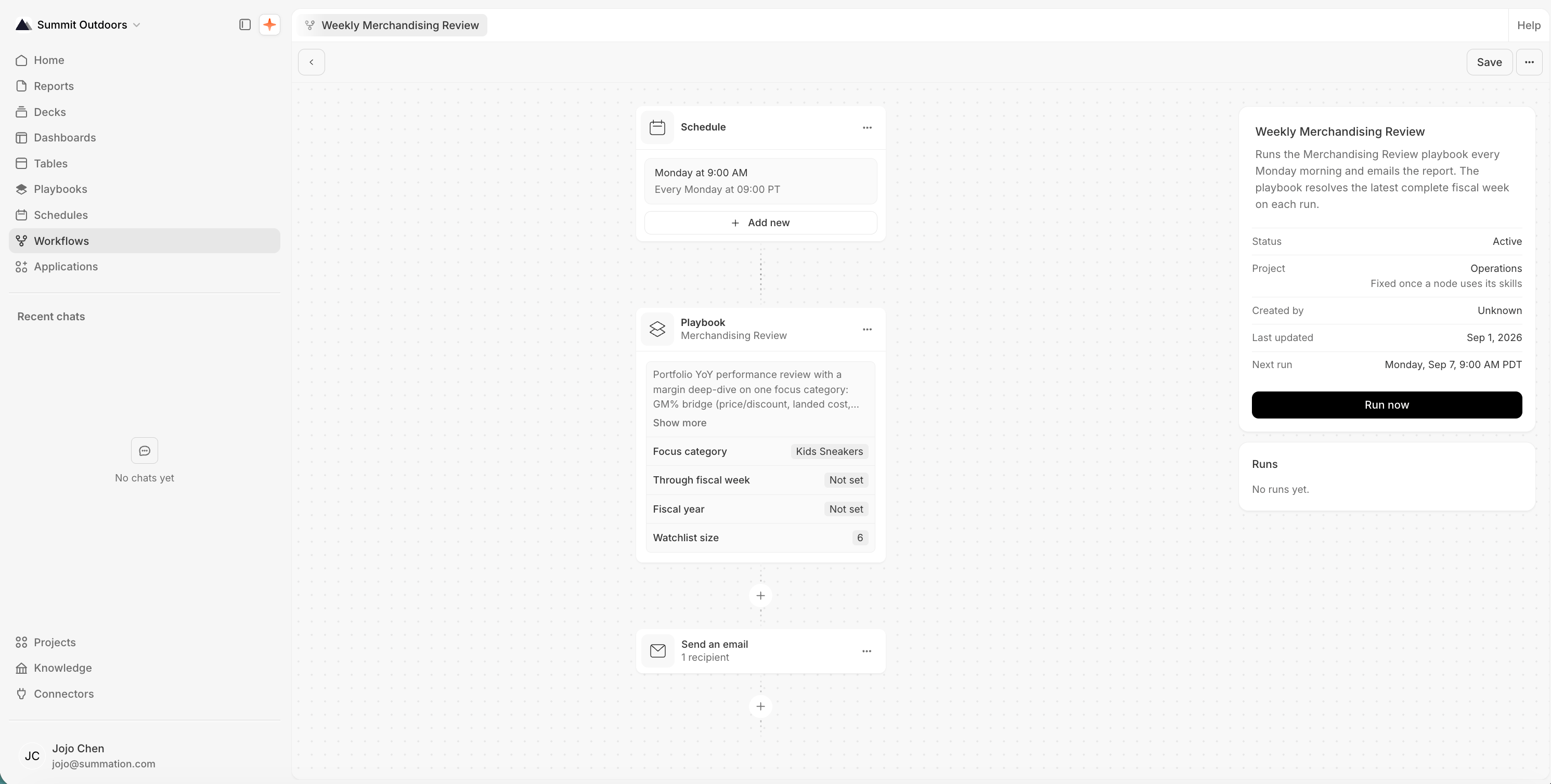 That's the shape Addison builds. [Workflows](/features/workflows) has the detail: what each node carries, and what the editor requires before it will save.
Check that the playbook, schedule, and recipients match what you asked for. To test the analysis on its own, use **Run Playbook** before adding scheduled delivery. Then:
Saving a complete draft marks it **Active**; it does not run it immediately. With an enabled schedule, the workflow runs at the configured times. Check **Next run** to confirm when to expect it.
Wait for the scheduled run, or choose **Run now** to start one immediately. **Run now** saves any unsaved changes and includes delivery, so it can send email or Slack messages. It is not a dry run.
Open the result from the **Runs** panel, trace a figure to its source, and check its verification status where available. Confirm that delivery succeeded too. A successful run means the steps completed, not that the analysis passed verification.
Saved changes apply to future runs. Saving a deactivated workflow does not reactivate it; choose **Activate** when you want it to resume.
## Keep it correct
When an output is wrong, check its source period, business definitions, playbook instructions, and runtime parameters. Correct the relevant [context](/get-started/build-your-context) or playbook and test again. If recipients or recurrence are wrong, deactivate the workflow while you repair its configuration.
## Where to go next
The full node catalog, and what the editor requires before it will save.
The reusable half of a workflow: how the work itself is defined and edited.
Guides and metrics, and how Addison reads them.
What the analyst can do, and how to get more out of it.
Workflows are enabled per tenant, and the public API lane over them is enabled separately on top of that. Both are required; the API side opens a lane and never grants the feature.
Over the API, creating a workflow and activating it are separate calls, and a created workflow is a draft that runs nothing. Two constraints that bite scripted setups: schedule creation (`POST /v1/schedules`) is refused `403 use_workflows` once workflows are enabled for a tenant (the two surfaces are exact complements, so attempting the schedule and letting the error route you is a legitimate strategy), and a playbook is a directory, not a file with raw content to download. See the **API** tab on [Playbooks](/features/artifacts/playbooks).
That's the shape Addison builds. [Workflows](/features/workflows) has the detail: what each node carries, and what the editor requires before it will save.
Check that the playbook, schedule, and recipients match what you asked for. To test the analysis on its own, use **Run Playbook** before adding scheduled delivery. Then:
Saving a complete draft marks it **Active**; it does not run it immediately. With an enabled schedule, the workflow runs at the configured times. Check **Next run** to confirm when to expect it.
Wait for the scheduled run, or choose **Run now** to start one immediately. **Run now** saves any unsaved changes and includes delivery, so it can send email or Slack messages. It is not a dry run.
Open the result from the **Runs** panel, trace a figure to its source, and check its verification status where available. Confirm that delivery succeeded too. A successful run means the steps completed, not that the analysis passed verification.
Saved changes apply to future runs. Saving a deactivated workflow does not reactivate it; choose **Activate** when you want it to resume.
## Keep it correct
When an output is wrong, check its source period, business definitions, playbook instructions, and runtime parameters. Correct the relevant [context](/get-started/build-your-context) or playbook and test again. If recipients or recurrence are wrong, deactivate the workflow while you repair its configuration.
## Where to go next
The full node catalog, and what the editor requires before it will save.
The reusable half of a workflow: how the work itself is defined and edited.
Guides and metrics, and how Addison reads them.
What the analyst can do, and how to get more out of it.
Workflows are enabled per tenant, and the public API lane over them is enabled separately on top of that. Both are required; the API side opens a lane and never grants the feature.
Over the API, creating a workflow and activating it are separate calls, and a created workflow is a draft that runs nothing. Two constraints that bite scripted setups: schedule creation (`POST /v1/schedules`) is refused `403 use_workflows` once workflows are enabled for a tenant (the two surfaces are exact complements, so attempting the schedule and letting the error route you is a legitimate strategy), and a playbook is a directory, not a file with raw content to download. See the **API** tab on [Playbooks](/features/artifacts/playbooks).