> ## Documentation Index
> Fetch the complete documentation index at: https://docs.summation.com/llms.txt
> Use this file to discover all available pages before exploring further.
# Claude Plugin
> Bring Addison into Claude Code and Claude Desktop — ask data questions, generate and validate reports, explore your catalog without leaving Claude.
The Addison plugin puts Summation's AI data analyst directly inside Claude. Setup takes about two minutes and one browser sign-in — no API keys, and no secrets ever pasted into chat. Everything Addison does runs as **you**, against **your** Summation workspace.
## Claude Code
Anyone can install the plugin themselves from a Claude Code session — no admin required.
```text theme={null}
/plugin marketplace add summationai/addison-plugin
```
```text theme={null}
/plugin install addison@summation
```
Restart Claude Code so the plugin loads.
```text theme={null}
/addison:login
```
Addison shows a sign-in link and a short verification code:
```text theme={null}
Open this link and approve to connect Claude to Summation — it expires in 10 minutes.
https://app.summation.com/device?code=WXYZ-1234
Verification code: WXYZ-1234
```
Open the link, approve in your browser, and you're connected. The Summation data tools wire up automatically.
```text theme={null}
/addison:start
```
A guided first run: a map of your connected data, an introduction to Addison, and your first report.
### Commands
| Command | What it does |
| ------------------- | -------------------------------------------------------- |
| `/addison:start` | Guided onboarding — data map and first report |
| `/addison:report` | Generate a report and export it (PDF, DOCX, or Markdown) |
| `/addison:query` | Run a read-only query and see results as a table |
| `/addison:catalog` | Search your tables, views, and schemas |
| `/addison:validate` | Fact-check a report against its sources before sharing |
| `/addison:logout` | Disconnect and remove the stored credential |
You don't need commands for most work — just ask data questions in plain English and Addison picks them up.
## Claude Desktop
On Claude Desktop (including Cowork), plugins are managed per organization: a Claude admin enables Addison once, then every member installs it from the org library.
### For your Claude organization admin
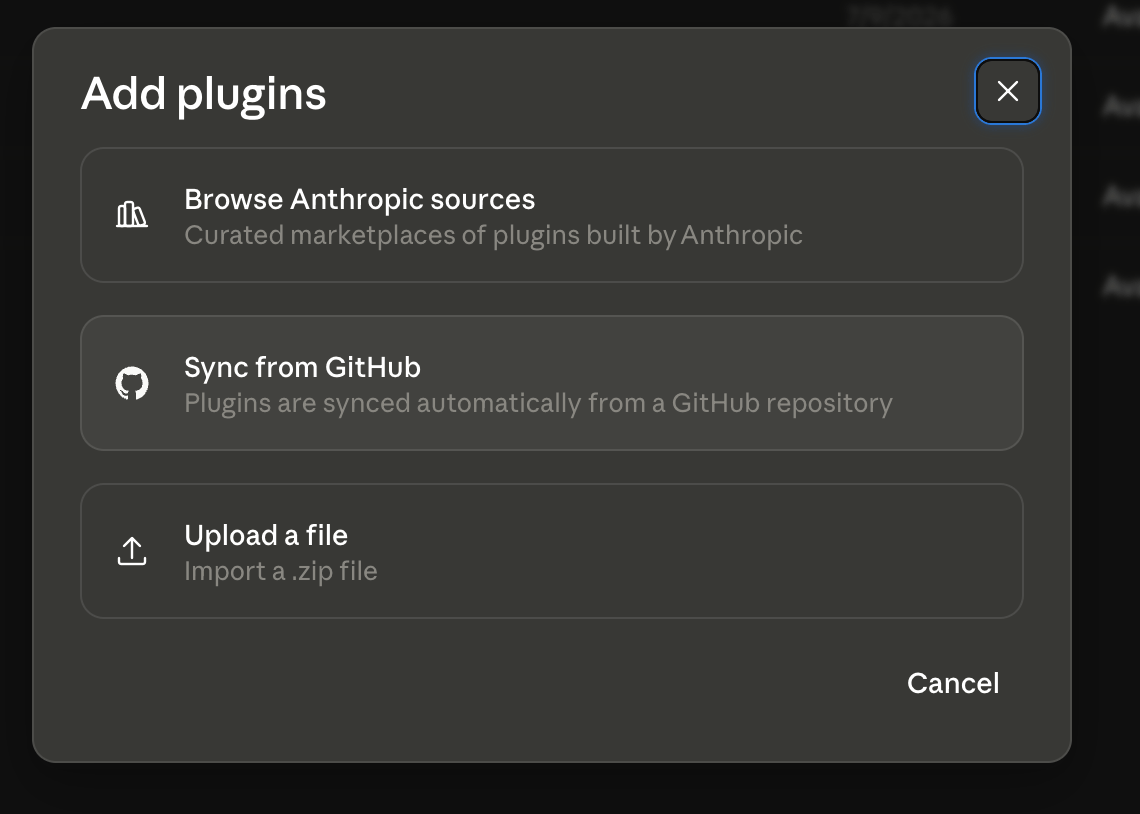
Go to **claude.ai → Orgranization settings → Plugins → Add plugins, select Sync from Github (you have to fork this [repo](https://github.com/summationai/addison-plugin) or upload the zip file available on the plugin [releases page](https://github.com/summationai/addison-plugin/releases).**
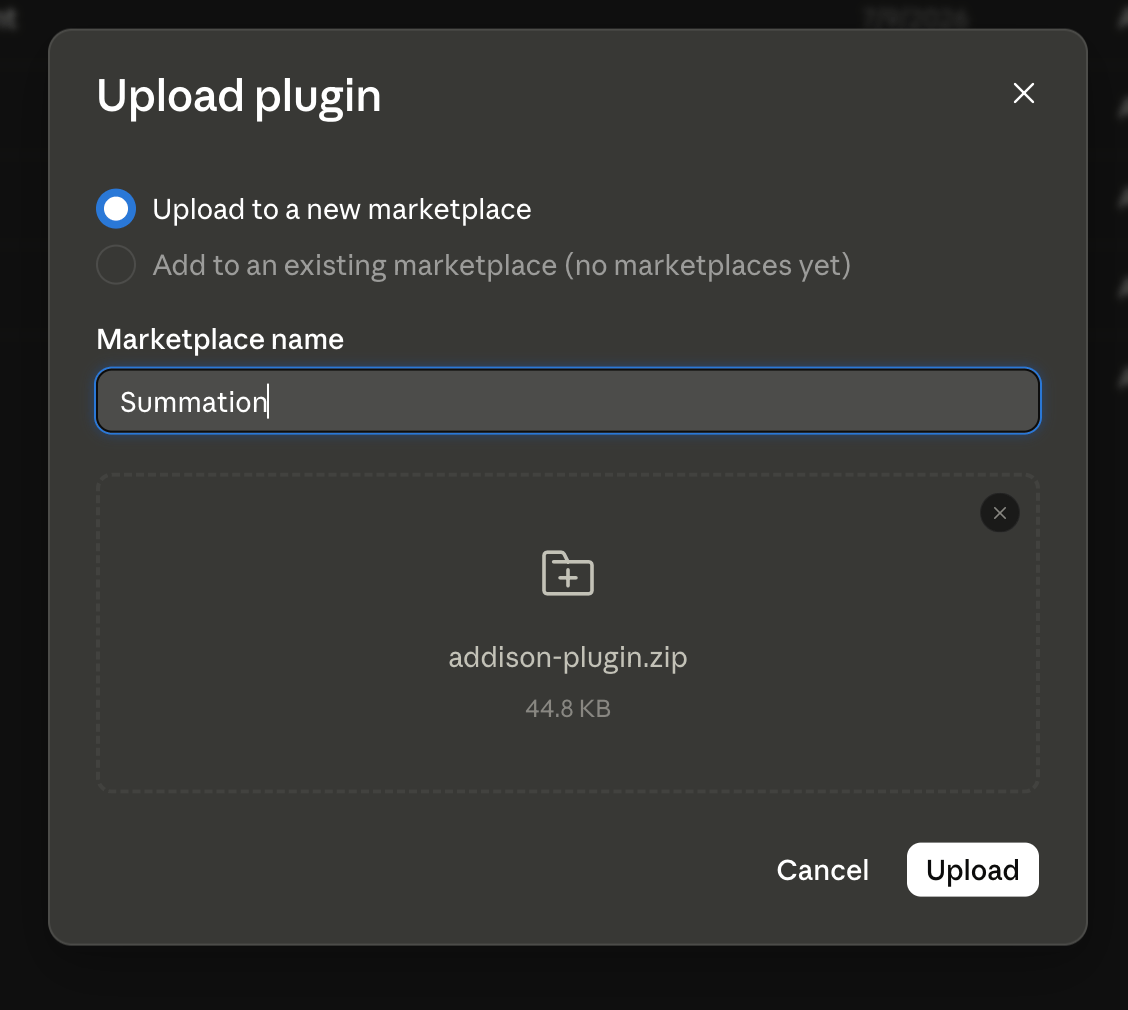
 If you want to upload the plugin as a zip file:
 Once, it is installed, make sure to select the appropriate User access:
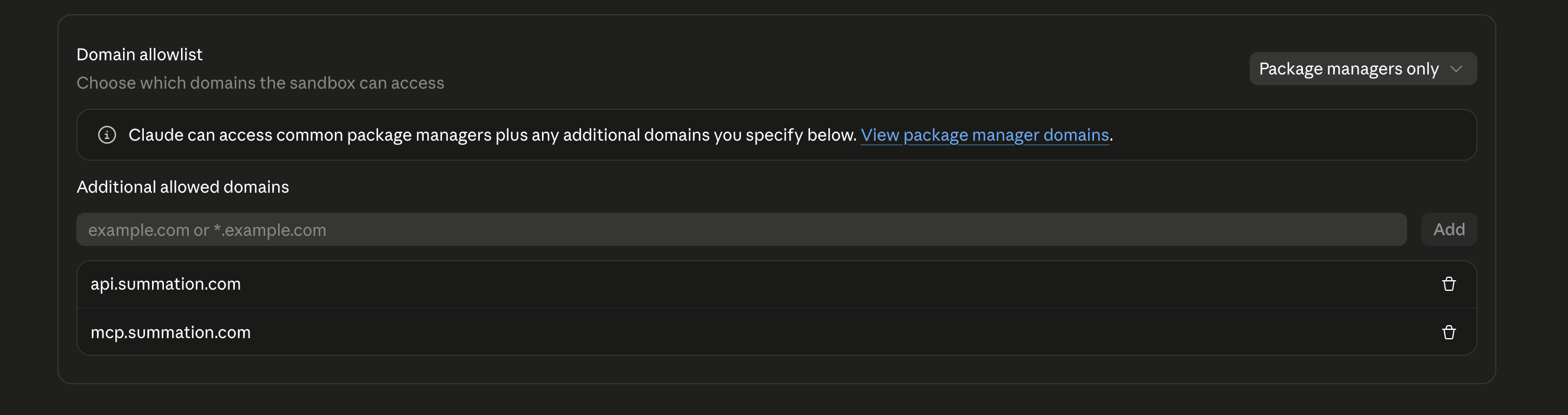
 Addison's helper runs in Claude Desktop's code-execution sandbox, which blocks outbound network access by default. Under **Admin settings → Capabilities → Code execution → Network access**, allow both hosts:
```text theme={null}
api.summation.com
mcp.summation.com
```
Addison's helper runs in Claude Desktop's code-execution sandbox, which blocks outbound network access by default. Under **Admin settings → Capabilities → Code execution → Network access**, allow both hosts:
```text theme={null}
api.summation.com
mcp.summation.com
```
 Publish Addison to the org library so members can install it.
### For team members
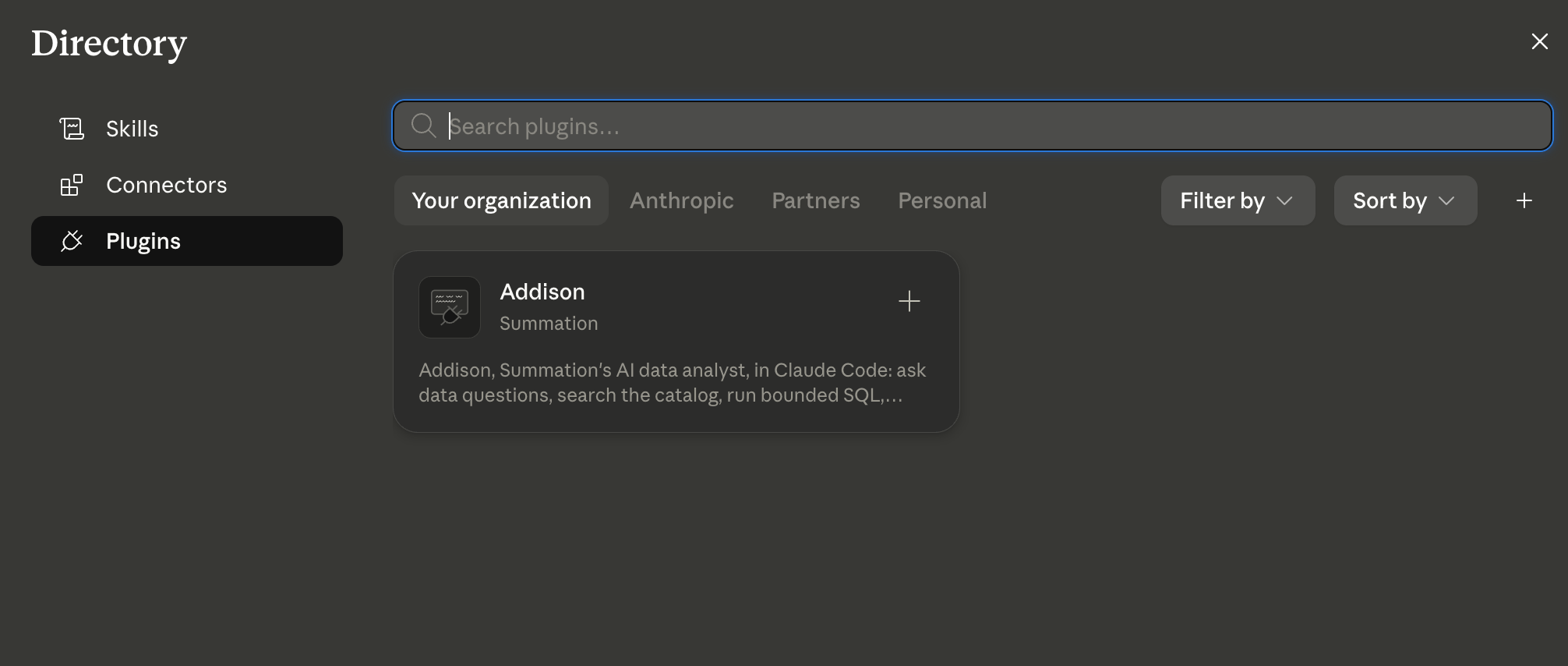
In Claude Desktop, open **Settings → Plugins → Brown**, find **Addison** in your organization's library, and install it by clicking on the (+) icon.
Publish Addison to the org library so members can install it.
### For team members
In Claude Desktop, open **Settings → Plugins → Brown**, find **Addison** in your organization's library, and install it by clicking on the (+) icon.
 Open a new chat and type `/addison:login`. Approve the sign-in link in your browser and Addison shows a map of your data.
## Troubleshooting
Almost always the network allowlist. Ask your Claude admin to confirm `api.summation.com` is allowed under **Code execution → Network access**.
Your session expired or was never completed. Run `/addison:login` again — it takes seconds.
Report generation and validation are thorough and can take a minute or two. Addison tells you it's working — this is normal, not a hang.
On Claude Desktop, credentials live in the per-conversation sandbox and don't always carry over. Re-running `/addison:login` reconnects in seconds. A one-click connector sign-in is coming — see [MCP Server](/integrations/mcp-server).
The plugin is production, browser-sign-in only — the right default for almost everyone. For machine-to-machine access, see [Public API](/integrations/public-api) or contact your Summation representative.
Open a new chat and type `/addison:login`. Approve the sign-in link in your browser and Addison shows a map of your data.
## Troubleshooting
Almost always the network allowlist. Ask your Claude admin to confirm `api.summation.com` is allowed under **Code execution → Network access**.
Your session expired or was never completed. Run `/addison:login` again — it takes seconds.
Report generation and validation are thorough and can take a minute or two. Addison tells you it's working — this is normal, not a hang.
On Claude Desktop, credentials live in the per-conversation sandbox and don't always carry over. Re-running `/addison:login` reconnects in seconds. A one-click connector sign-in is coming — see [MCP Server](/integrations/mcp-server).
The plugin is production, browser-sign-in only — the right default for almost everyone. For machine-to-machine access, see [Public API](/integrations/public-api) or contact your Summation representative.