> ## Documentation Index
> Fetch the complete documentation index at: https://docs.summation.com/llms.txt
> Use this file to discover all available pages before exploring further.
# Automate recurring work
> Ask Addison to build a recurring workflow, or turn an existing analysis into work your team can repeat.
Hand off work your team does regularly, such as a weekly business review, monthly variance analysis, or planning update. Describe the task to Addison, or start from an analysis you want to repeat. You don't need a standalone report or playbook first.
## Choose work worth repeating
Start with one task and the project containing its data. For example:
* a weekly revenue or merchandising review;
* a monthly budget-versus-actual analysis;
* an inventory, margin, or pipeline exception report;
* a planning model refreshed with the latest actuals.
If you're reproducing an existing review, upload it as a reference. It can show Addison the structure your team expects; each run should use data for its own reporting period.
## Create the workflow with Addison
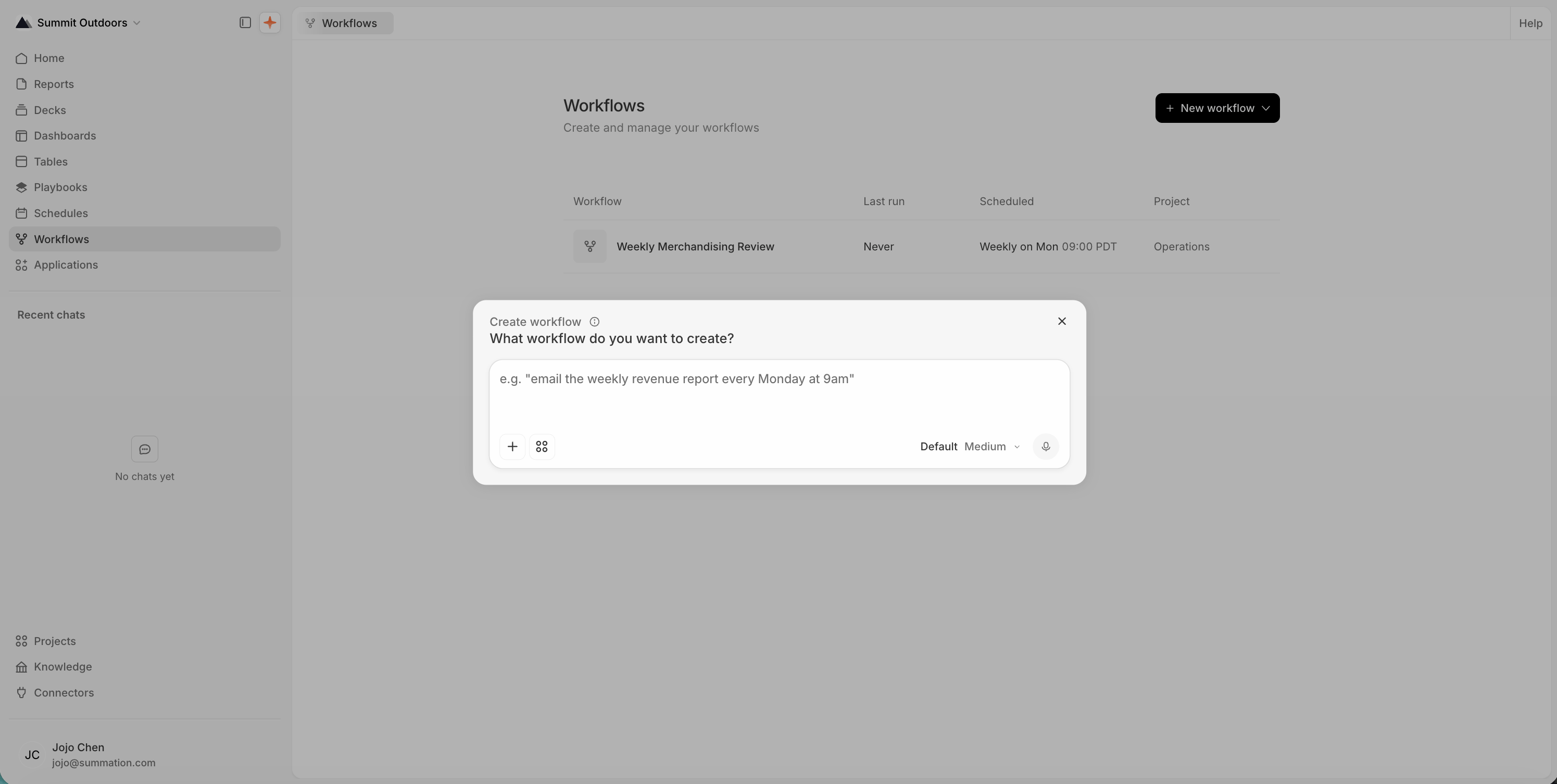
Open **Workflows → New workflow → Create with Addison** and describe the task, schedule, and desired output:
> Every Monday at 9 a.m. Pacific, review the prior week's revenue and gross margin against plan. Explain the largest variances and prepare a summary for our finance team.
Addison helps create the workflow and the playbook behind it. You can refine the instructions and output after reviewing a first run.
Open the report, deck, Excel workbook, HTML page, or playbook you want to repeat and choose **Create workflow**. Addison opens with the work already in scope.
> Turn this analysis into a weekly workflow. Use the prior complete Monday–Sunday week, keep the same calculations and output structure, and run it every Monday at 9 a.m. Pacific.
A [playbook](/features/artifacts/playbooks) holds the instructions for the work. The [workflow](/features/workflows) adds its schedule and delivery. You can ask Addison to build both rather than configuring them by hand.
 ## Review the settings
Check the project, schedule, and timezone. If you want delivery, supply the intended email addresses or Slack destination and confirm them in the editor.
## Review the settings
Check the project, schedule, and timezone. If you want delivery, supply the intended email addresses or Slack destination and confirm them in the editor.
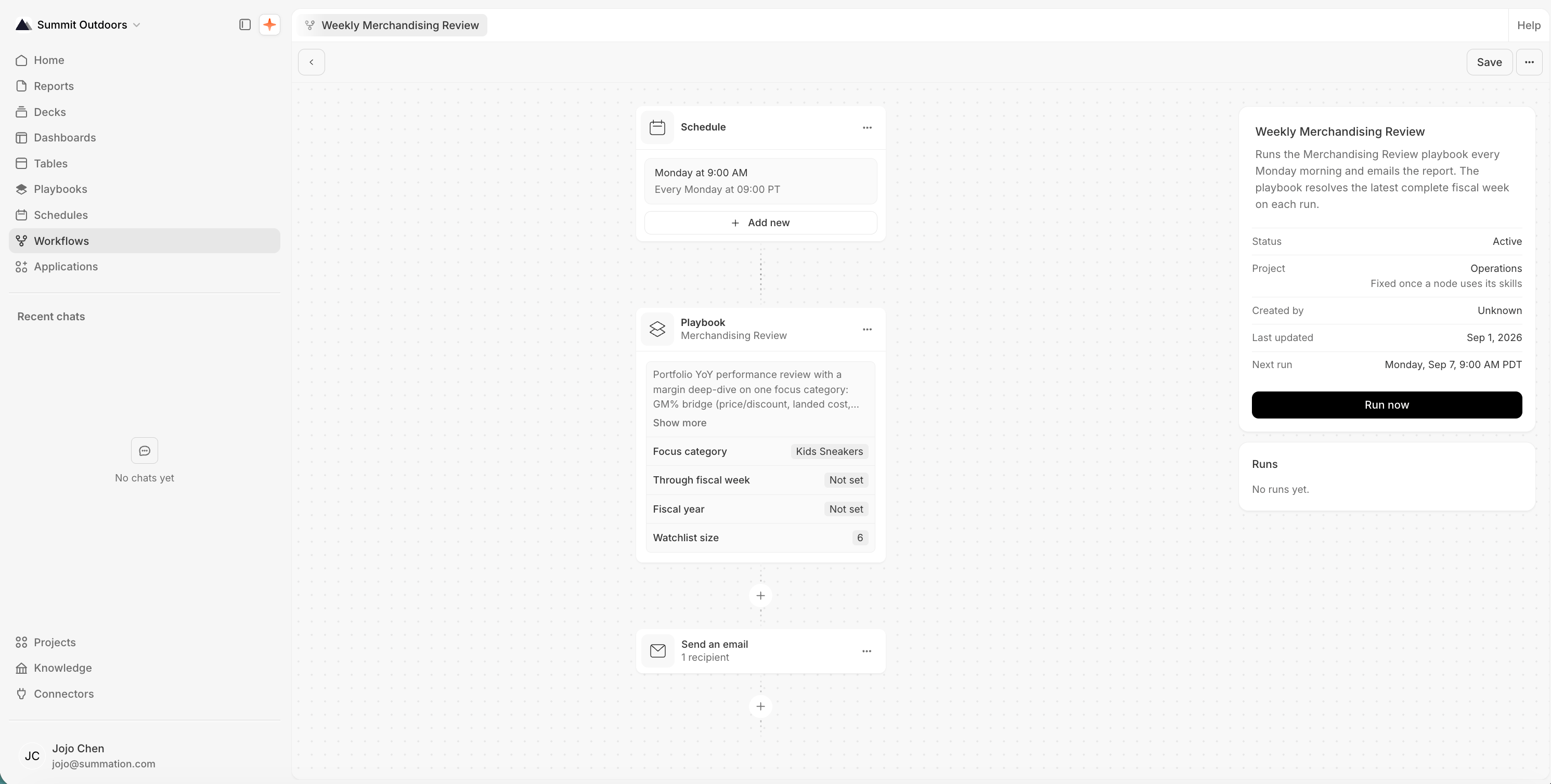 Schedule the work after its source data is expected to be ready. A workflow run doesn't refresh an uploaded file or synchronize every upstream dataset. Keep the reporting period relative to each run, such as “the prior complete week,” rather than a fixed date.
Saving a complete draft marks it **Active**. Saving doesn't run it immediately, but an enabled schedule will run at its configured times. Review the settings before saving, then check **Next run**.
## Test and refine the work
You can test the analysis on its own with **Run Playbook**, or test the whole workflow with **Run now**.
**Run now** saves unsaved changes and starts a real run, including delivery. It can activate a complete draft before running. Check the schedule and recipients first, and keep test delivery limited to the people who should receive it. A deactivated workflow must be activated before it can run.
Open the result and check that:
* the reporting period, data, and business definitions are right;
* the output answers the question and highlights meaningful changes;
* important findings trace to their sources, with missing inputs and uncertainty made clear.
Run the available [verification checks](/features/artifacts/verification) and review the results. A successful workflow run means the steps completed, not that the analysis passed verification.
If something needs to change, ask Addison to update the playbook instructions for future runs:
> Put the largest dollar variances first, explain the drivers by region, and flag missing plan data instead of treating it as zero.
Test again after revising. If you have another complete period available, try it to check that the instructions work beyond the original example.
## Check the first scheduled run
Confirm that **Next run** matches the schedule you intended. The workflow's **Runs** list shows each execution and its status.
Schedule the work after its source data is expected to be ready. A workflow run doesn't refresh an uploaded file or synchronize every upstream dataset. Keep the reporting period relative to each run, such as “the prior complete week,” rather than a fixed date.
Saving a complete draft marks it **Active**. Saving doesn't run it immediately, but an enabled schedule will run at its configured times. Review the settings before saving, then check **Next run**.
## Test and refine the work
You can test the analysis on its own with **Run Playbook**, or test the whole workflow with **Run now**.
**Run now** saves unsaved changes and starts a real run, including delivery. It can activate a complete draft before running. Check the schedule and recipients first, and keep test delivery limited to the people who should receive it. A deactivated workflow must be activated before it can run.
Open the result and check that:
* the reporting period, data, and business definitions are right;
* the output answers the question and highlights meaningful changes;
* important findings trace to their sources, with missing inputs and uncertainty made clear.
Run the available [verification checks](/features/artifacts/verification) and review the results. A successful workflow run means the steps completed, not that the analysis passed verification.
If something needs to change, ask Addison to update the playbook instructions for future runs:
> Put the largest dollar variances first, explain the drivers by region, and flag missing plan data instead of treating it as zero.
Test again after revising. If you have another complete period available, try it to check that the instructions work beyond the original example.
## Check the first scheduled run
Confirm that **Next run** matches the schedule you intended. The workflow's **Runs** list shows each execution and its status.
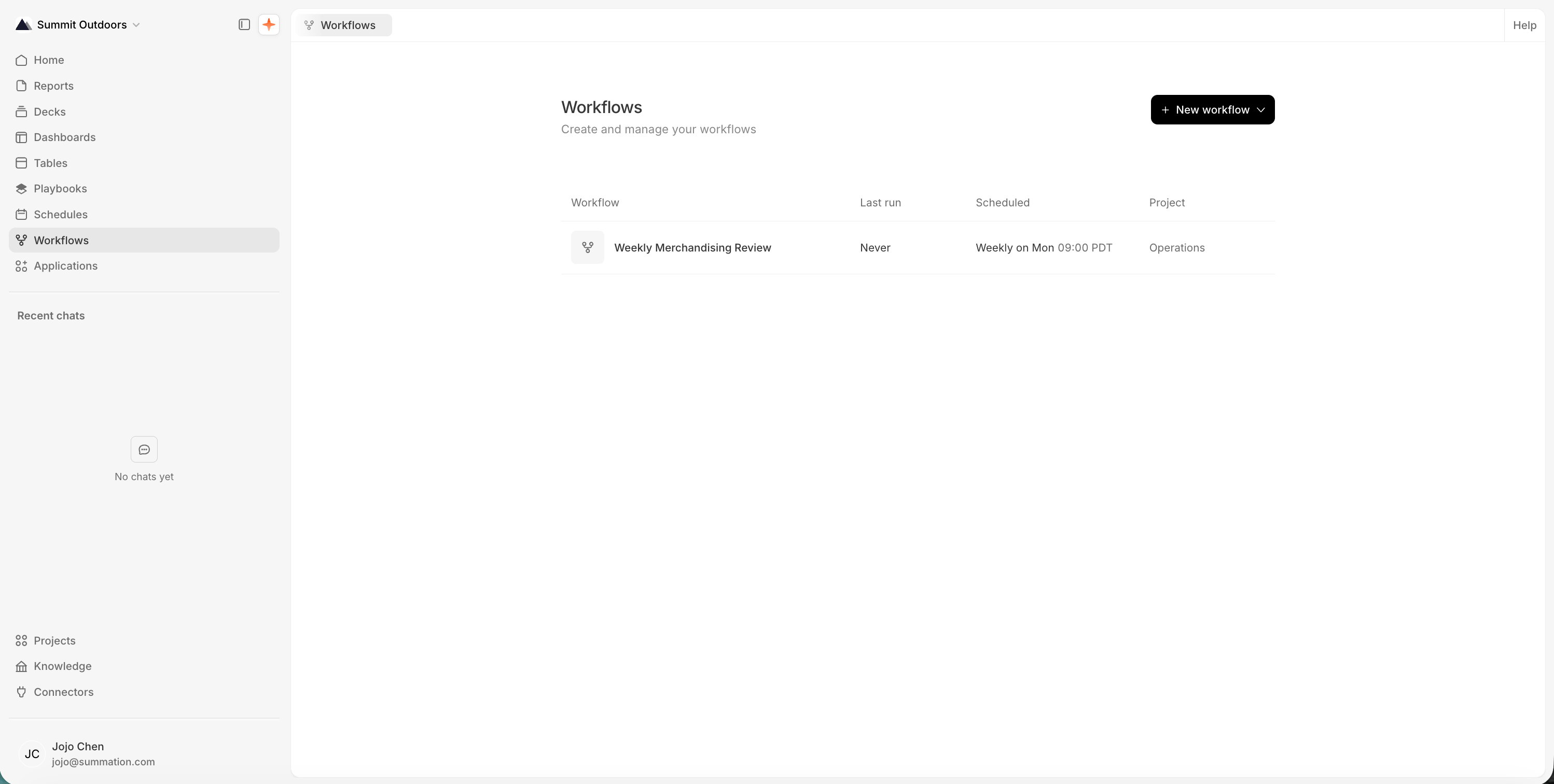 Review the first scheduled output and confirm delivery succeeded. If you're replacing an existing process, check that both aren't sending the same review. Before retrying a run, check whether it already delivered its output.
Agree on who will check failures and keep the instructions up to date. If the schedule or audience is wrong, deactivate the workflow while you correct it.
## Next
Learn how schedules, playbooks, delivery, activation, and run history work.
Inspect and refine the reusable instructions behind each run.
A standalone analysis is not a prerequisite for Addison's workflow-creation flow. The public API has different constraints: a workflow can only run an existing playbook, and workflow API access may be enabled separately from the app feature. Workflow writes replace the complete graph and require revision control. Read [Workflows](/api/workflows) before making API changes, and confirm schedule and recipients before saving or running.
Review the first scheduled output and confirm delivery succeeded. If you're replacing an existing process, check that both aren't sending the same review. Before retrying a run, check whether it already delivered its output.
Agree on who will check failures and keep the instructions up to date. If the schedule or audience is wrong, deactivate the workflow while you correct it.
## Next
Learn how schedules, playbooks, delivery, activation, and run history work.
Inspect and refine the reusable instructions behind each run.
A standalone analysis is not a prerequisite for Addison's workflow-creation flow. The public API has different constraints: a workflow can only run an existing playbook, and workflow API access may be enabled separately from the app feature. Workflow writes replace the complete graph and require revision control. Read [Workflows](/api/workflows) before making API changes, and confirm schedule and recipients before saving or running.