> ## Documentation Index
> Fetch the complete documentation index at: https://docs.summation.com/llms.txt
> Use this file to discover all available pages before exploring further.
# Monitor your business
> Keep track of what changed in your business, what drove it, and what needs attention.
Tell Addison what you want checked and how often. It helps you build a workflow to do the work. You don't need to create an analysis or artifact first.
## Choose your data
Choose a [project](/features/projects) with the data you want to review. Start with one area of your business, such as revenue, inventory, or operations.
Use a project whose catalog contains the relevant tables or views. Check when the data refreshes so you can schedule the workflow after new data is available.
Upload a recent spreadsheet or export to a project using **+ Import → Upload Files**. You can use it to try the workflow before connecting a source.
Each run uses the data available to it. For ongoing monitoring, update the file or connect a source that refreshes.
Need to bring data in first? See [Connect your data](/get-started/connect-your-data).
## Describe the workflow
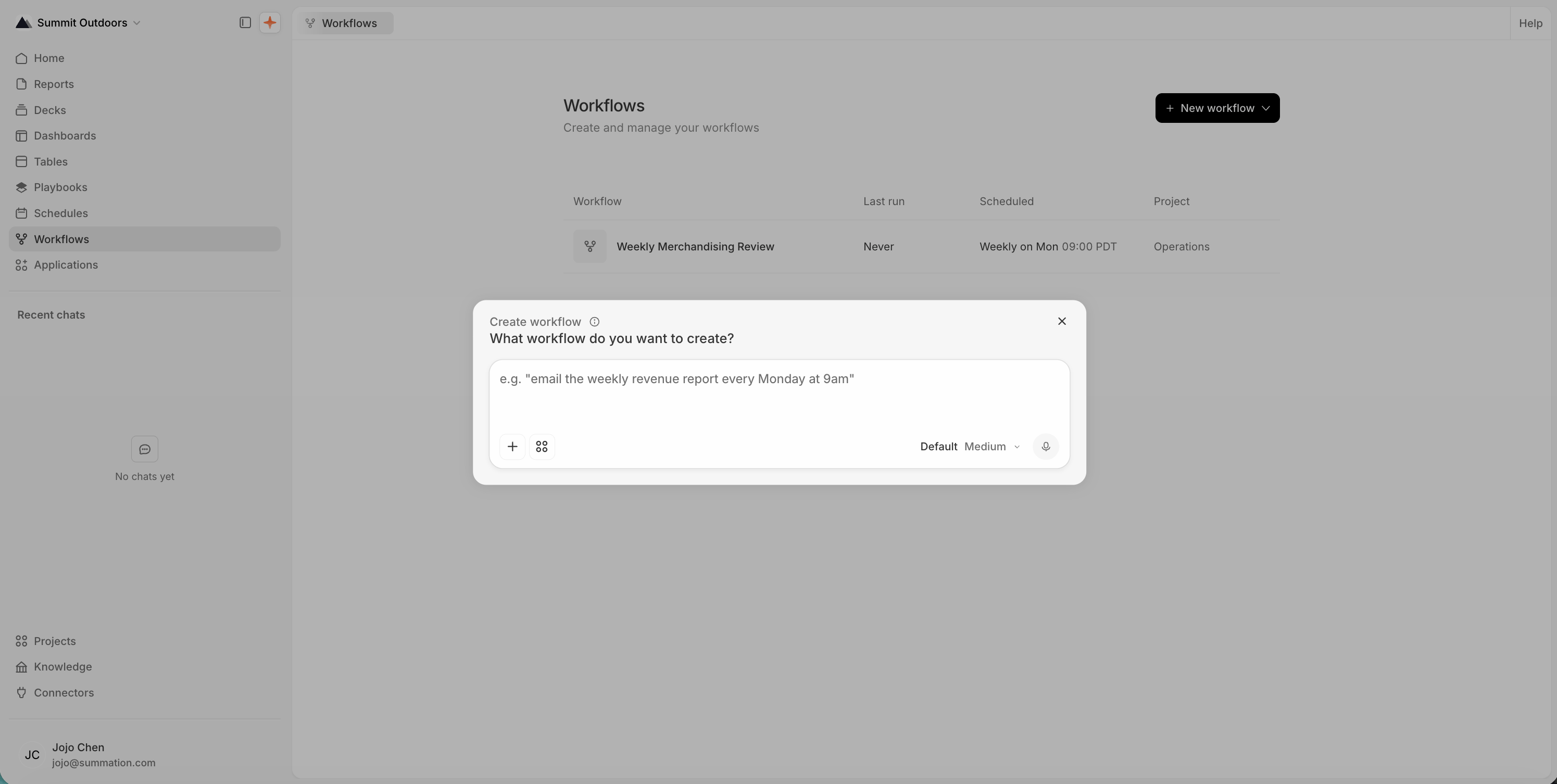
Open **Workflows → New workflow → Create with Addison** and describe what you want:
> Every morning at 8 a.m. Pacific, review yesterday's sales and gross margin against plan. Investigate the biggest variances by region and product, and summarize what the finance team should look into.
You can choose a weekly or monthly schedule, or ask for a particular output, such as a report or HTML page. Start with the task you need done; refine the comparisons, business definitions, and format as you review the result.
Addison helps build the workflow and the playbook it runs. The playbook holds the instructions for the analysis; the workflow adds the schedule and delivery. You don't need to create either one by hand.
 Already have an analysis you want to repeat? Choose **Create workflow** from its report, HTML page, or other artifact.
## Test it and confirm the schedule
Review the workflow Addison creates. Check that it uses the right project, schedule, and timezone. If it includes delivery, check the recipients too.
Already have an analysis you want to repeat? Choose **Create workflow** from its report, HTML page, or other artifact.
## Test it and confirm the schedule
Review the workflow Addison creates. Check that it uses the right project, schedule, and timezone. If it includes delivery, check the recipients too.
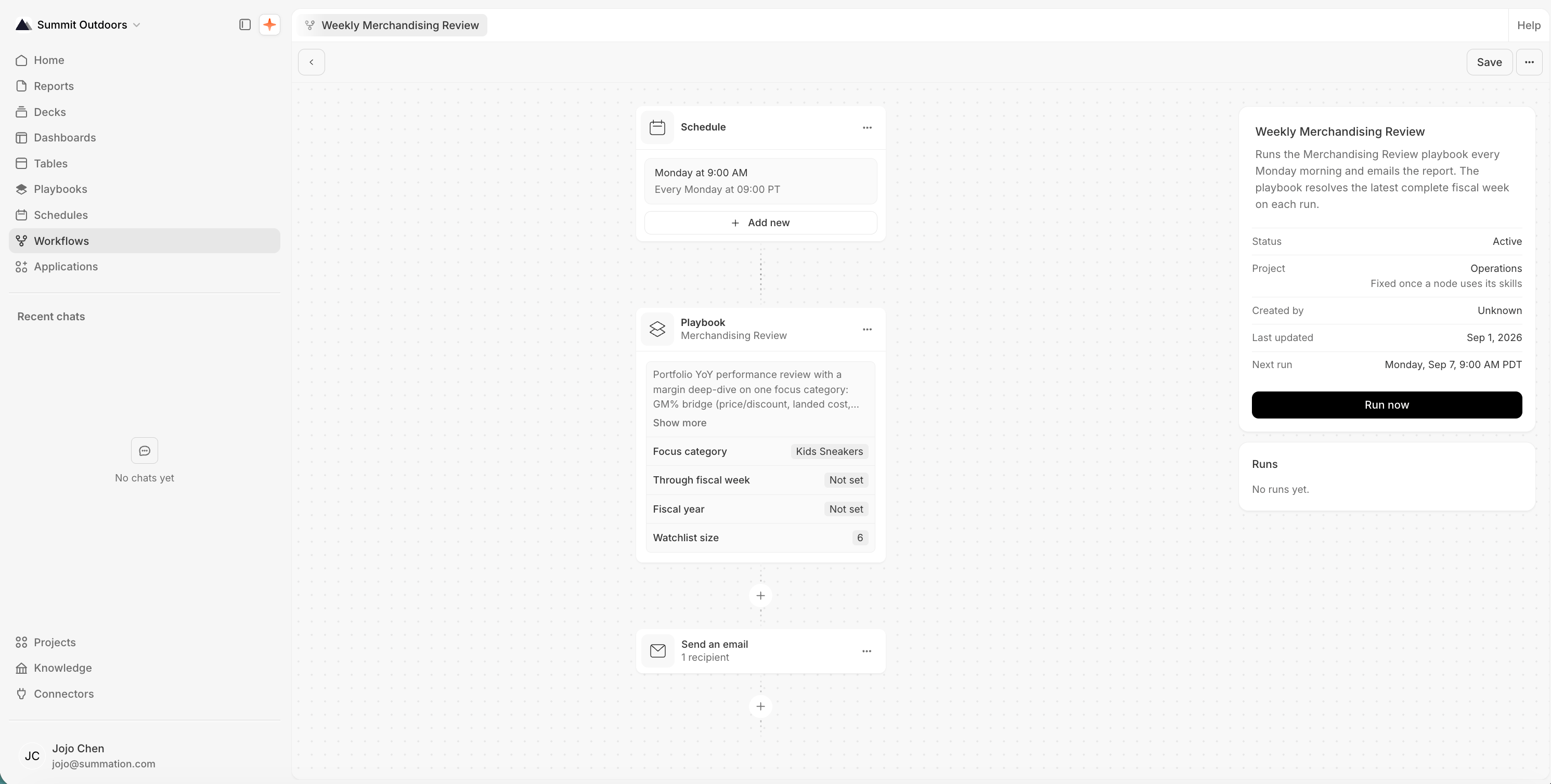 **Run now** starts a real run, including any delivery steps. It is not a preview. For an initial test, use only the recipients who should receive the test output.
Open the result and check that it uses yesterday's actuals and the matching plan. Does it highlight the variances your finance team would care about? Trace a surprising number back to its source, and use [verification](/features/artifacts/verification) to review the available checks.
If something needs to change, tell Addison:
> Show sales net of returns, and separate margin changes caused by product mix from changes in product margins. Put the largest dollar variances first.
Update the playbook instructions for future runs, then test again. Editing one output alone doesn't change what the workflow will do next time.
Saving a complete draft marks the workflow **Active**. Saving doesn't start a run immediately, but an enabled schedule will run at its configured times. Review these settings before saving, and check **Next run** to confirm when the workflow will run.
Schedule the work after its source data refreshes, allowing time for analysis and delivery. Once you're happy with the result and settings, the workflow can repeat the work on that schedule.
## Next
Investigate a question and check the evidence behind the answer.
Go deeper on reusable instructions, testing, and delivery.
A standalone report is not a prerequisite. Help the user describe the monitoring task, available data, cadence, and desired output, then use Addison's workflow-creation flow. Confirm schedule and delivery settings before saving or running: saving a complete draft can enable scheduled runs, and Run now executes delivery steps. Review the first output with the user and refine the playbook as needed. Read [Workflows](/features/workflows) for the supported app and API operations; do not assume the public API can author playbooks.
**Run now** starts a real run, including any delivery steps. It is not a preview. For an initial test, use only the recipients who should receive the test output.
Open the result and check that it uses yesterday's actuals and the matching plan. Does it highlight the variances your finance team would care about? Trace a surprising number back to its source, and use [verification](/features/artifacts/verification) to review the available checks.
If something needs to change, tell Addison:
> Show sales net of returns, and separate margin changes caused by product mix from changes in product margins. Put the largest dollar variances first.
Update the playbook instructions for future runs, then test again. Editing one output alone doesn't change what the workflow will do next time.
Saving a complete draft marks the workflow **Active**. Saving doesn't start a run immediately, but an enabled schedule will run at its configured times. Review these settings before saving, and check **Next run** to confirm when the workflow will run.
Schedule the work after its source data refreshes, allowing time for analysis and delivery. Once you're happy with the result and settings, the workflow can repeat the work on that schedule.
## Next
Investigate a question and check the evidence behind the answer.
Go deeper on reusable instructions, testing, and delivery.
A standalone report is not a prerequisite. Help the user describe the monitoring task, available data, cadence, and desired output, then use Addison's workflow-creation flow. Confirm schedule and delivery settings before saving or running: saving a complete draft can enable scheduled runs, and Run now executes delivery steps. Review the first output with the user and refine the playbook as needed. Read [Workflows](/features/workflows) for the supported app and API operations; do not assume the public API can author playbooks.