> ## Documentation Index
> Fetch the complete documentation index at: https://docs.summation.com/llms.txt
> Use this file to discover all available pages before exploring further.
# Turn a business review into a deck
> An exec-ready deck built from a review you've already published: same order, same numbers, a finding in every title.
Output
[Deck](/features/artifacts/decks) (.pptx) and scheduled [workflow](/features/workflows)
Cadence
For each review
For
Finance and FP\&A leads, business-unit general managers, chiefs of staff, anyone presenting to leadership or the board
## When to use it
The review is written. Now someone has to turn it into slides, and this is where the numbers drift. A figure gets retyped. A chart gets rebuilt from a slightly different cut. The deck says one thing, the report says another, and the meeting spends ten minutes working out which is right.
A review deck should say exactly what the review says, in the review's order, in fewer words and more charts. It should not run analysis of its own. That's the spec. Summation builds it from the published document and nothing else.
## Understanding the demo
When you delegate your review deck to Summation, you get a cover, an agenda, and one slide per finding, in the same order as the document. Every content slide has a title that states the finding and a short takeaway that says why it matters. Where the review had a table, the deck usually has a chart. Method and caveats go in the speaker notes. Every figure on a slide is a figure printed in the review.
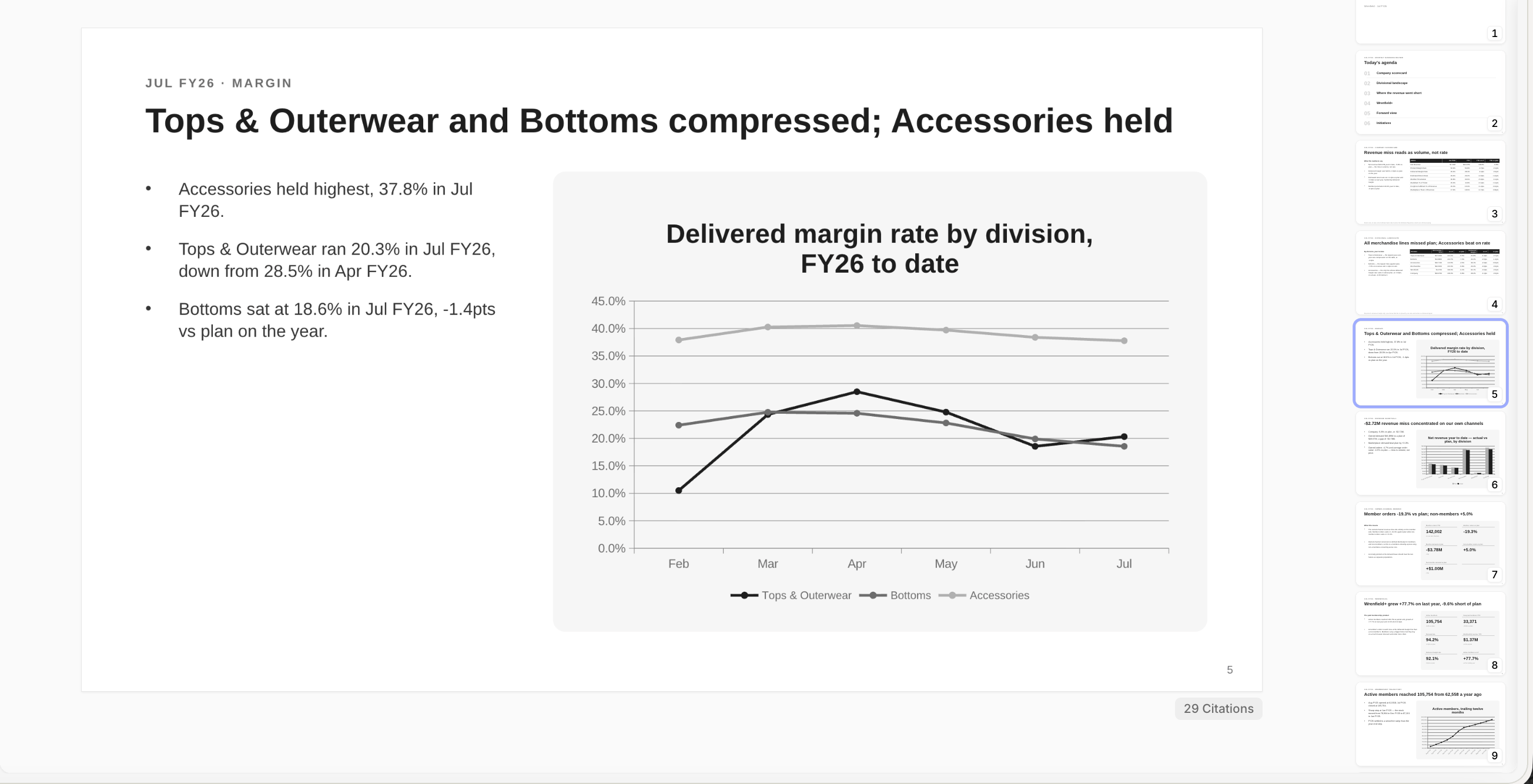 1. **Cover and agenda:** The agenda carries section headlines and nothing else
2. **Finding-led titles:** Read the titles alone, top to bottom, and you have the thesis. No slide is called "Revenue."
3. **Takeaways with a reason:** Each takeaway states the fact, what's contained about it, and what it means. A line you could have written from the chart beside it isn't included
4. **Charts in place of tables:** Anything that varies across a comparable axis is drawn. Bars start at zero; a line over a large base is windowed so the move is visible
5. **A response for every miss:** The deck looks for the diagnosis, the reason it's contained, and the response already in flight. If none exists, it says so
6. **Speaker notes:** Method and caveats live here, where a presenter can say them out loud. If the review marks a number as estimated, so does the slide
Every figure traces back to the published review, and Summation checks [each slide as rendered](/features/artifacts/verification) before delivery.
## How it works
[Addison](/features/addison) takes you through a guided setup:
1. **Source:** Addison reads the published review as rendered, and confirms against your fiscal calendar that it is the current one
2. **Argument:** It writes the thesis and three to six findings, keeping the review's order
3. **Slide plan:** You see the slide list, each title written as a finding, and can add, cut or reorder before anything is built
4. **Build and verify:** Summation builds the slides and checks each one as rendered, then runs [verification](/features/artifacts/verification) on the finished deck. A deck gets the same citation, traceability, claim and query checks a report gets, plus deliverable gates and an advisory quality review; the **Citations** button under a slide traces any figure back to its source query
5. **Send:** Save it as a [Playbook](/features/artifacts/playbooks) and schedule a [Workflow](/features/workflows)
## What you need
| Data | Required? | What it adds |
| -------------------------------------- | --------- | -------------------------------------------------- |
| **A published review in your project** | Yes | The only source for every figure on every slide |
| **Fiscal calendar** | Yes | Confirms the review is the current one |
| **Your slide template** | Optional | The deck fills your layouts instead of the default |
The deck queries nothing but your fiscal calendar. Everything else comes from the review.
## Make it yours
Bring your template and the deck fills its slots. To add, remove or reorder slides, ask Addison. To change a slide, click any region and use Ask or [Edit with AI](/features/artifacts/decks#ask-and-edit-with-addison); remember to refresh [verification](/features/artifacts/verification) before sharing. Download as editable PowerPoint or PDF, present full-screen, or publish a view-only link.
## Try it
**In Summation:**
* **Use the setup skill:** `/analytical-deck`
* **Or follow the guided setup:** Get started → Choose a ready-made job → **Turn a business review into a deck** → Explore demo → **Create with my data**
* **Or from a report:** open any published report and ask Addison for a deck
**From another agent:** Open [summation.com/agents.md](https://summation.com/agents.md) and ask for a deck from a named report.
## Next
Slides that trace every figure back to its data.
How Summation checks accuracy before you share.
Save the instructions so a run repeats exactly.
Add a schedule and deliver by email or Slack.
1. **Cover and agenda:** The agenda carries section headlines and nothing else
2. **Finding-led titles:** Read the titles alone, top to bottom, and you have the thesis. No slide is called "Revenue."
3. **Takeaways with a reason:** Each takeaway states the fact, what's contained about it, and what it means. A line you could have written from the chart beside it isn't included
4. **Charts in place of tables:** Anything that varies across a comparable axis is drawn. Bars start at zero; a line over a large base is windowed so the move is visible
5. **A response for every miss:** The deck looks for the diagnosis, the reason it's contained, and the response already in flight. If none exists, it says so
6. **Speaker notes:** Method and caveats live here, where a presenter can say them out loud. If the review marks a number as estimated, so does the slide
Every figure traces back to the published review, and Summation checks [each slide as rendered](/features/artifacts/verification) before delivery.
## How it works
[Addison](/features/addison) takes you through a guided setup:
1. **Source:** Addison reads the published review as rendered, and confirms against your fiscal calendar that it is the current one
2. **Argument:** It writes the thesis and three to six findings, keeping the review's order
3. **Slide plan:** You see the slide list, each title written as a finding, and can add, cut or reorder before anything is built
4. **Build and verify:** Summation builds the slides and checks each one as rendered, then runs [verification](/features/artifacts/verification) on the finished deck. A deck gets the same citation, traceability, claim and query checks a report gets, plus deliverable gates and an advisory quality review; the **Citations** button under a slide traces any figure back to its source query
5. **Send:** Save it as a [Playbook](/features/artifacts/playbooks) and schedule a [Workflow](/features/workflows)
## What you need
| Data | Required? | What it adds |
| -------------------------------------- | --------- | -------------------------------------------------- |
| **A published review in your project** | Yes | The only source for every figure on every slide |
| **Fiscal calendar** | Yes | Confirms the review is the current one |
| **Your slide template** | Optional | The deck fills your layouts instead of the default |
The deck queries nothing but your fiscal calendar. Everything else comes from the review.
## Make it yours
Bring your template and the deck fills its slots. To add, remove or reorder slides, ask Addison. To change a slide, click any region and use Ask or [Edit with AI](/features/artifacts/decks#ask-and-edit-with-addison); remember to refresh [verification](/features/artifacts/verification) before sharing. Download as editable PowerPoint or PDF, present full-screen, or publish a view-only link.
## Try it
**In Summation:**
* **Use the setup skill:** `/analytical-deck`
* **Or follow the guided setup:** Get started → Choose a ready-made job → **Turn a business review into a deck** → Explore demo → **Create with my data**
* **Or from a report:** open any published report and ask Addison for a deck
**From another agent:** Open [summation.com/agents.md](https://summation.com/agents.md) and ask for a deck from a named report.
## Next
Slides that trace every figure back to its data.
How Summation checks accuracy before you share.
Save the instructions so a run repeats exactly.
Add a schedule and deliver by email or Slack.