
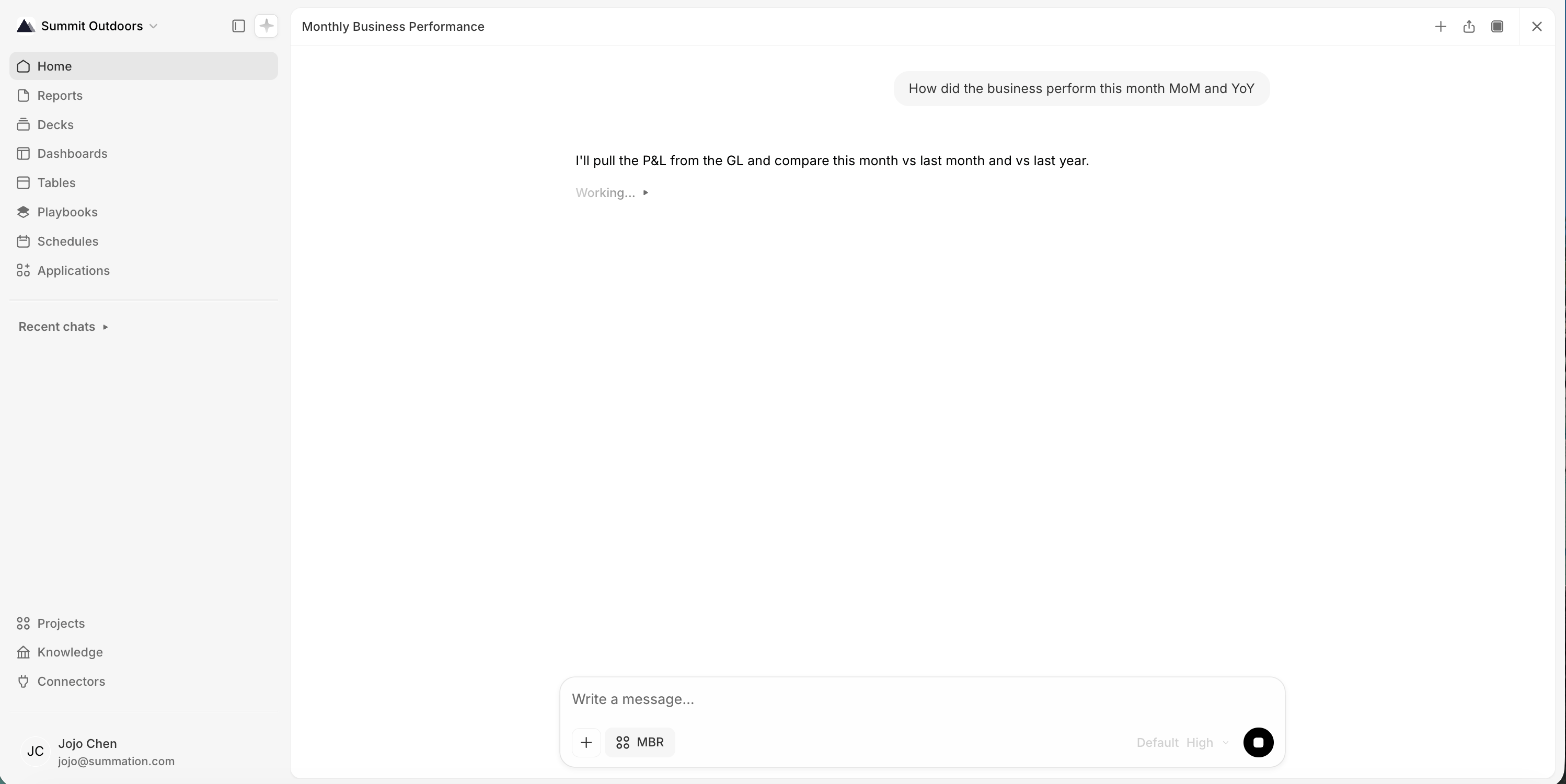
Addison working through a request
Start a chat
Open Addison with the sparkle button in the left sidebar, or type straight into the composer on Home. Pick the project the chat should use. That sets what Addison can see, and it’s fixed once the conversation starts. Without a pick, the chat uses your default project.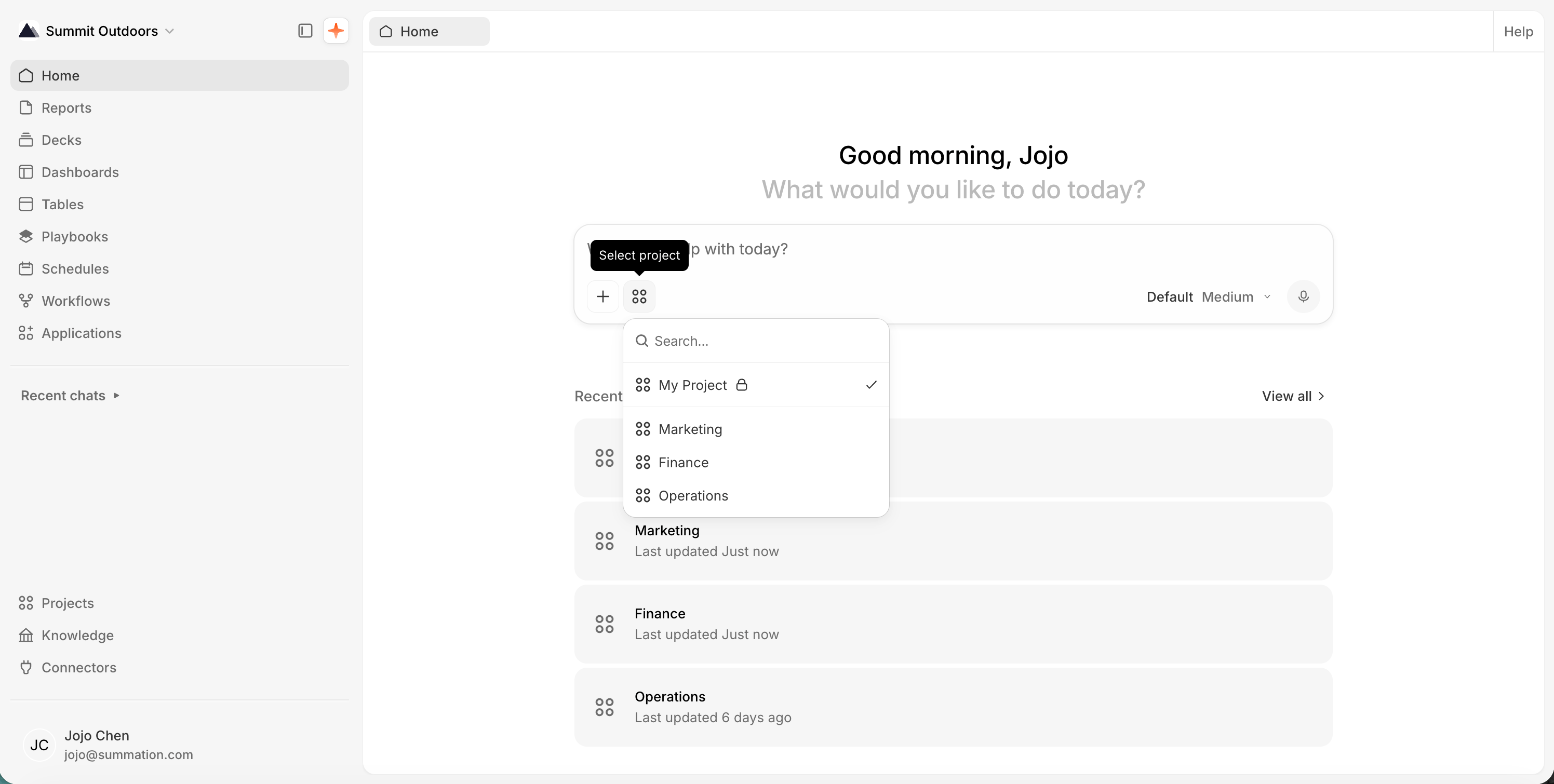
Home, with the project picker open
The composer
Ask in plain English. “What drove the revenue change in Q3?” works better than a keyword search. Addison already reads the project’s data and knowledge; use these controls to add more for a specific question.
Mentioning a file with @
Skills
Type/ for skills: named shortcuts that start Addison on a specific job. /report writes a report, and /verify-and-correct fact-checks work against its sources.
You rarely need them, since plain English gets you to the same place. Use them when you already know exactly what you want.
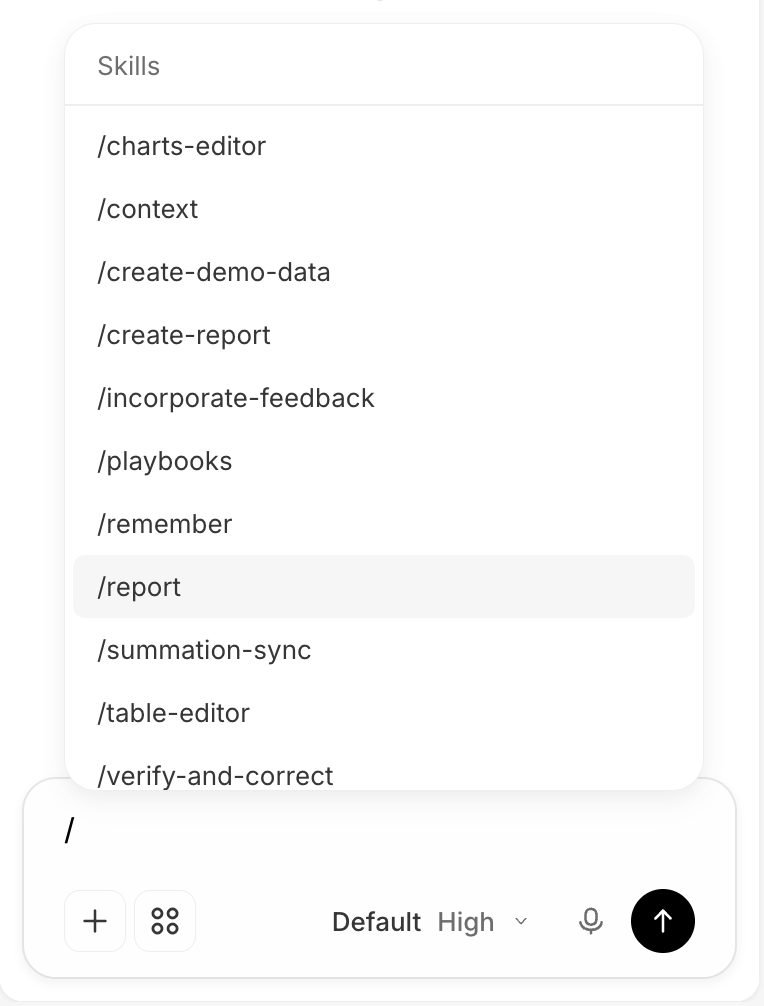
The skills menu
Model and effort
Default suits most work. When your workspace allows per-request selection, pick a model (grouped by provider) and an Effort level that trades speed for depth. Raise it for a complex analysis; leave it alone for a quick lookup.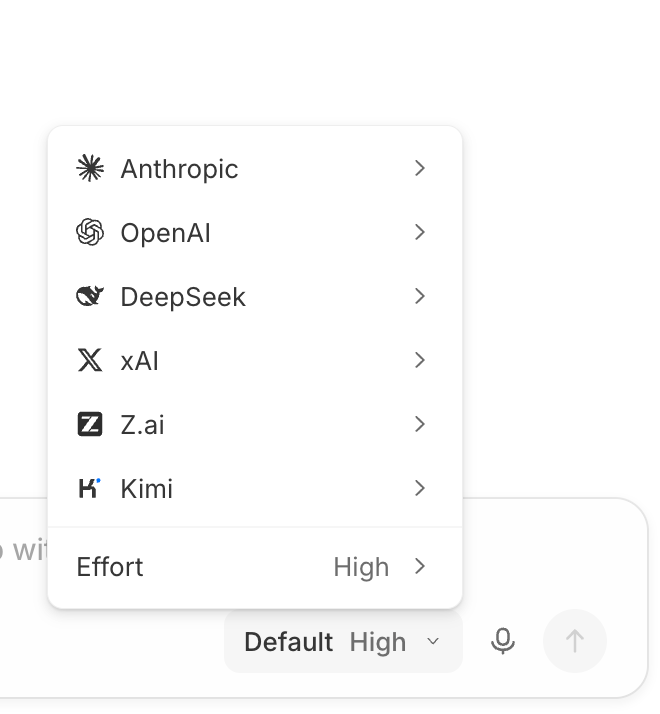
Model and effort
Reading a response
Addison narrates as it works. Each step (checking a skill, finding tables, running queries) is a collapsed line you can expand to see exactly what it did. Answers come back as prose, tables, charts, or a single metric, depending on the question. When Addison produces an artifact, it lands as a card with an Open button and is a real file in the project from that moment on. Copy, retry, or rate the response with the controls beneath it.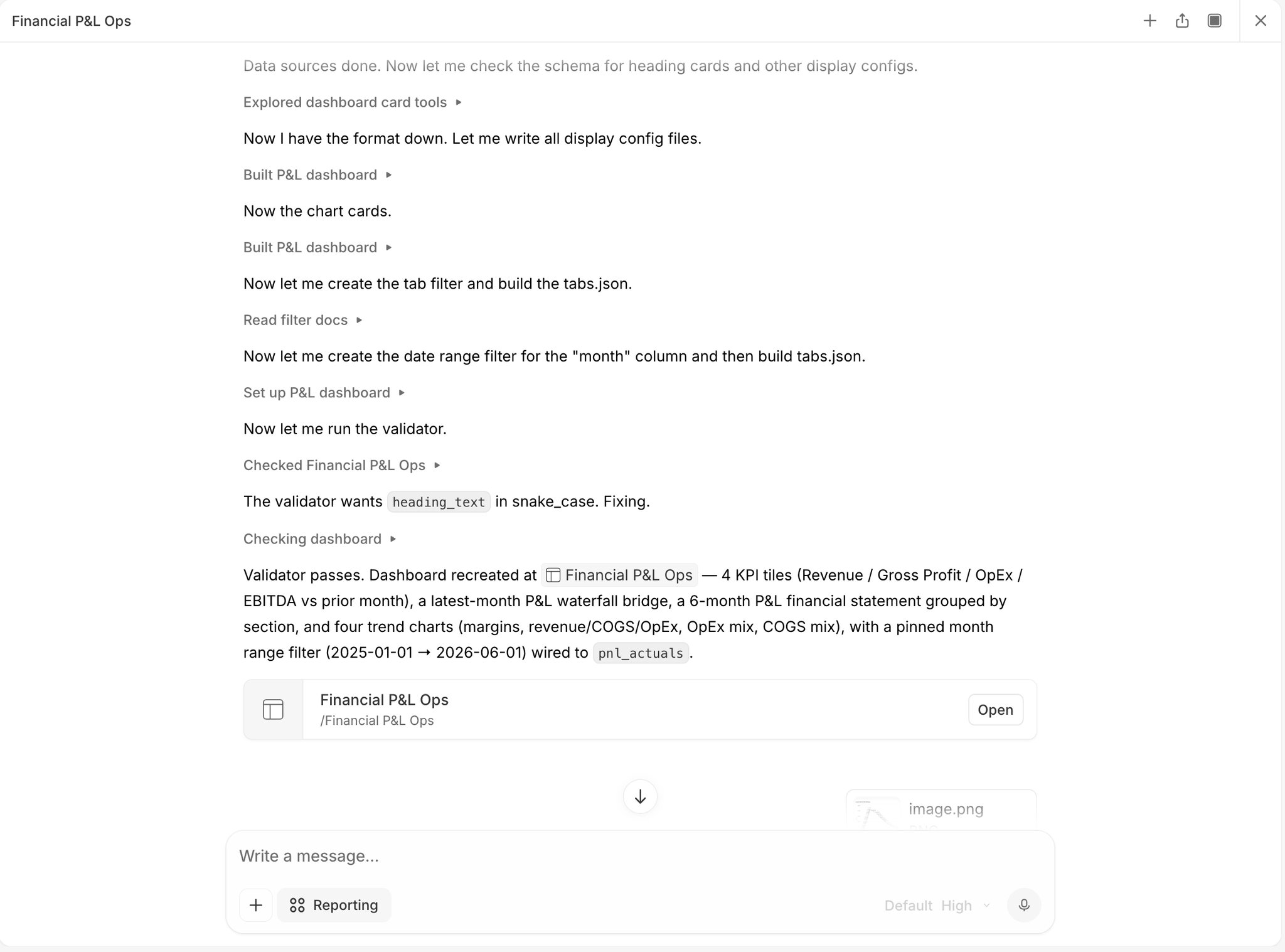
A finished response, with the artifact it produced
Chats and layout
Every conversation is its own thread, listed under Recent chats in the left sidebar. Each thread holds its own context, so follow-ups don’t need you to repeat the original question. Switch the pane between Sidebar (default), Floating, and Full screen from the panel icon in the pane header.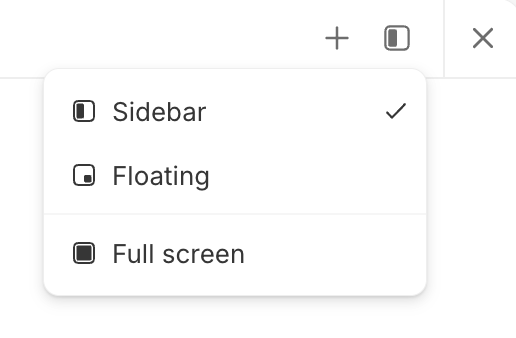
Sidebar, floating, or full screen
Get better answers
- Add knowledge. Metric definitions, glossaries, and domain context make Addison’s answers match how your business actually measures things.
- Enrich your catalog. Descriptions on tables and columns help Addison pick the right data without being told.
- Be specific. “Show monthly revenue for Q1 2026 by region” works better than “show me revenue.”
- Keep the thread going. Follow-ups inherit everything above them, so refine rather than restart.
- Check the steps. When an answer surprises you, expand the tool lines to see what produced it.