
Claude Code
Anyone can install the plugin from a Claude Code session; no admin required.1
Add the Summation marketplace
2
Install the plugin, then restart Claude Code
3
Sign in
4
Take the tour
Commands
You don’t need commands for most work. Describe what you need in plain English and the analyst picks it up.
The CLI underneath
In Claude Code the plugin uses sumcli for data operations when it can, because the CLI exposes the full API contract, including operations the curated MCP toolset deliberately withholds: deletes, connection management, and ingestion batches. At session start the plugin checks for sumcli, tells Claude which surface applies for the session (CLI when the installed version meets the plugin minimum, MCP otherwise), and prints the install command if it’s missing. It only installs after you say yes. The CLI keeps its own sign-in, separate from the MCP browser approval:Claude Desktop
On Claude Desktop, including Cowork, plugins are managed per organization. A Claude admin enables the plugin once, then every member installs it from the org library. Desktop has no shell, so everything runs over the hosted MCP server.For your Claude organization admin
1
Add Summation from GitHub
Go to claude.ai → Organization settings → Plugins → Add plugins, then select Sync from GitHub (fork the summation-plugin repo first) or upload the zip file from the plugin releases page.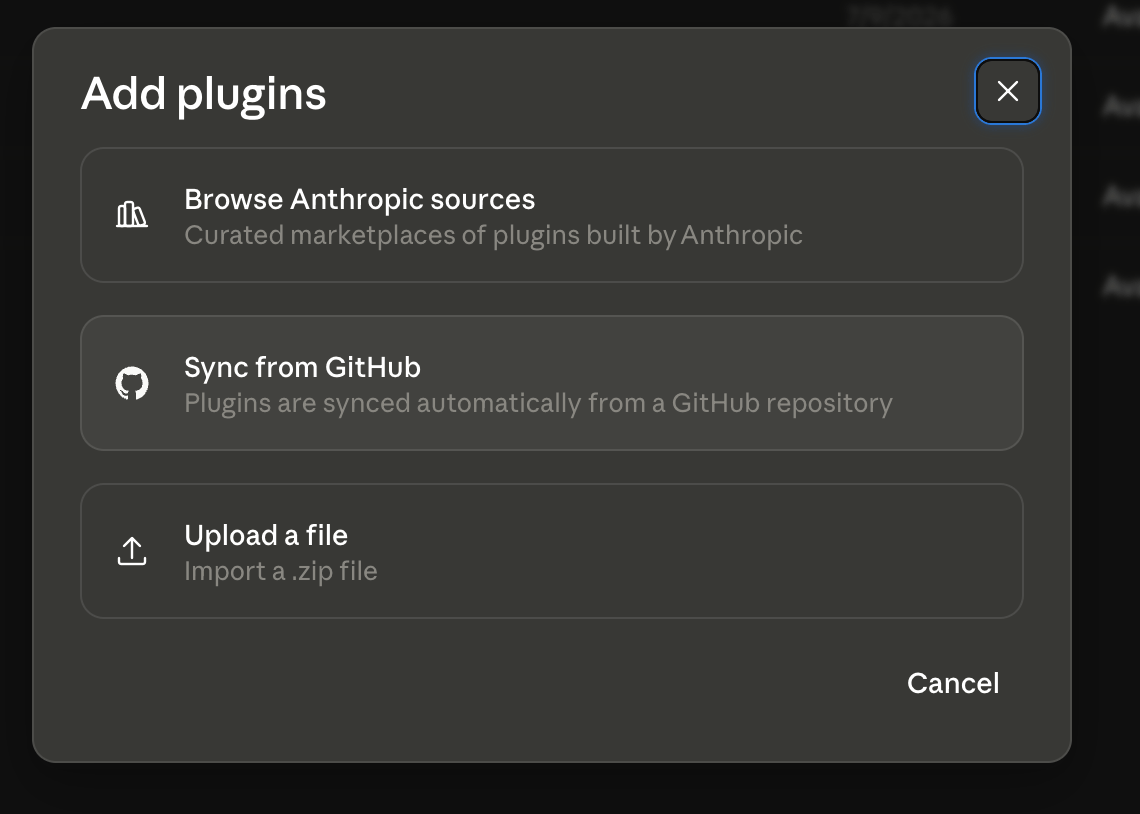
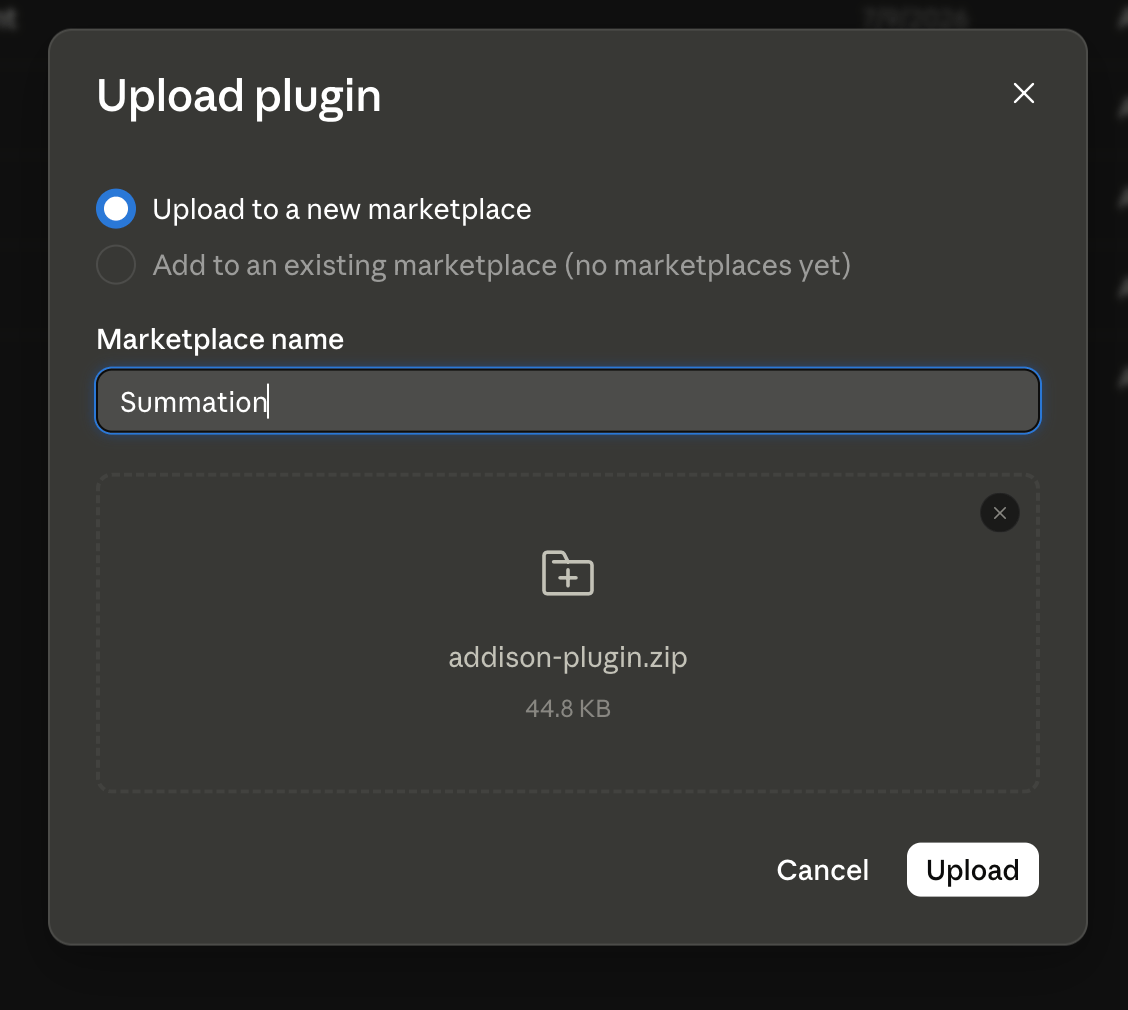

2
Allow network access to Summation
Skills run in Claude Desktop’s code-execution sandbox, which blocks outbound network access by default. Under Admin settings → Capabilities → Code execution → Network access, allow both hosts: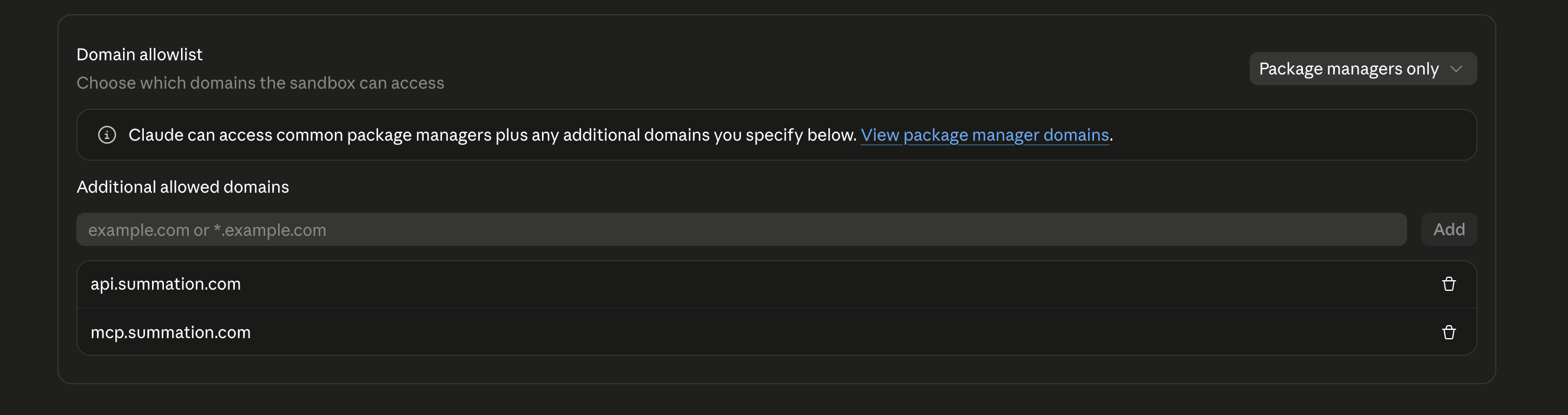
3
Publish to your organization
Publish the plugin to the org library so members can install it.
For team members
1
Install from your org library
In Claude Desktop, open Settings → Plugins → Browse, find Summation in your organization’s library, and install it with the (+) icon.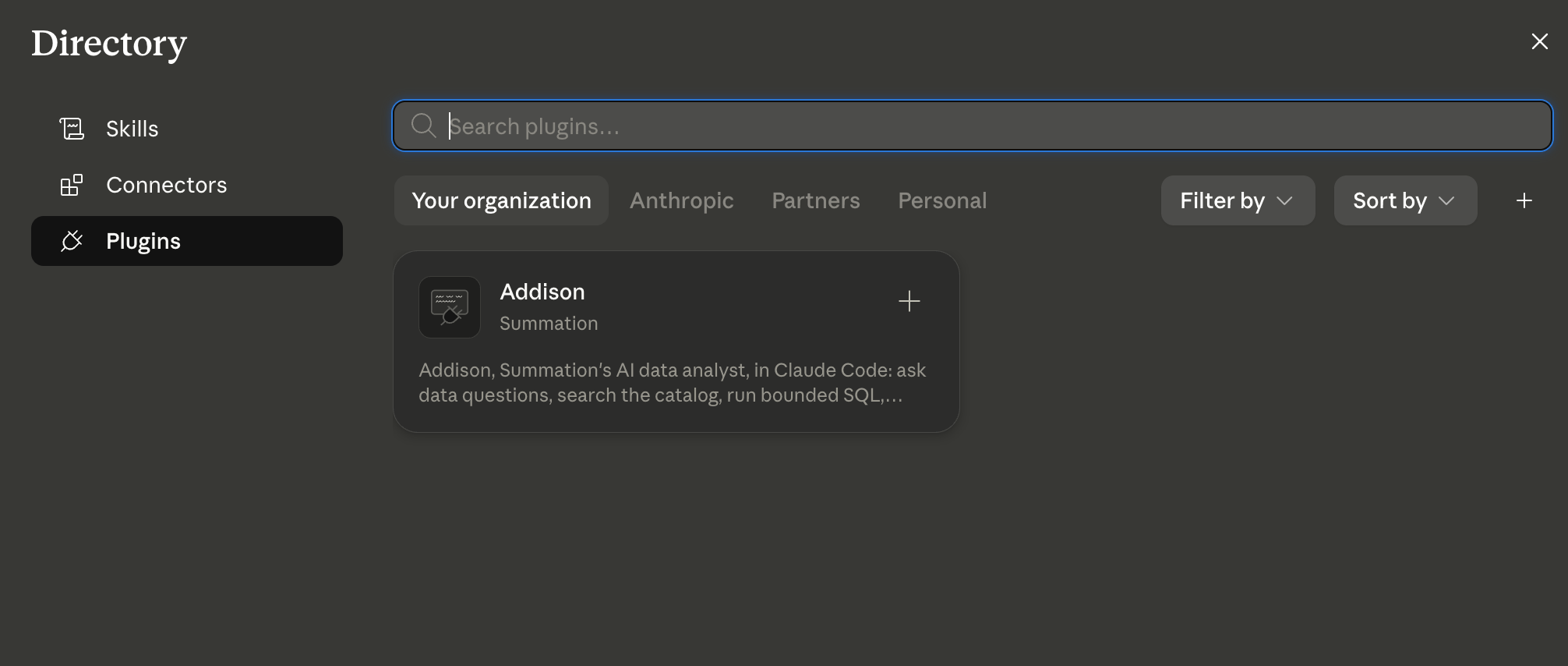
2
Start and sign in
Open a new chat and type
/summation:signin. Approve the connection in your browser and the analyst shows a map of your data.Troubleshooting
Sign-in fails immediately on Desktop
Sign-in fails immediately on Desktop
This is almost always the network allowlist. Ask your Claude admin to confirm
api.summation.com and mcp.summation.com are allowed under Code execution → Network access.Summation tools return 401 / ask me to authenticate
Summation tools return 401 / ask me to authenticate
The MCP session expired or was never approved. Run
/summation:signin, or open /mcp and re-authenticate the summation server. It takes seconds in the browser.The CLI says I'm not signed in even though Claude is connected
The CLI says I'm not signed in even though Claude is connected
The MCP browser approval and the CLI session are separate credentials, so run
sumcli auth login once. Being signed in over MCP doesn’t sign in the CLI, and vice versa.A report or query is taking a while
A report or query is taking a while
Report generation and validation are thorough and can take a minute or two. The analyst tells you it’s working. This is normal, not a hang.
I installed mid-session and got no version check
I installed mid-session and got no version check
Installing with
/plugin install inside a running session loads the skills and MCP server immediately, but the plugin’s session-start checks (CLI version check, update nudge, and the per-session surface-routing hint) only run when a session starts. Restart Claude Code after installing, which is why the install step above says to.I need automation or a non-production environment
I need automation or a non-production environment
The plugin is production and browser-approval only, the right default for almost everyone. For scripting and machine-to-machine access, use sumcli with an M2M profile or the Public API, or contact your Summation representative.