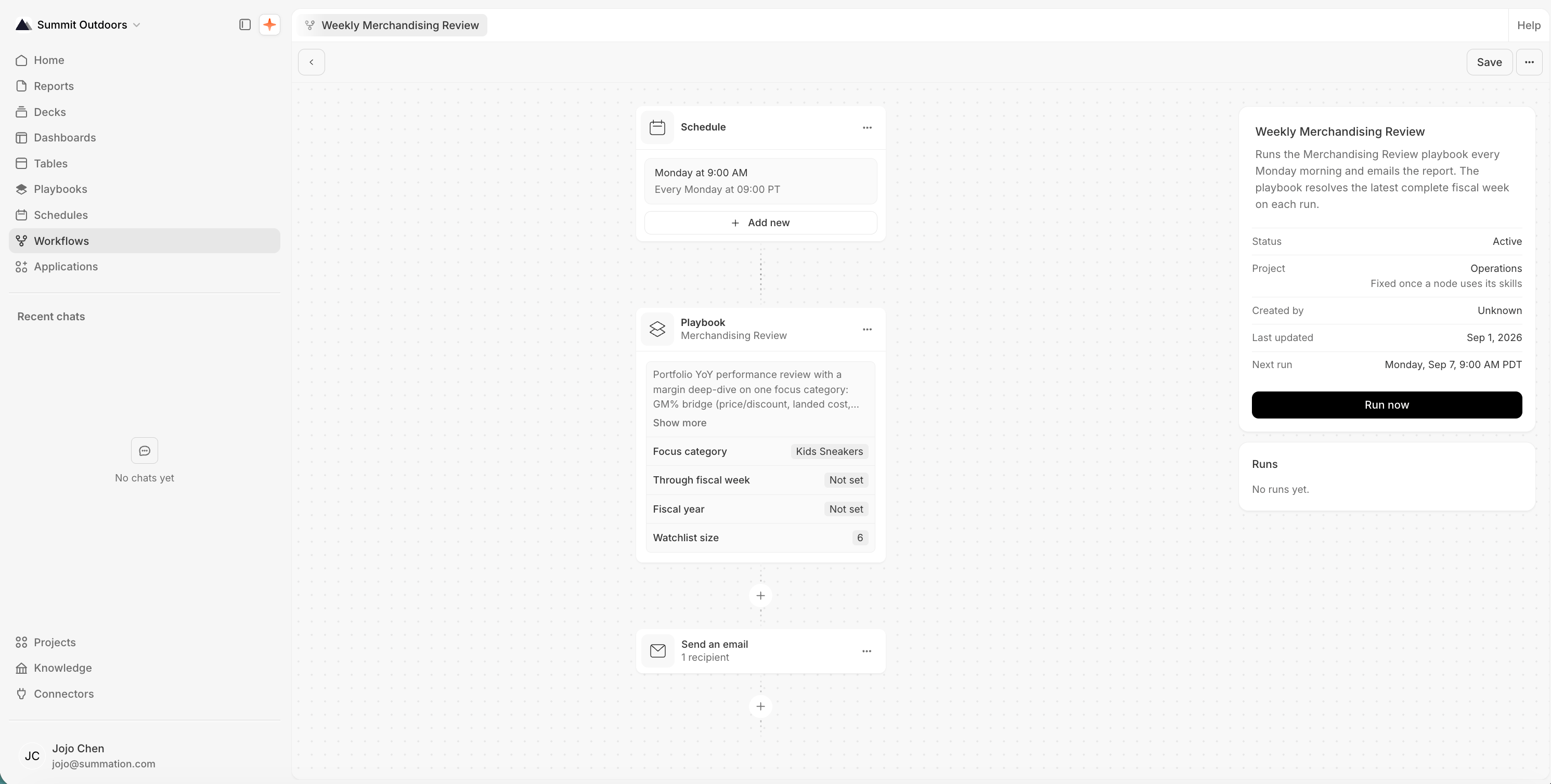
Workflows turn a one-off analysis into something that keeps happening on its own, so no one has to rebuild it by hand each time. A workflow is a pipeline: a trigger that starts it, on demand or on a schedule, and delivery steps that send the output out by email or Slack. Today the only work a workflow runs is a playbook, the repeatable instruction bundle where your analysis lives. A workflow’s graph combines three kinds of nodes: Schedule, Playbook, and Delivery. Each node type has its own settings, so you configure each one to match what you need.
The workflow editor for 'Weekly Merchandising Review', showing a Schedule node ('Monday at 9:00 AM, Every Monday at 09:00 PT'), a Playbook node ('Merchandising Review' with its parameters), and a 'Send an email' node, wired top to bottom. The right sidebar shows Status 'Active', Project 'Operations', Created by 'Unknown', Last updated 'Sep 1, 2026', Next run 'Monday, Sep 7, 9:00 AM PDT', and a 'Run now' button.

A workflow's graph: a Schedule trigger, a Playbook, and an email delivery node

Run playbook is the only action node available today. A workflow handles orchestration and delivery, so build the playbook first, then wrap the automation around it.

Schedule

The Schedule node sets the cadence a workflow runs on: Once, Daily, Weekly, or Monthly, in a timezone you choose. Deactivate the workflow to stop it running without losing its configuration, and reactivate it whenever you want.
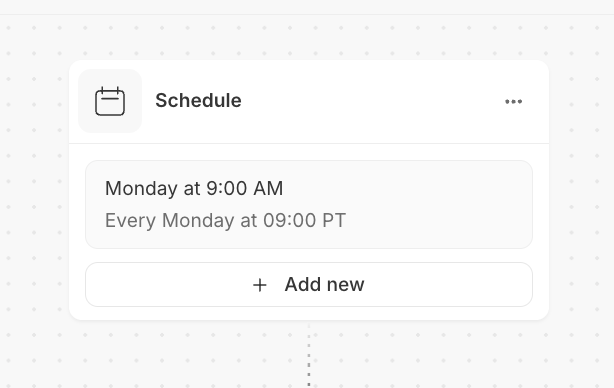
A Schedule node card reading 'Monday at 9:00 AM, Every Monday at 09:00 PT', with an 'Add new' button below it.

Schedule

Pick a Frequency when you build the node: Times are set in 15-minute increments and interpreted in the timezone you choose, your browser’s by default. The timezone is stored with the workflow, so runs stay put when you travel.

Playbook

The Playbook node is the one action a workflow can take. It runs a project playbook, a repeatable instruction bundle that can produce or update artifacts (reports, decks, HTML pages, Excel workbooks, and PDFs) or simply run analysis. Fill in whatever parameters the playbook needs: a date, a market, a team.
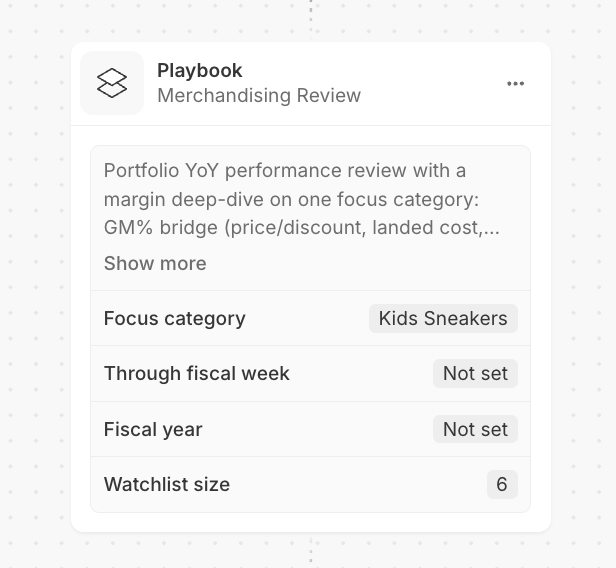
A Playbook node card titled 'Merchandising Review', showing its description and parameters: Focus category 'Kids Sneakers', Through fiscal week 'Not set', Fiscal year 'Not set', Watchlist size '6'.

Playbook

Each node is a card in the editor. Add one from the + between existing nodes, fill in its parameters, and connect it into the graph.

Delivery

The Delivery node hands the playbook’s output to people, in one of two ways:
  • Email: a list of recipients.
  • Slack: channels or people in a connected Slack workspace. Connect Slack there first.
Formats that are already presentation-ready are delivered as they are; everything else is rendered to PDF. Playbooks that declare their outputs get one row per output. For playbooks that don’t, the same per-kind default applies to whatever the run produced.
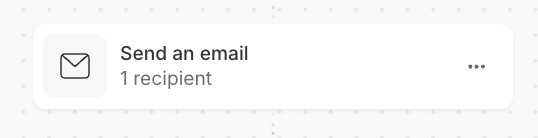
A 'Send an email' node card showing '1 recipient'.

Send an email

An email node needs its recipient list; a Slack node needs its channels or people, and a connected Slack workspace.

Create a workflow

There are two ways to start:
  1. From Workflows in the left nav, click New workflow, then Create with Addison to describe what you want in a sentence, or Write workflow manually to build the graph node by node.
  2. From any artifact (a report, deck, playbook, Excel file, or HTML page), the Create workflow action opens the same Addison flow, already scoped to that artifact.
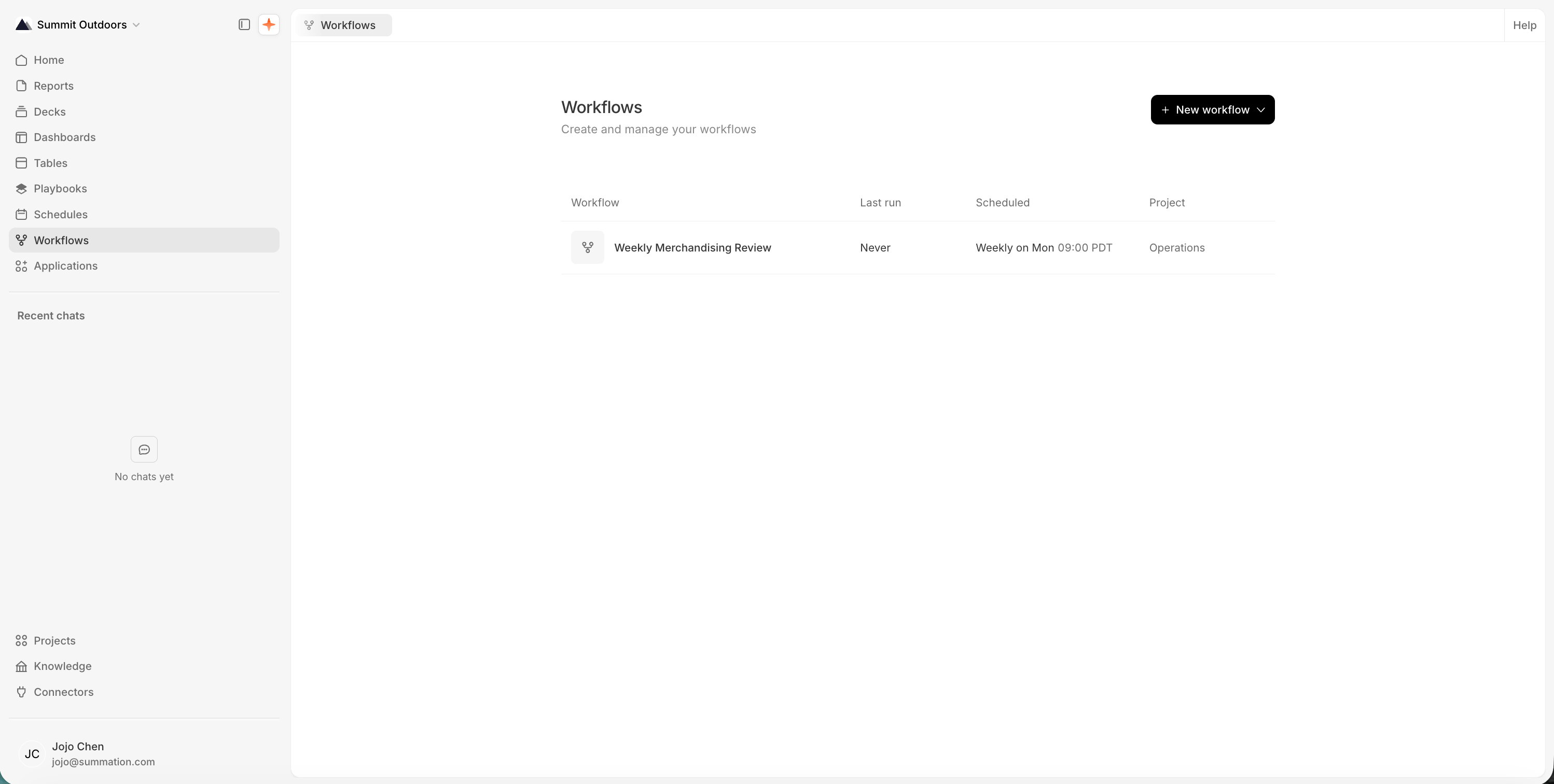
The Workflows page at /workflows, listing 'Weekly Merchandising Review' (Last run: Never, Scheduled: Weekly on Mon 09:00 PDT, Project: Operations), with a 'New workflow' button at the top right.

Workflows page with the New workflow menu open
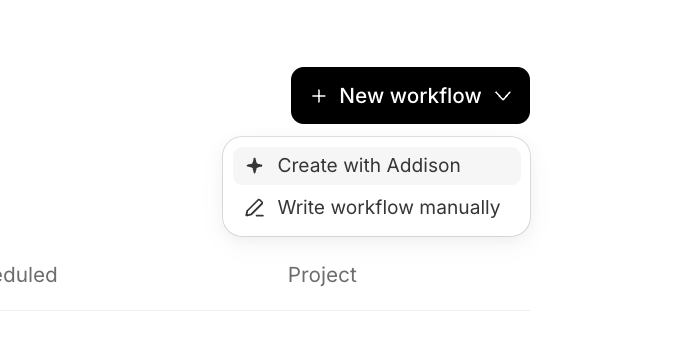
The 'New workflow' button open, showing a dropdown with two options: 'Create with Addison' and 'Write workflow manually'.

New workflow → Create with Addison or Write workflow manually
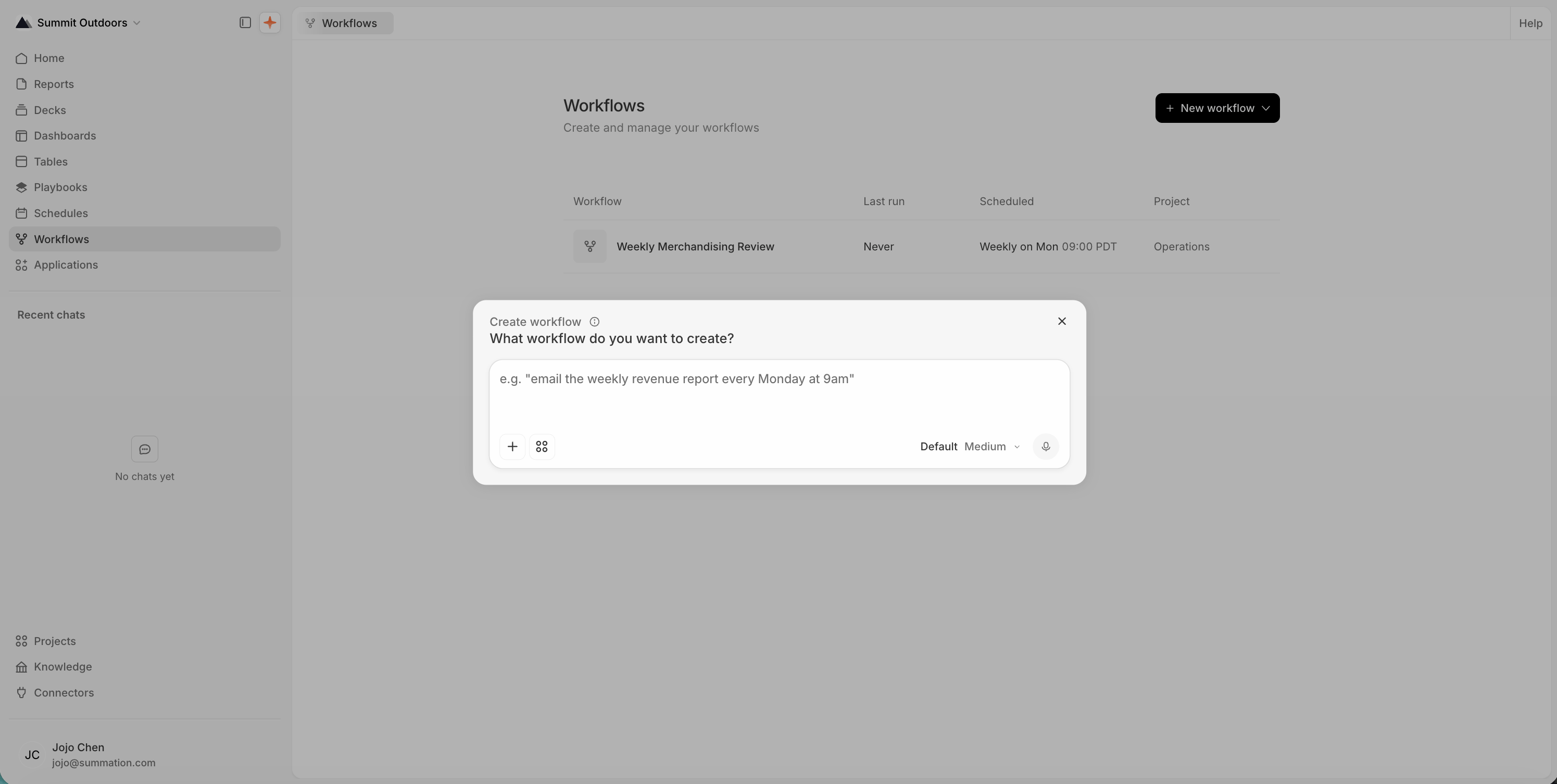
The 'Create workflow' dialog: 'What workflow do you want to create?' with a prompt field (placeholder e.g. 'email the weekly revenue report every Monday at 9am') and Default/Medium effort controls.

Describe the workflow you want and Addison builds it
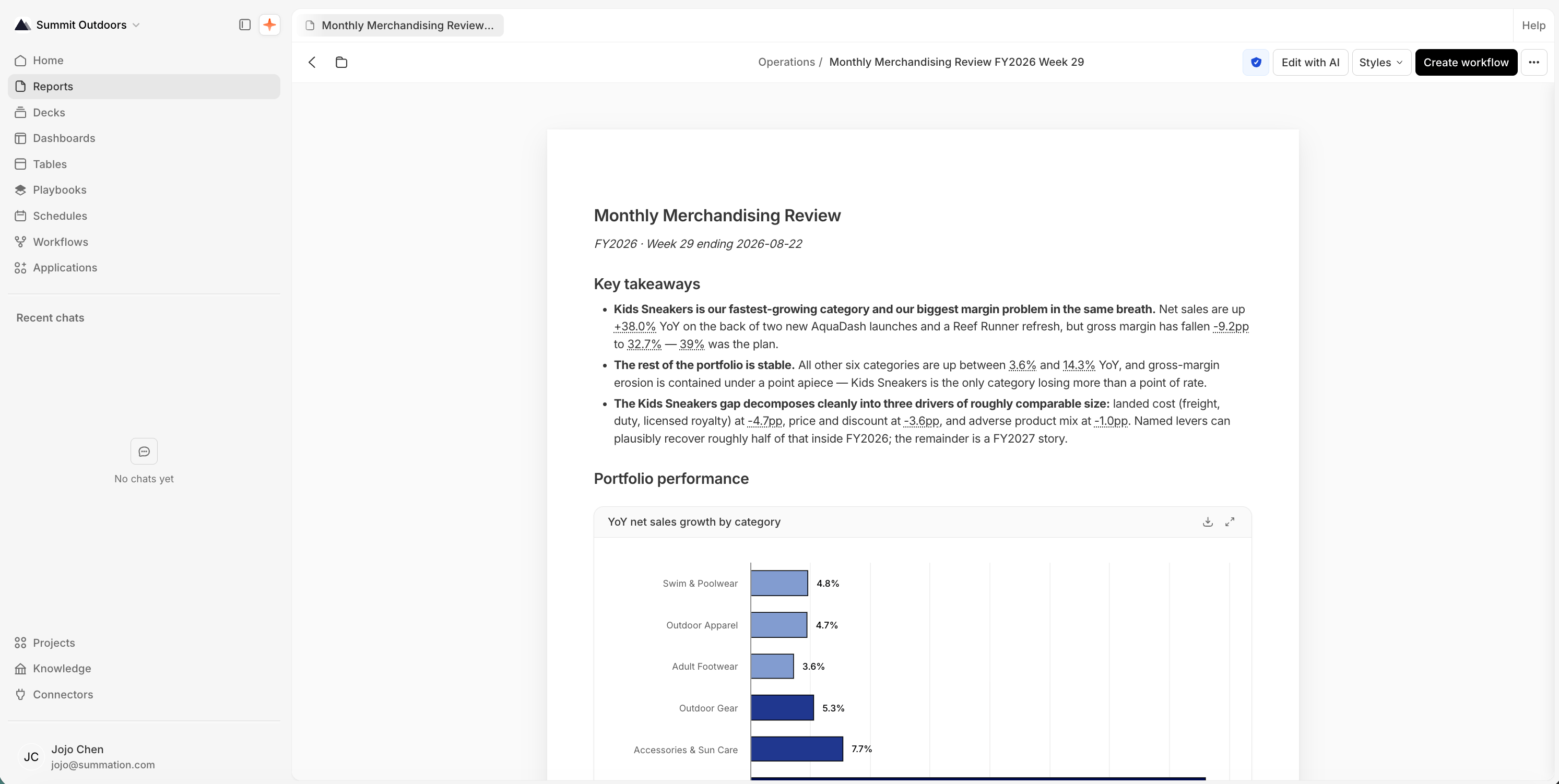
A report titled 'Monthly Merchandising Review' (breadcrumb: Operations / Monthly Merchandising Review FY2026 Week 29), with a 'Create workflow' button in the top toolbar alongside 'Edit with AI', 'Styles', and a verified checkmark.

Create workflow, from a report's toolbar

You can save an unfinished workflow as a draft. The editor shows what still needs attention. Fix any invalid recipient entries before saving.

Save and run

Saving a complete draft marks it Active; it does not run the workflow immediately. With an enabled schedule, the workflow runs at the configured times. Check Next run in the detail panel to confirm the schedule. Run now saves any unsaved changes and starts a run immediately, including its delivery steps. It is not a dry run. Check the schedule, timezone, and recipients before saving or running. Saved changes apply to future runs. Saving a deactivated workflow keeps it deactivated; choose Activate when you want it to resume. Deactivated and archived workflows cannot start new runs. If you save an active workflow with required run settings missing, it becomes deactivated. Complete those settings and activate it again when it is ready.

Watch what happened

The workflow’s detail panel lists its Runs, most recent first, each with its status.