
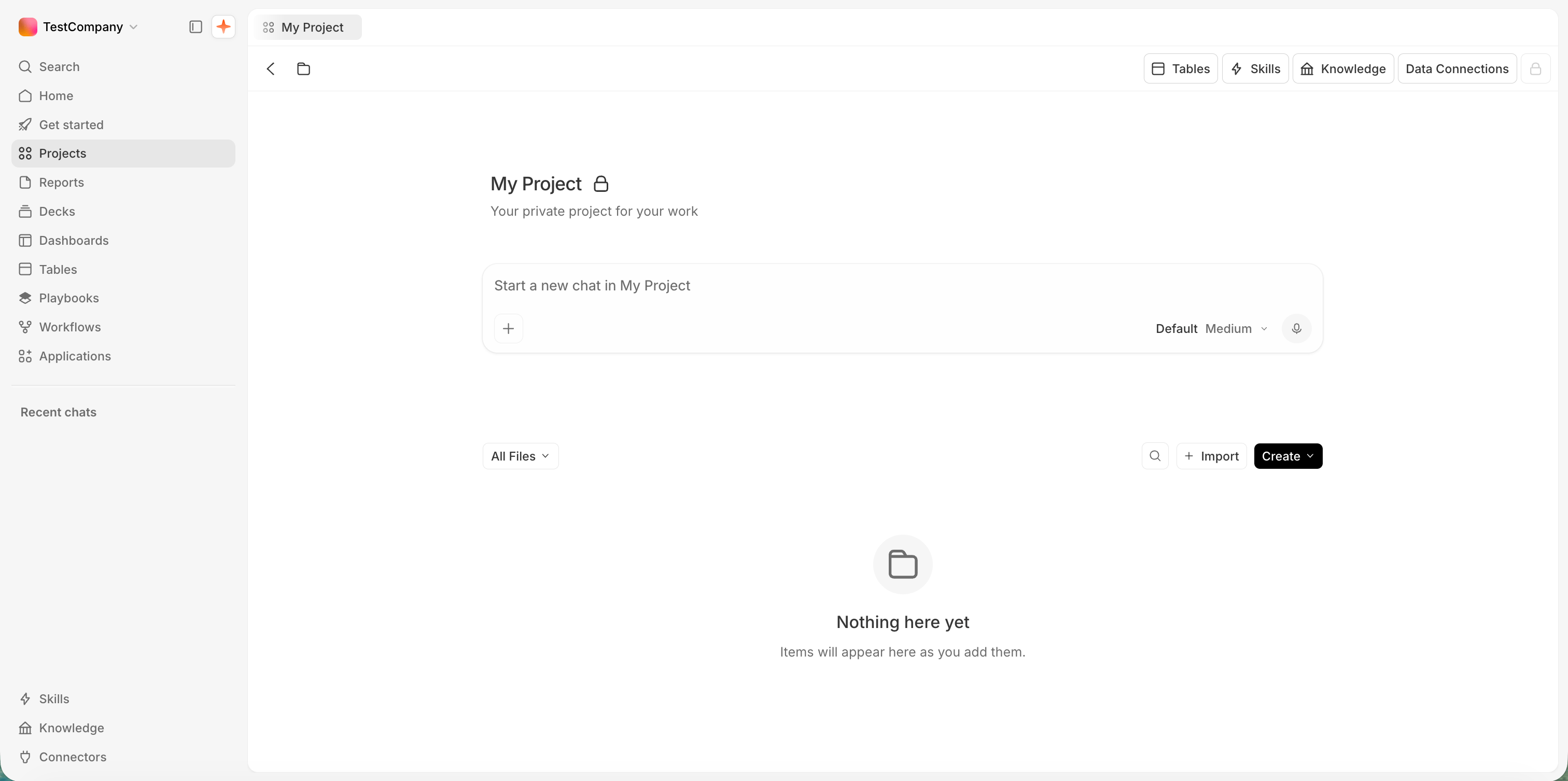
A project workspace, with Tables, Skills, and Knowledge at the top-right
What’s in a project
Everything below belongs to the project. Create it here and it isn’t visible from another project. The extension in parentheses is what you’ll see in the file browser and via the API.Files
The file list shows each item’s type, creator, and dates. Use the folder tree, the All Files filter, or Search to find things. Hover a row (or right-click it) for its ⋯ menu: Open in new tab, Rename, Move, Copy to (another project), Duplicate, Download, or Delete.Curate context
Three controls at the workspace’s top-right shape how Addison works here, on top of everything global.
Open each one from its button in the project’s top-right.
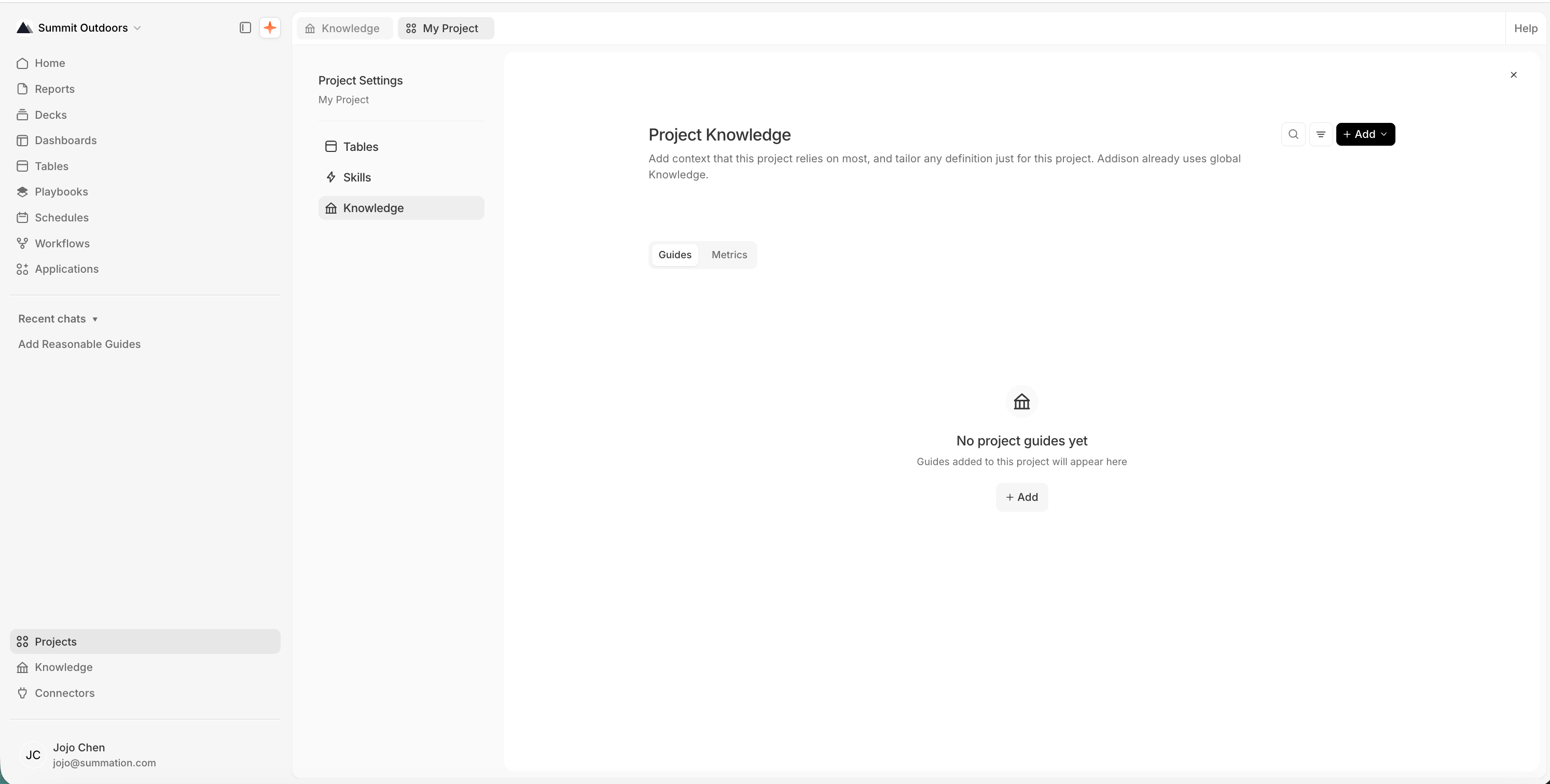
A project's own Knowledge
Default project
Every user has a default project named “My Project”. The project picker on Addison’s composer sets which project a chat reads from and writes to. Without a pick, the chat uses your default project, and everything it generates is saved there. The default project is exempt from the project-management actions on this page: it has no ⋯ menu in the list, shows a disabled lock in its workspace, and the delete API returns 403 (“Only standard projects can be deleted”).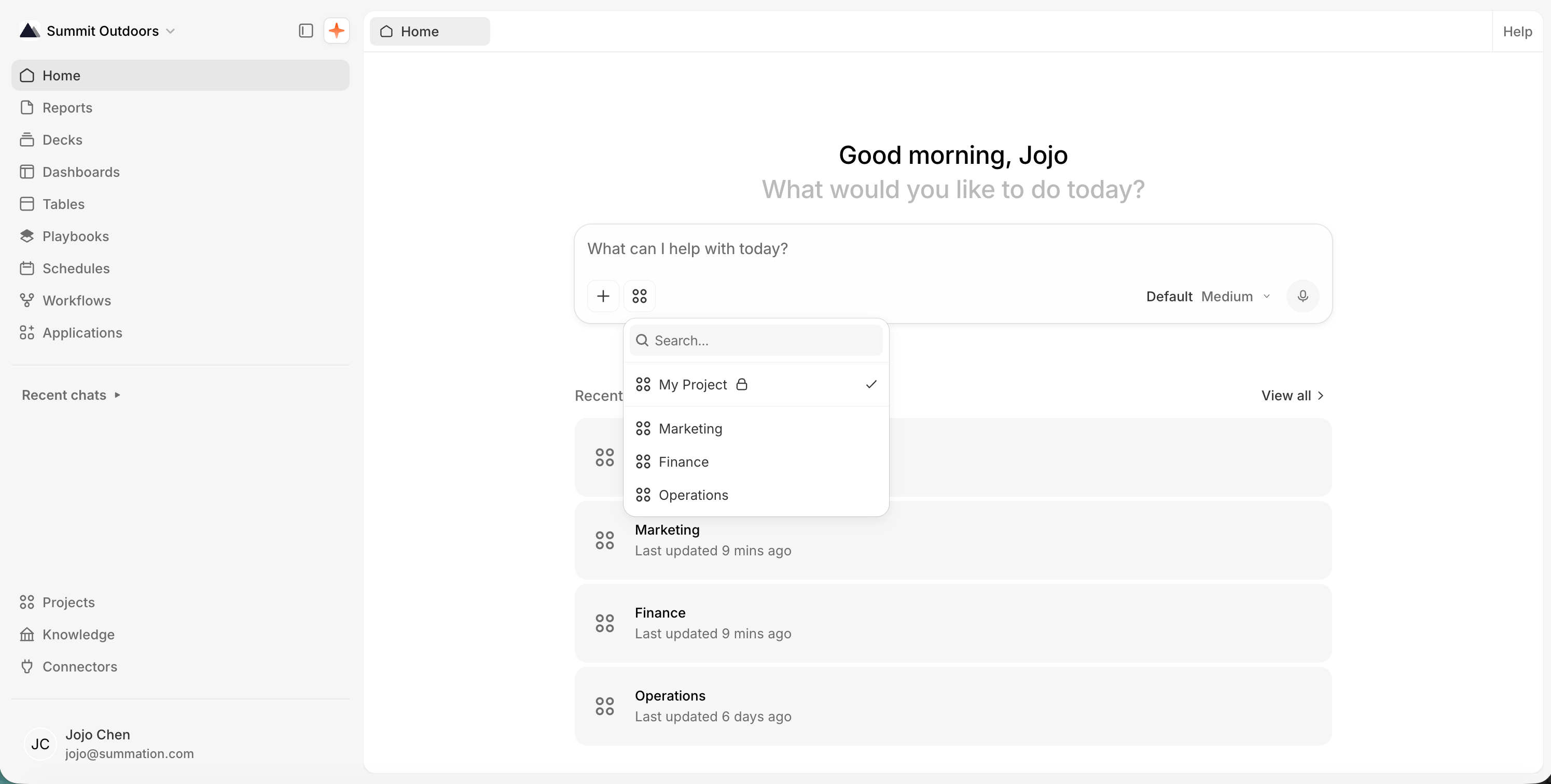
Pick which project a chat uses from the composer
Find and open a project
Your projects are listed on the Projects page; recent ones also appear on Home. Click a project to open its workspace. Right-click any project in the list to Open in new tab, Pin it to the top, Rename, Duplicate (copy), Share, or Delete it.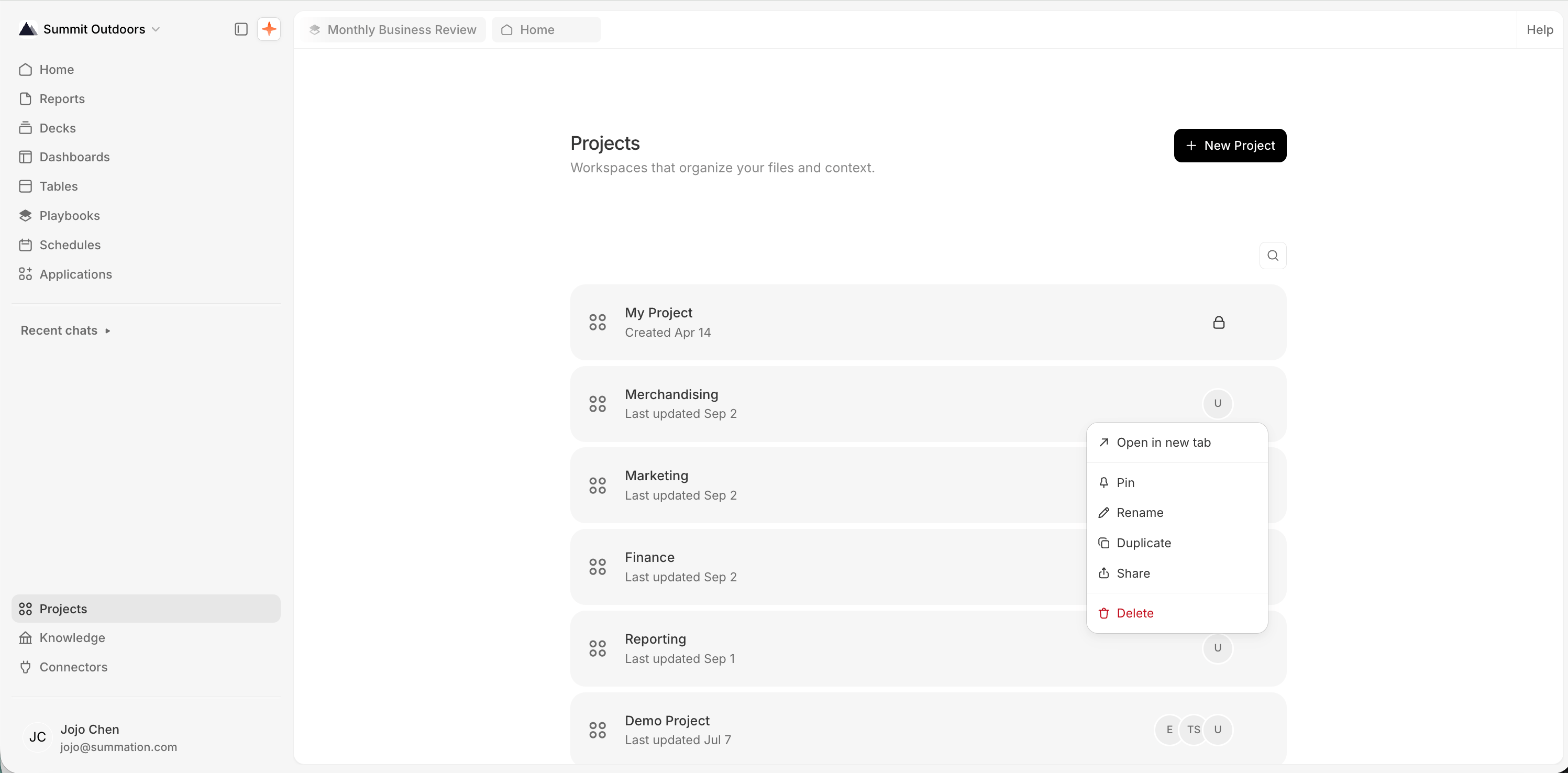
Right-click a project in the list to manage it
Create a project
Go to the Projects page and click New Project (top-right). This creates a project named Untitled Project immediately, with no dialog, and opens its workspace with the title in inline-rename mode, ready for you to type a name.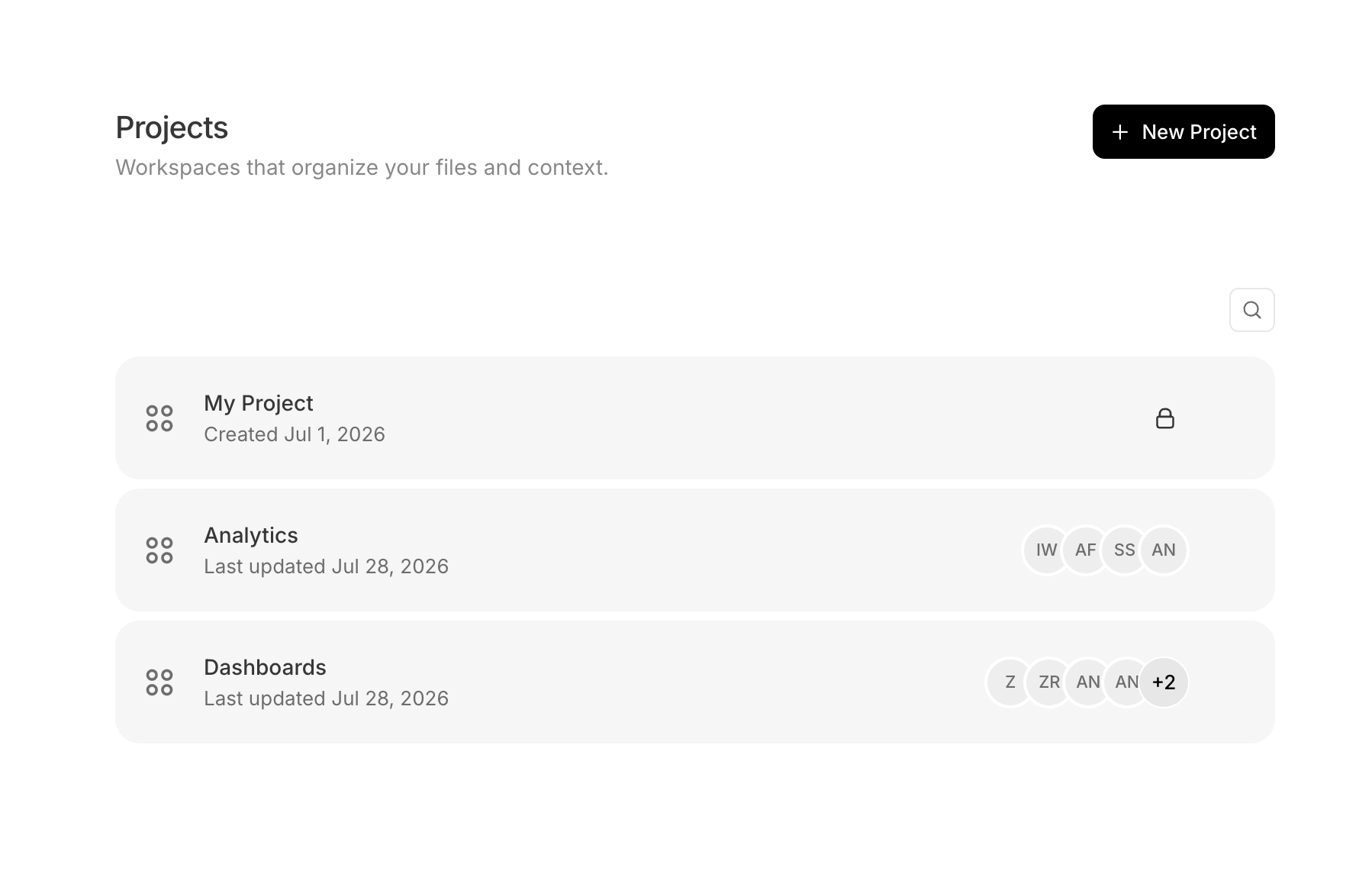
The Projects page
Rename or edit a project
Click the project title at the top of the workspace (a Click to rename tooltip appears), type the new name, then edit the “Add description…” field below it. Changes apply immediately across the product.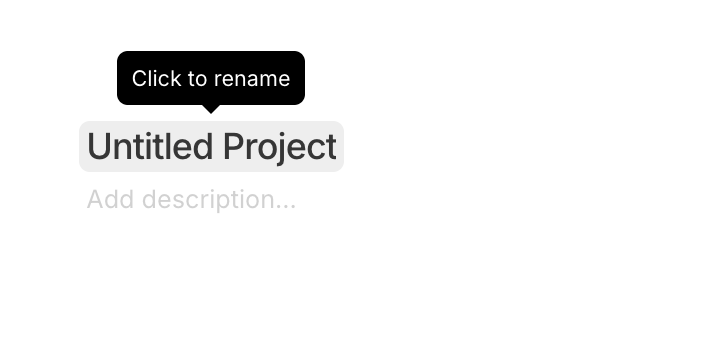
Click the title to rename
Delete a project
Open the ⋯ menu in the top-right toolbar and choose Delete. This is a soft delete: the project is removed from your workspace (the confirmation dialog notes it clears the project’s chats, files, and workflows), but the underlying files and data are retained rather than erased. Tables, views, and Knowledge aren’t scoped to the project, so none of them are affected.Collaborators
Open the Share dialog from the ⋯ menu in the workspace’s top-right → Share (or by right-clicking a project in the list → Share). The dialog controls who can open the project and what they can do.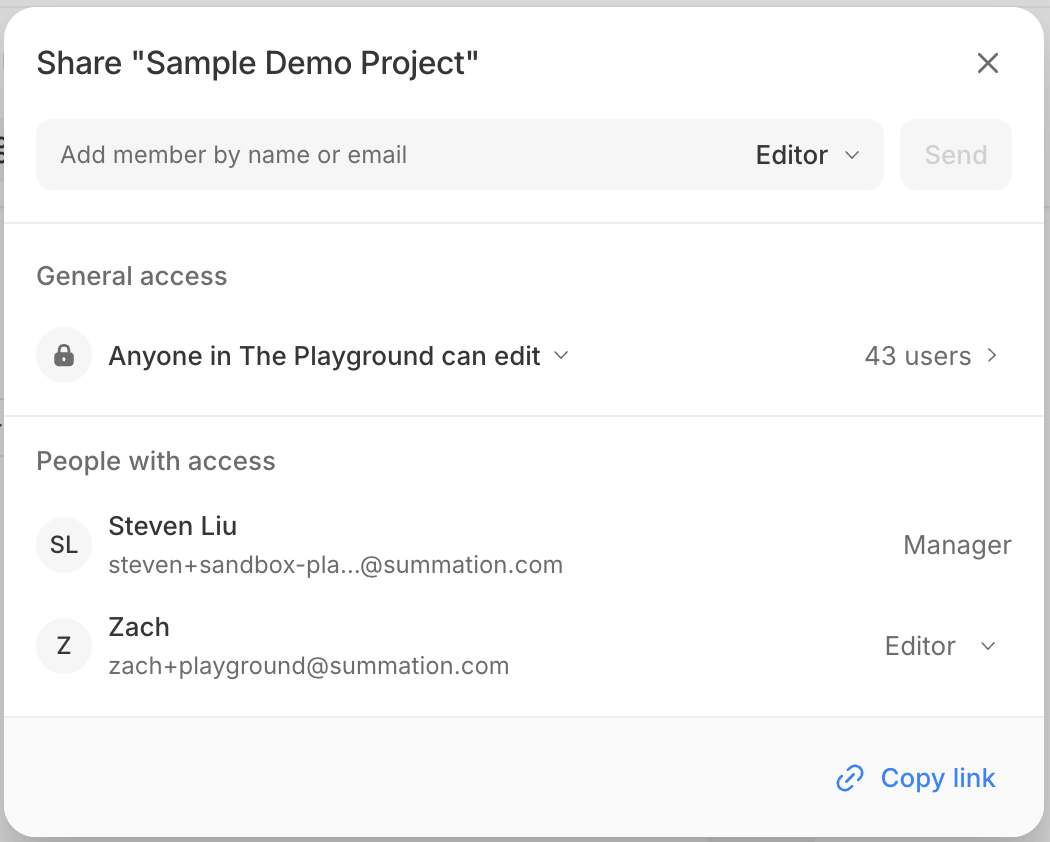
The Share dialog
General access. Beyond the people you invite individually, you can open a project to everyone in your organization.
Import
First, find and open the project: click Projects in the left sidebar, then click the project from the list (see Find and open a project if you’re not sure which one). Inside its workspace, bring data in with + Import in the top-right toolbar: Upload Files or Data connections. Upload files. Add local files: CSV, Excel, PDF, PowerPoint, and more. Uploaded files are scoped to this project, so they persist there for anyone with access, across sessions. That’s different from dropping a file straight into an Addison chat’s + menu — that upload is ephemeral, scoped to the conversation, and won’t carry over to a new chat or a later session. Upload to the project instead for anything you’ll want again.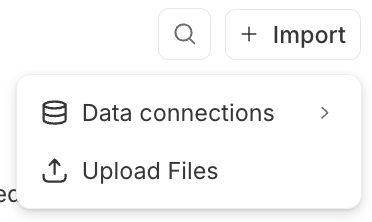
The Import menu
Key tables
Attach a data connection. Link an existing tenant-wide Summation table or view, or a connector’s data, into this project. You’re referencing existing data, not creating a new connection. Choose Data connections in the Import menu, then Link a source.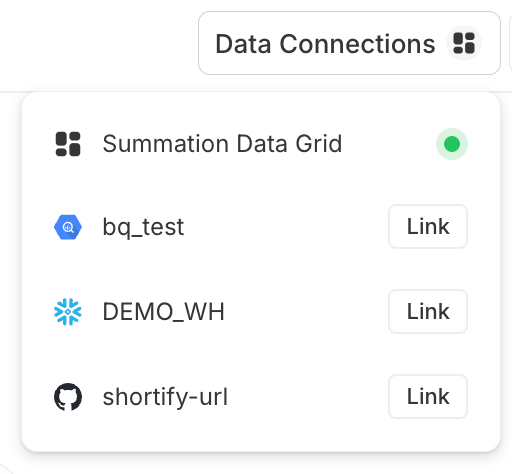
Link a tenant-wide data source into the project
Create artifacts from project
From inside a project, click Create (top-right of the file list) to make a new Report, Deck, Dashboard, or Folder. Whatever you create belongs to that project, and is listed in its file browser alongside your data and files.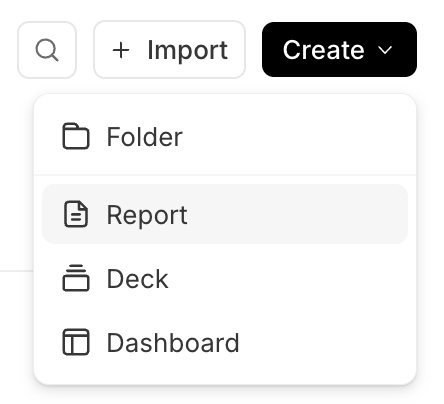
Create a report, deck, or dashboard from a project
Artifacts
Reports, dashboards, and decks are artifacts. See the Artifacts section for how to generate, verify, share, and export each type.