
.spb) is the reusable blueprint Addison follows to produce one or more artifacts. It bundles the data the analysis uses, the output templates it fills in, and the instructions to follow. Run one on demand, or wrap it in a workflow to run automatically and deliver the result. Playbooks live inside a project, and so does everything they produce.
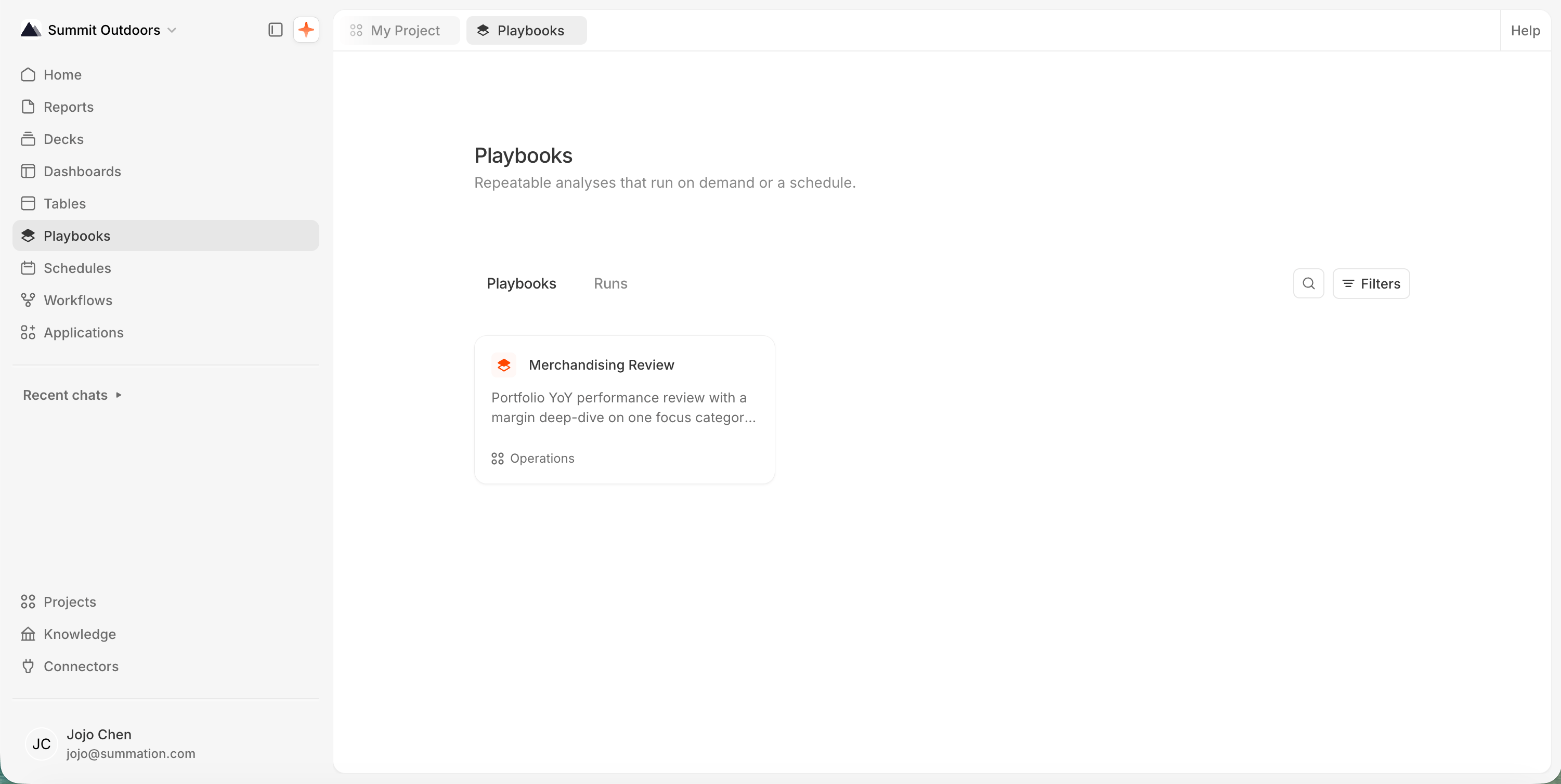
The Playbooks page
Create a playbook
Playbooks are authored by asking Addison inside a project. There’s no create button on the Playbooks page. Describe the recurring analysis you want, or start from:- An artifact you already like: point Addison at a report, deck, or HTML page and ask it to generalize that into a playbook. It carries over the feedback and domain knowledge from that artifact’s chat history.
- A workflow: convert an existing workflow file into a playbook.
- Scratch: describe the steps, data, and output you want.
Edit a playbook
Ask Addison to change a playbook the same way you built it: in a chat, inside its project. Tip: Run the playbook first, then iterate on the resulting report, deck, or page directly. It’s usually faster to have Addison fold that change back into the playbook than to describe the edit in the abstract.Find and open playbooks
The Playbooks page (shown above) lists every playbook you can reach as a card grid, with its title, description, and project. Search matches title, description, or project; Filters narrows to specific projects. Click a card to open it. Playbooks are.spb folders, so they also appear in their project’s file browser.
What’s in a playbook
Opening a playbook shows its Execution Plan: everything a run will use, broken into six sections. The templates carry the structure, so each run fills in fresh data instead of reinventing the layout. That’s what keeps output consistent across runs.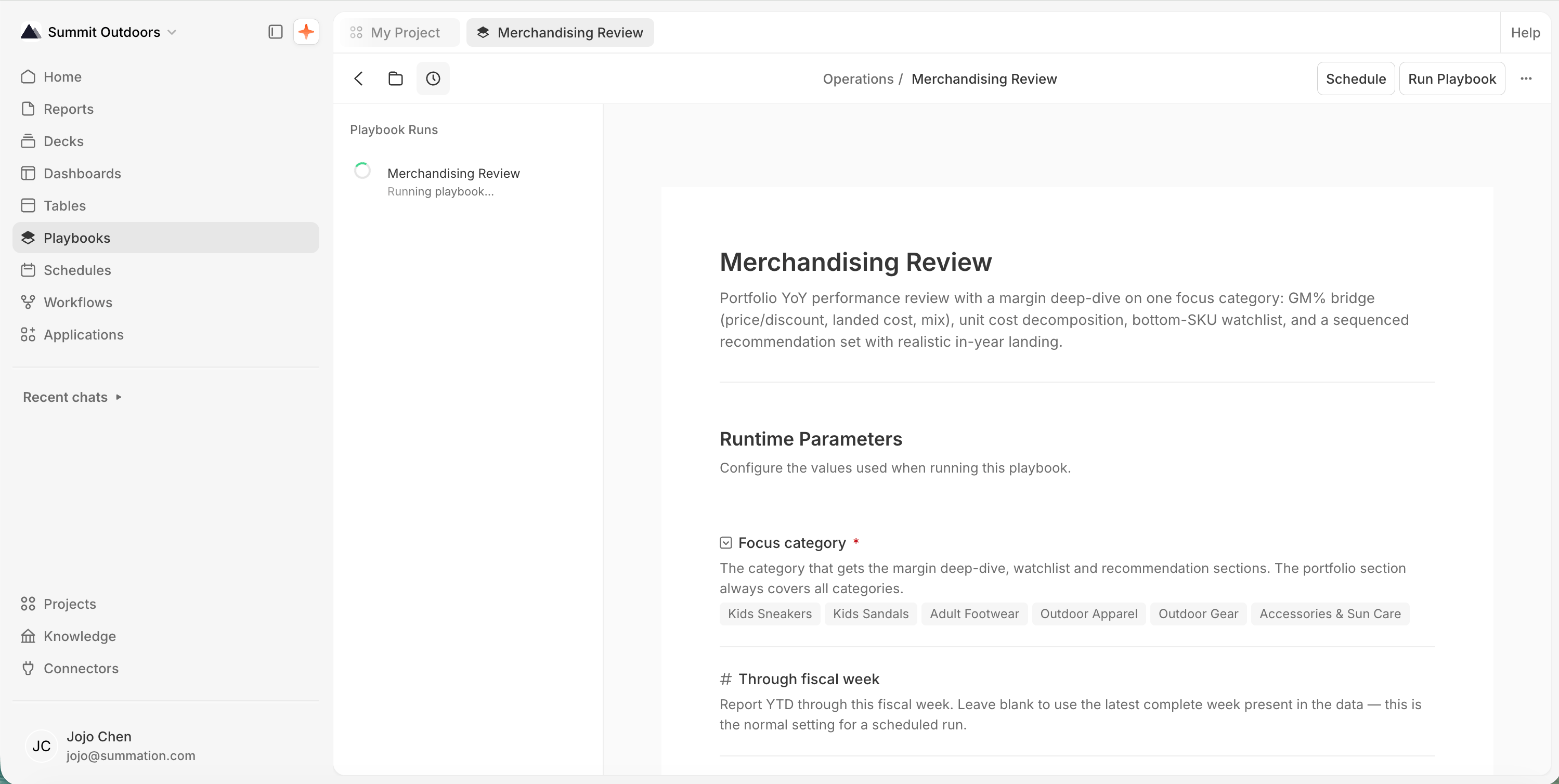
An open playbook, with the Execution Plan below its description
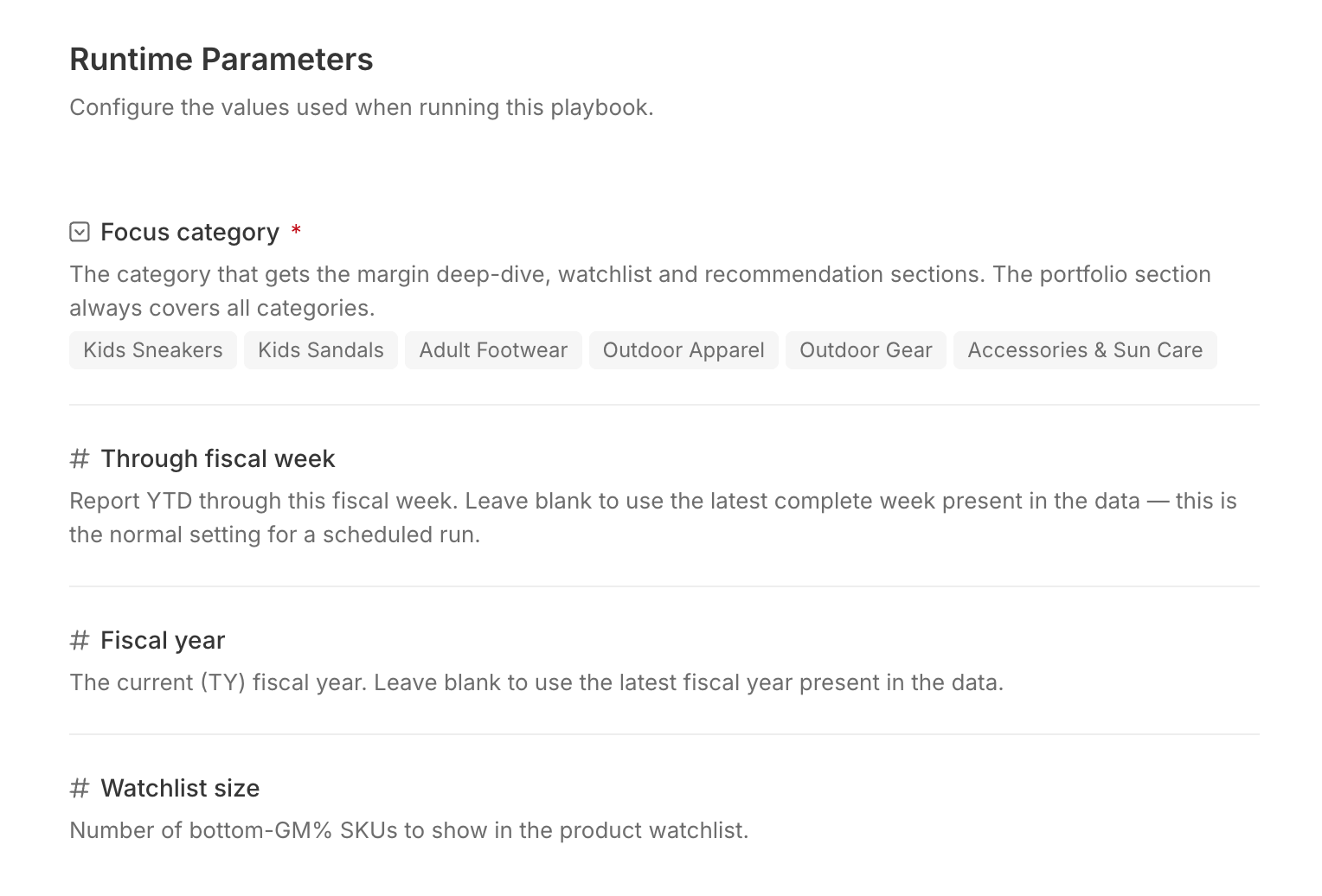
Runtime Parameters
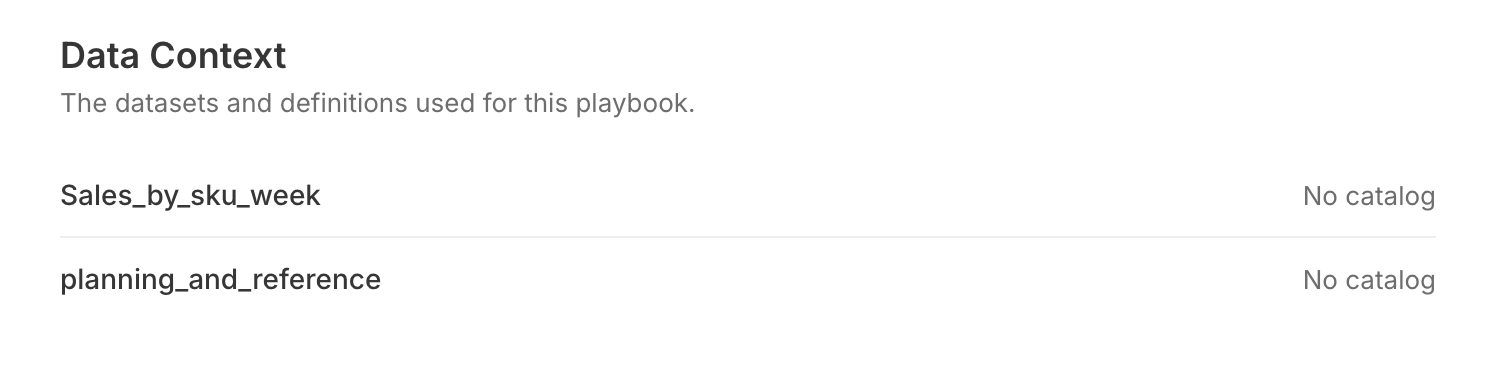
Data Context

Templates
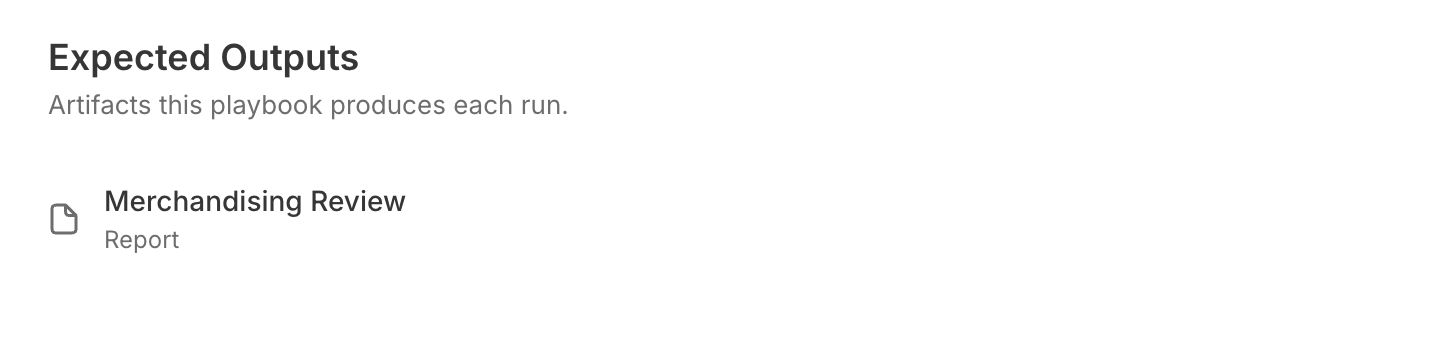
Expected Outputs
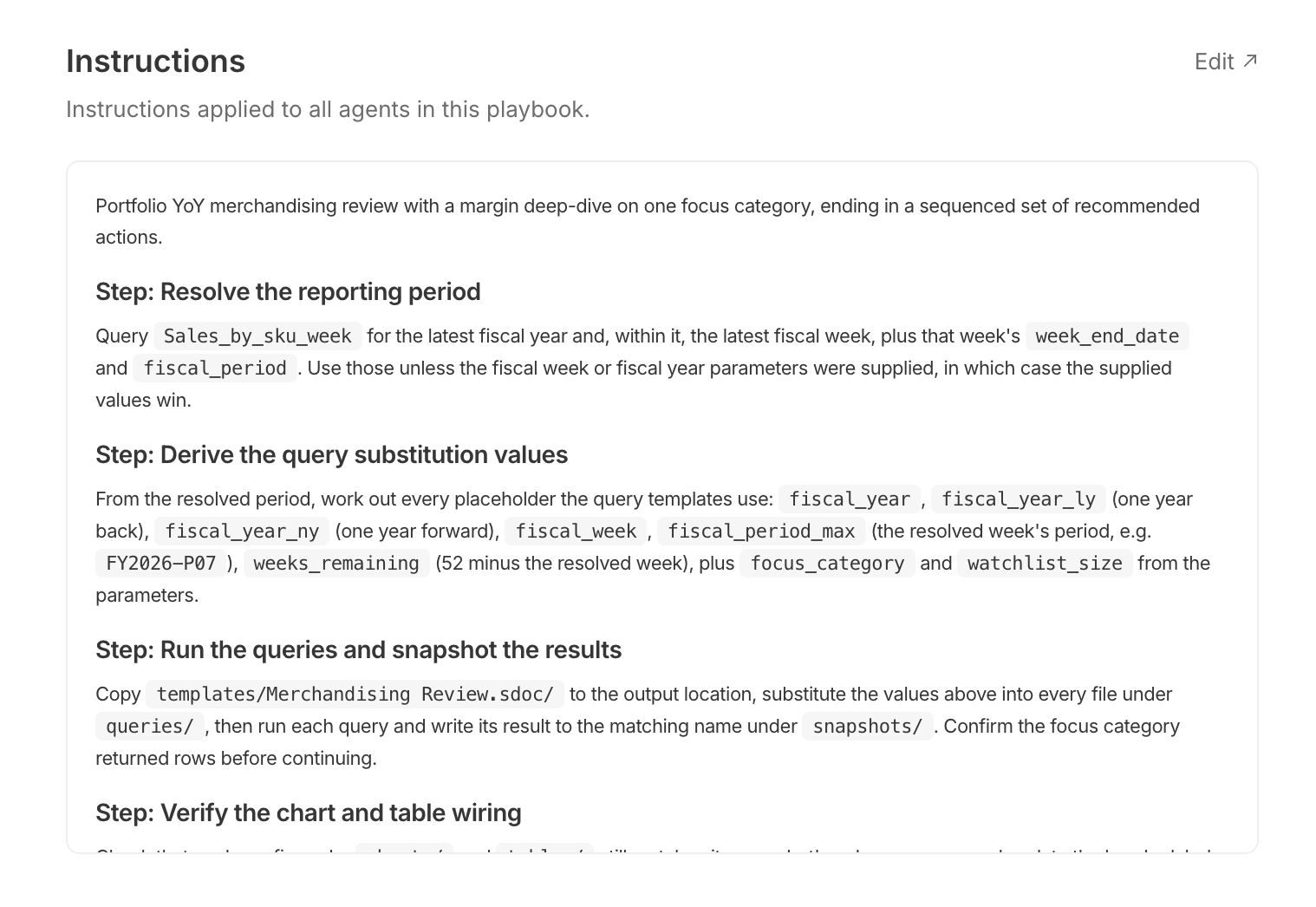
Instructions
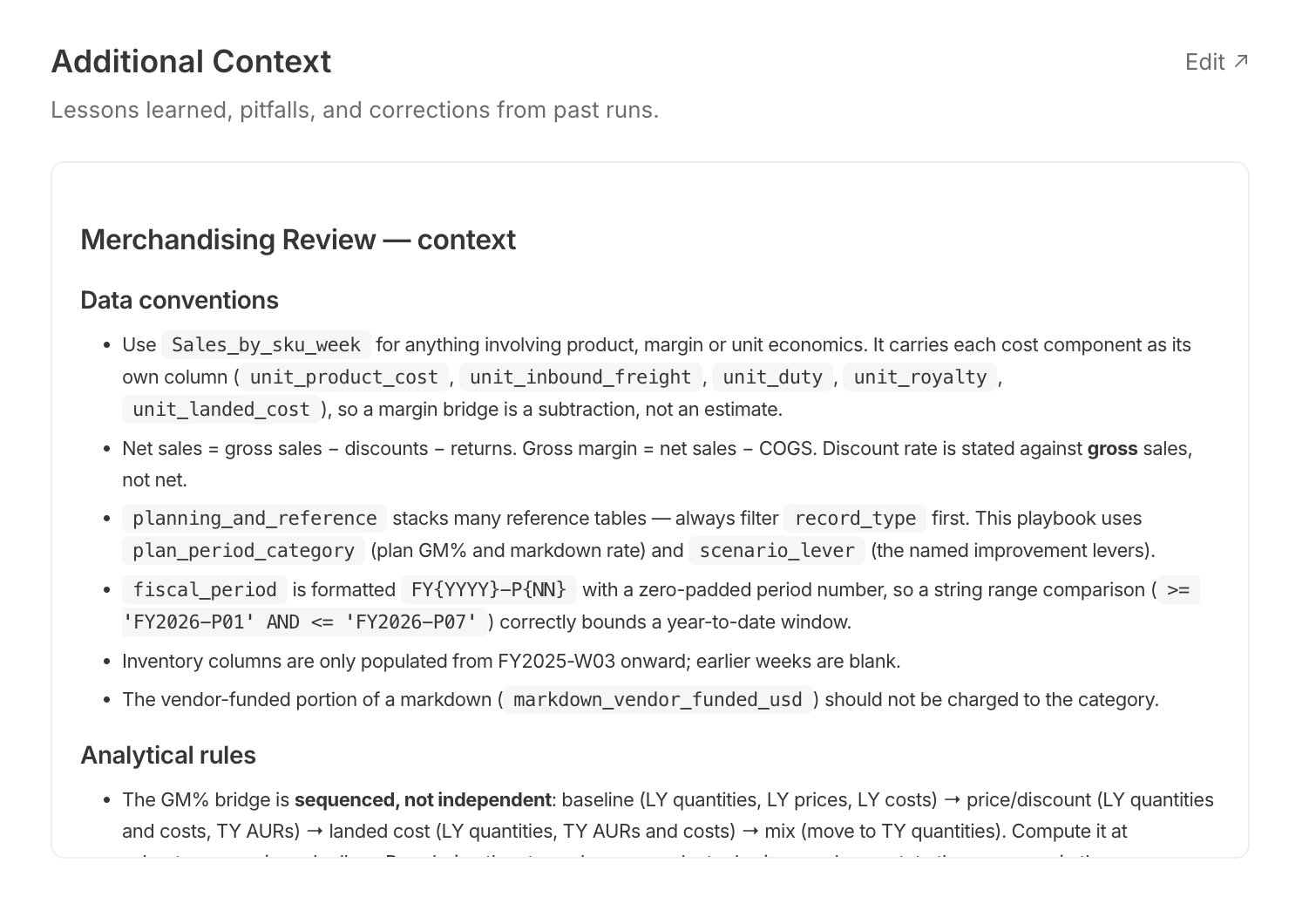
Additional Context
Run a playbook
Click Run Playbook in the toolbar, or the run action on a playbook card. The dialog shows the description, the most Recent report, a typical Duration, any runtime parameters to fill in, and a model/effort selector. Run playbook runs it once, into the project; Create workflow turns it into a recurring workflow instead. A run streams in a chat with Addison, so you can watch it work and step in. The outputs land as ordinary artifacts in the project: verify, edit, share, and export them like anything else.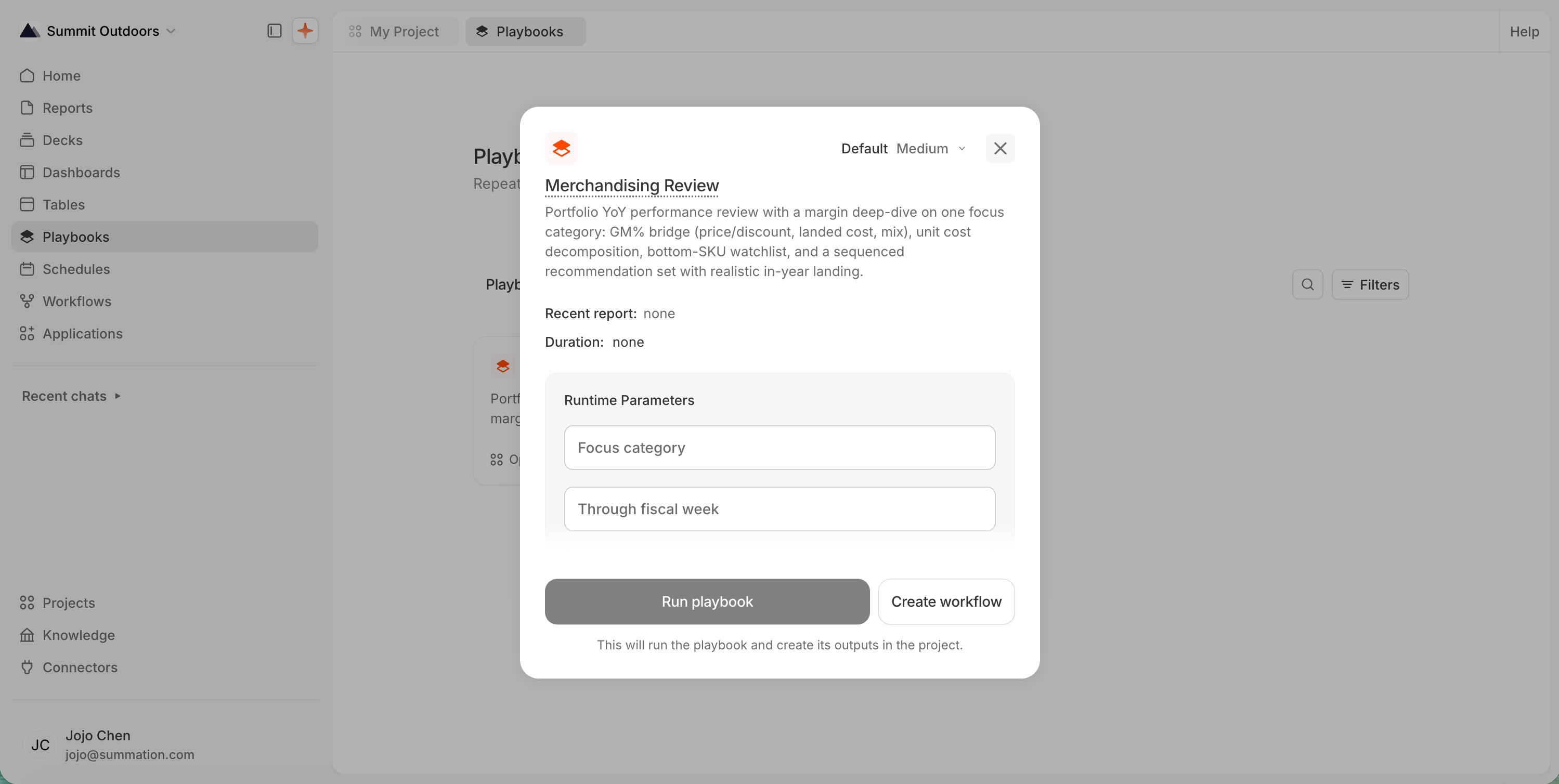
Run a playbook
Run history
The Runs tab on the Playbooks page lists past runs across projects: the playbook that ran, its project, who ran it, when, and how long it took. View Run (or View Report, once it’s done) opens what it produced. Search and the project filter apply here too. Inside a playbook, the History panel (clock icon in the toolbar) shows that playbook’s own runs as a timeline. A run is pending, then running, then succeeded, failed, or cancelled. In-progress runs keep updating in place.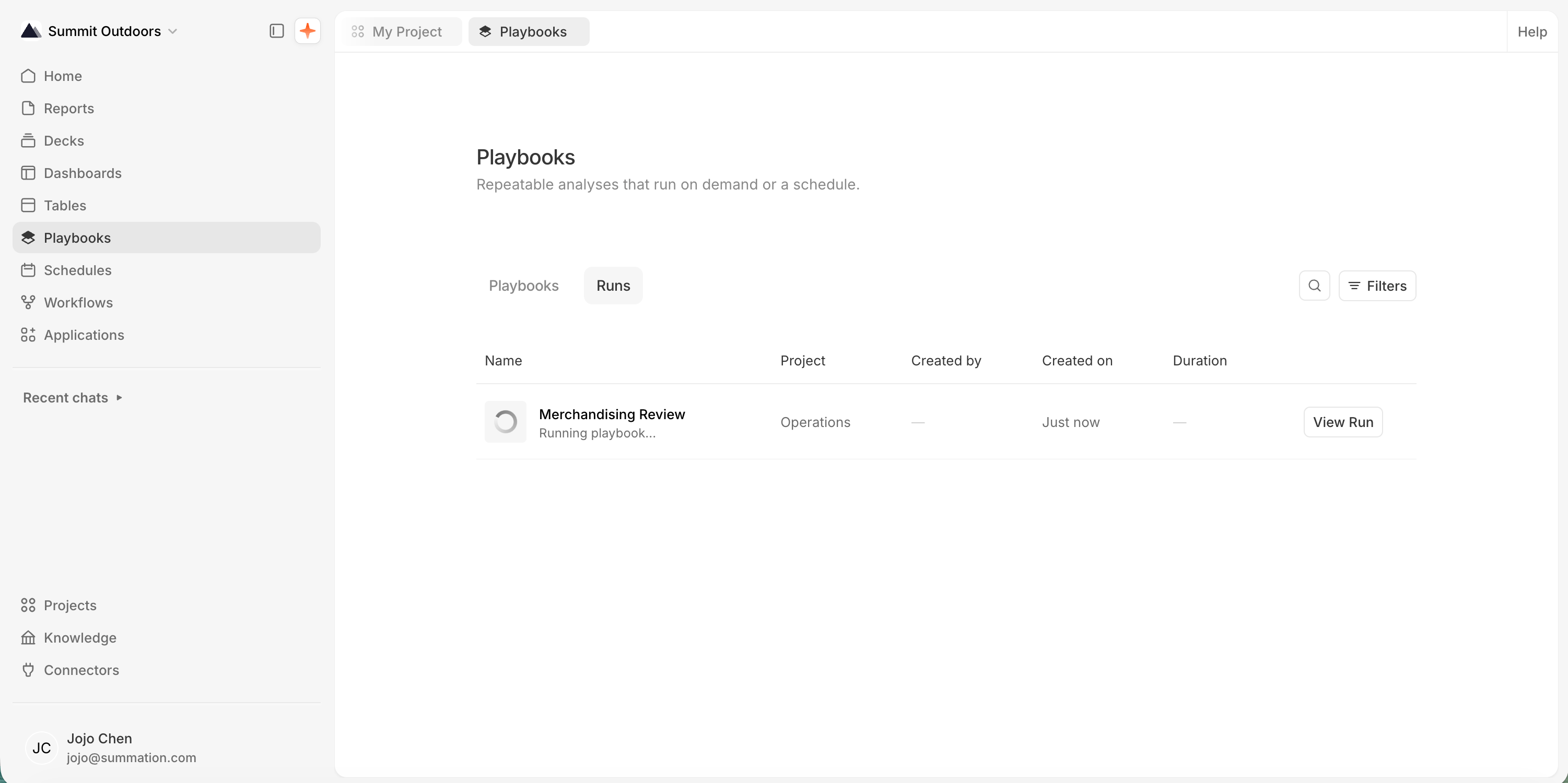
The Runs tab
Rename, copy, and download
The toolbar ⋯ menu holds the rest of a playbook’s actions: Rename edits the title in place, Copy duplicates the playbook, and Download as SPB streams the raw.spb source. A playbook is a file in its project, so you can also rename, move, or delete it from the file browser.
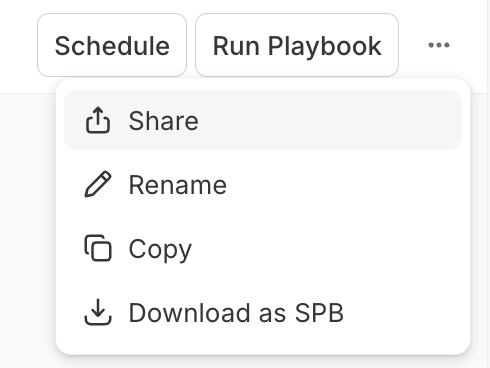
A playbook's ⋯ menu
Share and publish
Open the ⋯ menu → Share, then Publish to create a view-only link for your organization. Viewers sign in or create an account to open it, and you can unpublish at any time. Everyone on the project can already see and run its playbooks.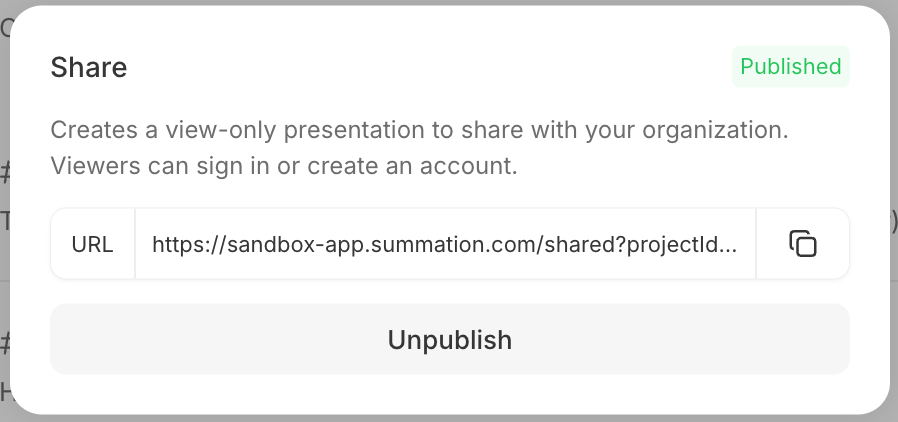
Publish a view-only link