
.xlsx): a model, forecast, budget, or sensitivity analysis with live formulas rather than pasted numbers. It lives in your project as a file rather than a native Summation document, but it’s fully verified, opens in a full in-app spreadsheet editor, and downloads as a standard .xlsx.
An Excel workbook open in the in-app spreadsheet editor, with the ⋯ menu showing Rename, Share, Download as XLSX, and Delete
What Addison builds
Addison’s workbooks are built to exec-grade standards:- Live formulas rather than pasted numbers, so the model recalculates when inputs change
- Linked financial statements where relevant: 3-statement models, budgets, forecasts, and debt schedules
- Exec formatting: accounting number formats, parenthesized negatives, and error-guarded divisions
- Verifier-checked before delivery, so the quality rules hold
Create
Ask Addison in a chat for the model or workbook you need, or produce one by running a playbook. Addison writes the.xlsx into your project and opens it in the spreadsheet editor.
Open and edit
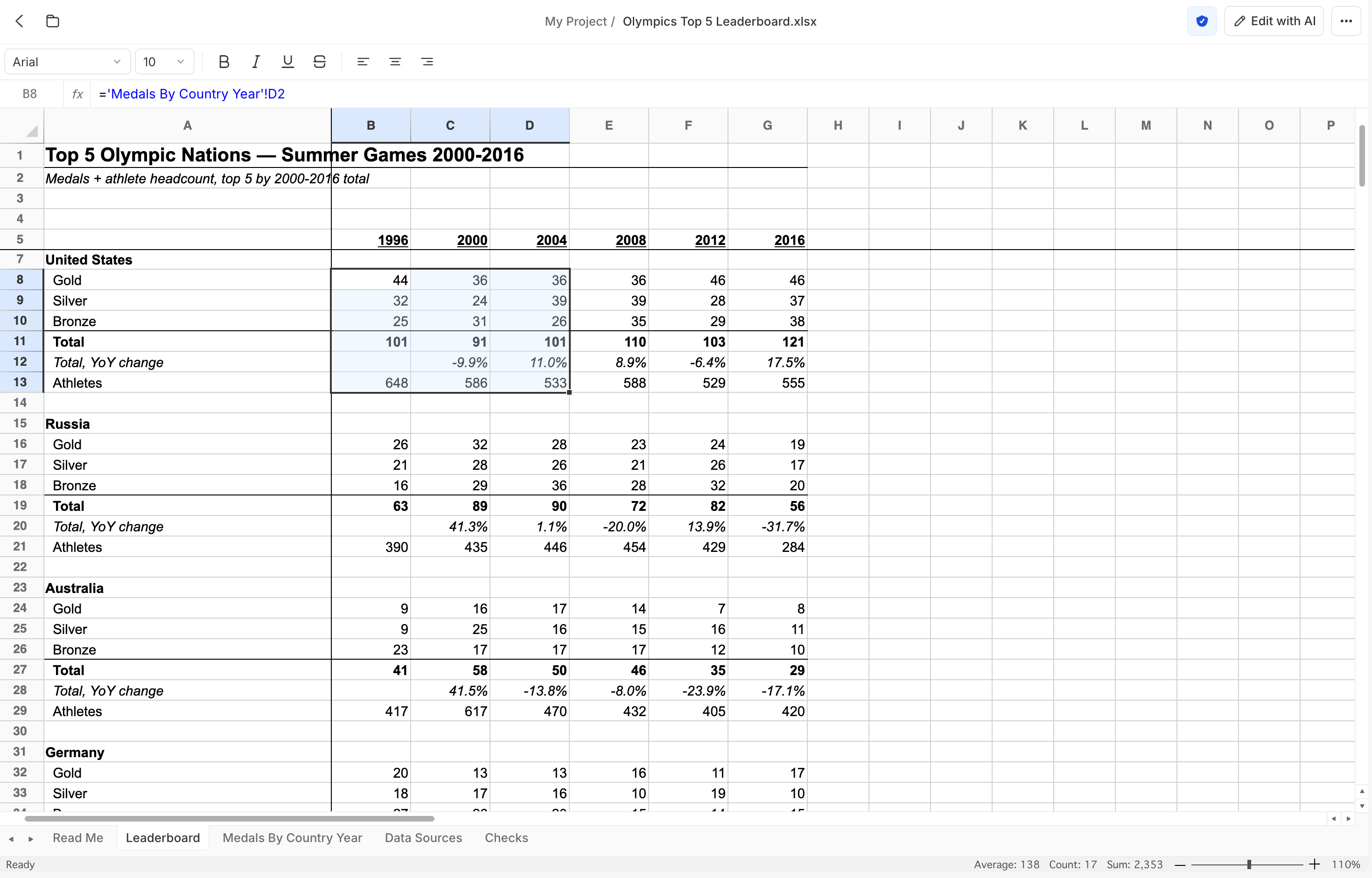
Open the workbook to view and edit it in the spreadsheet editor: change cell values and formulas in the formula bar, adjust formatting with the toolbar, and switch between sheets using the tabs at the bottom.Verify and edit with AI
Workbooks are verified, not just static files. The spreadsheet toolbar carries two controls:- Edit with AI: select cells, describe a change, and Addison rewrites that part of the model. The same action is on the right-click menu.
- Verification Hub (shield): audits the workbook against its
workbook_qualityandworkbook_rubricchecks and surfaces a pass/fail badge. See Verification for how this works across artifacts.
Versions
Each save adds a version. Use the Version dropdown in the top bar to see and switch between earlier versions of the workbook.Manage as a file
A workbook is an ordinary file in your project, so every file operation applies: move it between folders, copy it to another project, duplicate it, or delete it. The ⋯ menu in the top bar, and the file’s row in the project file list, both offer Rename, Share, Download as XLSX, and Delete.Rebuild as a dashboard, deck, or report
Once a workbook needs a wider audience, ask Addison to rebuild it as an interactive dashboard, a presentation deck, or a report. The rebuilt version gains full per-figure citations and a dedicated home in the app.Dashboards
Turn the model into interactive charts and KPIs.
Decks
Turn the numbers into a presentation.
Reports
Turn the analysis into a verified written report.